Scenes
场景实体是一种可以恢复一组实体状态的实体。
场景可以由您自行定义,也可以由集成提供。
Building block integration
This scenes is a building block integration that cannot be added to Home Assistant directly, but is used and provided by other integrations.
A building block integration differs from a typical integration that connects to a device or service. Instead, other integrations use this scenes building block to provide entities, actions, and other functionality that you can use in your automations or dashboards.
If one of your integrations uses this building block, this page documents the functionality the scenes building block offers.
场景的状态
场景实体本身没有状态,也就是说,它不能像普通开关实体那样具有 on 或
off 这样的状态。
不过,每个场景实体都会记录它上一次通过 Home Assistant UI 或通过
操作被调用的时间戳。
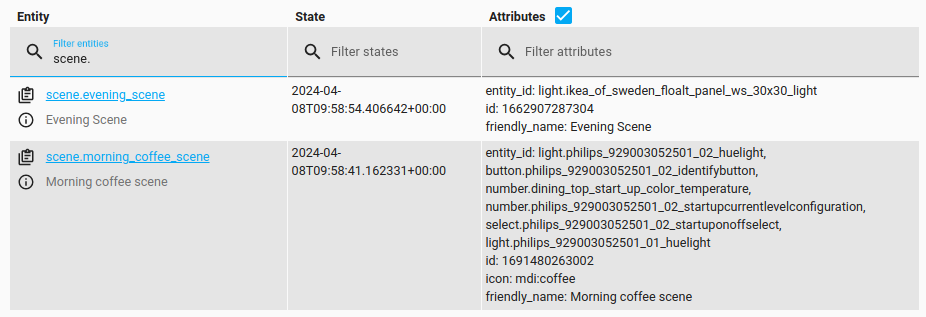 在开发者工具中显示场景实体状态的屏幕截图。
此外,该实体还可能具有以下状态:
- Unavailable:该实体当前不可用。
- Unknown:状态当前尚未知晓。
由集成创建的场景
某些集成,如 Philips Hue、MQTT 和 KNX,会提供场景。您可以在 Home Assistant UI 中激活这些场景,也可以通过操作来激活。在这种情况下,由集成提供要恢复的目标状态。
创建场景
您可以创建场景,以保存某些实体应处于的状态。例如,一个场景可以指定灯 A 应该打开,而灯 B 应该呈明亮的红色。
您可以通过用户界面的 Scene Editor 创建和管理场景,也可以通过 configuration.yaml 手动配置。请注意,实体数据不是操作参数,而是目标状态的表示:
# Example configuration.yaml entry
scene:
  - name: Romantic
    icon: "mdi:flower-tulip"
    entities:
      light.tv_back_light: "on"
      light.ceiling:
        state: "on"
        brightness: 200
        color_mode: "xy"
        xy_color: [0.33, 0.66]
  - name: Movies
    entities:
      light.tv_back_light:
        state: "on"
        brightness: 125
      light.ceiling: "off"
      media_player.sony_bravia_tv:
        state: "on"
        source: HDMI 1
  - name: Standard
    entities:
      light.tv_back_light:
        state: "off"
      light.ceiling:
        state: "on"
        brightness: 125
        color_mode: "white"
name:
  description: 场景的友好名称。
  required: true
  type: string
icon:
  description: 场景的图标。
  required: false
  type: string
entities:
  description: 要控制的实体及其目标状态。
  required: true
  type: list
如您所见,有两种方式可以定义每个 entity_id 的状态:
- 直接为实体定义
state。请注意,必须定义 state。
- 使用属性定义一个更复杂的状态。您可以在
developer-tools -> state 下查看特定实体的全部可用属性。
可以使用 scene.turn_on 操作来激活场景(不存在 scene.turn_off 操作)。
# Example automation
automation:
  triggers:
    - trigger: state
      entity_id: device_tracker.sweetheart
      from: "not_home"
      to: "home"
  actions:
    - action: scene.turn_on
      target:
        entity_id: scene.romantic
不预先定义而应用场景
使用 scene.apply 操作,您可以不先通过配置定义场景,而是直接应用一个场景。您只需将状态作为操作数据的一部分传入。数据格式与配置中的 entities 字段相同。
# Example automation
automation:
  triggers:
    - trigger: state
      entity_id: device_tracker.sweetheart
      from: "not_home"
      to: "home"
  actions:
    - action: scene.apply
      data:
        entities:
          light.tv_back_light:
            state: "on"
            brightness: 100
          light.ceiling: off
          media_player.sony_bravia_tv:
            state: "on"
            source: HDMI 1
使用场景过渡
scene.apply 和 scene.turn_on 操作都支持设置过渡,
这样您就可以让切换到场景的过程更加平滑。
以下是一个设置浪漫场景的自动化示例,
其中灯光会在 2.5 秒内过渡到该场景。
# Example automation
automation:
  triggers:
    - trigger: state
      entity_id: device_tracker.sweetheart
      from: "not_home"
      to: "home"
  actions:
    - action: scene.turn_on
      target:
        entity_id: scene.romantic
      data:
        transition: 2.5
目前只有灯光支持过渡效果,而且灯光本身也必须支持此功能。不过,场景本身并不一定只能由灯光组成,仍然可以设置过渡。
重新加载场景
每当您修改了场景配置,都可以调用 scene.reload 操作来重新加载场景。
动态创建场景
通过调用 scene.create 操作,您可以在无需预先配置的情况下创建一个新场景。重新加载配置后,此场景将被丢弃。
您需要传入一个全小写、并使用下划线替代空格的 scene_id。您也可以按配置场景时相同的格式指定实体。还可以通过 snapshot_entities 参数对当前状态进行快照。在这种情况下,您必须指定所有要快照的实体的 entity_id。entities 和 snapshot_entities 可以组合使用,但您至少要使用其中之一。
如果该场景之前是由 scene.create 创建的,它将被覆盖。如果该场景是通过 YAML 创建的,则不会发生任何变化,但日志文件中会出现一条警告。
视频教程
这个视频教程说明了场景的工作方式,以及您如何动态使用场景。
# Example automation using entities
automation:
  triggers:
    - trigger: homeassistant
      event: start
  actions:
    - action: scene.create
      data:
        scene_id: my_scene
        entities:
          light.tv_back_light:
            state: "on"
            brightness: 100
          light.ceiling: off
          media_player.sony_bravia_tv:
            state: "on"
            source: HDMI 1
删除动态创建的场景
任何通过 scene.create 操作创建的场景,也都可以按需通过 scene.delete 操作删除。
您需要传入该场景的 entity_id。与创建时使用的 scene_id 不同,entity_id 必须包含 scene 域。
如果该场景之前不是由 scene.create 创建的,此操作将失败,并且日志中会出现错误。
# Example automation
automation:
  triggers:
    - trigger: state
      entity_id: sun.sun
      to: "below_horizon"
  actions:
    - action: scene.delete
      data:
        entity_id: scene.my_scene
以下示例会在窗户打开时立即关闭一些实体,并在窗户再次关闭后恢复这些实体的状态。
# Example automation using snapshot
- alias: "Window opened"
  triggers:
  - trigger: state
    entity_id: binary_sensor.window
    from: "off"
    to: "on"
  conditions: []
  actions:
  - action: scene.create
    data:
      scene_id: before
      snapshot_entities:
      - climate.ecobee
      - light.ceiling_lights
  - action: light.turn_off
    target:
      entity_id: light.ceiling_lights
  - action: climate.set_hvac_mode
    target:
      entity_id: climate.ecobee
    data:
      hvac_mode: "off"
- alias: "Window closed"
  triggers:
  - trigger: state
    entity_id: binary_sensor.window
    from: "on"
    to: "off"
  conditions: []
  actions:
  - action: scene.turn_on
    target:
      entity_id: scene.before

