
Google Cast

配置

此集成可通过 UI 配置。前往 设置 > 设备与服务 添加。

要实现自动发现,必须在本地网络中支持 mDNS 发现。请确保你的路由器已启用此功能。如果你的网络中 mDNS 无法工作,可按下文所述在配置中手动填写 Cast 设备的 IP 地址。

Options

To define options for Google Cast, follow these steps:

  1. In Home Assistant, go to Settings > Devices & services.

  2. If multiple instances of Google Cast are configured, choose the instance you want to configure.

  3. On the card, select the cogwheel .

    • If the card does not have a cogwheel, the integration does not support options for this device.
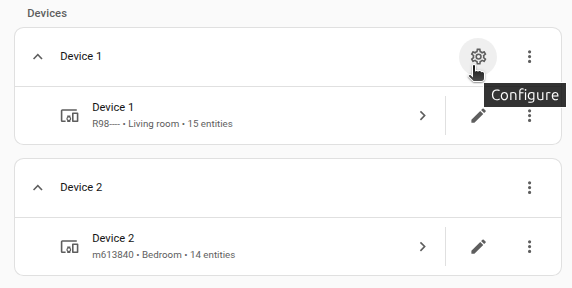
    Screenshot showing the cogwheel icon on an integration card in the Settings > Devices & services page

  4. Edit the options, then select Submit to save the changes.

Known hosts:
  description: "A comma-separated list of hostnames or IP-addresses of cast devices, use if mDNS discovery is not working"
Allowed UUIDs:
  description: A comma-separated list of UUIDs of Cast devices to add to Home Assistant. **Use only if you don't want to add all available devices.** The device won't be added until discovered through either mDNS or if it's included in the list of known hosts. In order to find the UUID for your device use a mDNS browser or advanced users can use the following Python command (adjust friendly names as required) - `python3 -c "import pychromecast; print(pychromecast.get_listed_chromecasts(friendly_names=['Living Room TV', 'Bedroom TV', 'Office Chromecast']))"`. This option is only visible if advanced mode is enabled in your user profile.
Ignore CEC:
  description: A comma-separated list of Chromecasts that should ignore CEC data for determining the active input. [See the upstream documentation for more information](https://github.com/home-assistant-libs/pychromecast#ignoring-cec-data). This option is only visible if advanced mode is enabled in your user profile.

Home Assistant Cast

Home Assistant 自带 Cast 应用,可在任意 Chromecast 设备上显示 Home Assistant UI。你可以通过在仪表板中添加 Cast entity row,或调用 cast.show_lovelace_view 动作来使用它。该动作需要提供仪表板视图路径和用于显示该视图的 Cast 设备实体 ID。按照 views documentation 的说明,你需要在仪表板 YAML 中为每个视图定义 pathdashboard_path 是仪表板 URL 中位于 base_url 之后的部分,通常为 "lovelace"。下面是一个完整脚本配置示例,用于把 lovelace-cast 路径下的 downstairs 标签页投到设备上(注意 entity_id 需写在 data 下,而不是动作本身):

cast_downstairs_on_kitchen:
  alias: "Show Downstairs on kitchen"
  sequence:
    - action: cast.show_lovelace_view
      data:
        dashboard_path: lovelace-cast
        entity_id: media_player.kitchen
        view_path: downstairs

:::important Home Assistant Cast 要求你的 Home Assistant 实例可通过 https:// 访问。如果你使用 Home Assistant Cloud,则无需额外操作。否则你必须在 configuration 中配置 external_url

:::

播放媒体

Note

Chromecast 通常不会通过 mDNS 解析主机名,也会忽略 DHCP 下发的 DNS 服务器,而是使用 Google 公共 DNS:8.8.8.8 和 8.8.4.4。

这意味着媒体 URL 必须直接使用服务器 IP 地址,例如 http://192.168.1.1:8123/movie.mp4;或者使用可被公共 DNS 解析的域名,例如 http://homeassistant.internal.mydomain.com:8123/movie.mp4,其中 homeassistant.internal.mydomain.com 需要能通过 Google DNS 解析到 192.168.1.1。无法被公共 DNS 解析的主机名(如 http://homeassistant.local:8123/movie.mp4)会播放失败。

这在投放 TTS 或本地媒体源时尤为重要;cast 集成会使用本地 Home Assistant URL 来投放这些媒体。你可以在 Settings > System > Network 中设置,或通过配置 internal_url 来设置。

使用内置媒体播放器应用(Default Media Receiver)

Chromecast 可通过内置应用 Default Media Receiver 播放多种现代 media (image/audio/video) formats。一般来说,只要 Chrome 浏览器能播放的媒体文件,Chromecast 也通常可以播放。

媒体必须可通过 HTTP(S) 访问。Chromecast 设备不支持 DLNA 等其他协议,也不支持从 SMB 文件共享直接播放。

只要媒体可通过 HTTP(S) 访问,你就可以使用 media_player.play_media 动作播放网络电台等 MP3 流、FLAC 文件或本地网络视频。你需要将 media_content_id 设为媒体 URL,并将 media_content_type 设为对应的内容类型。

# Play a video file from the local network:
action: media_player.play_media
target:
  entity_id: media_player.chromecast
data:
  media_content_type: "video"
  media_content_id: "http://192.168.0.100/movies/sample-video.mkv"
# Show a jpeg image:
action: media_player.play_media
target:
  entity_id: media_player.chromecast
data:
  media_content_type: "image/jpeg"
  media_content_id: "http://via.placeholder.com/1024x600.jpg/0B6B94/FFFFFF/?text=Hello,%20Home%20Assistant!"

你还可以在动作中传入额外媒体元数据(如标题、副标题、艺术家或专辑名),这些信息会显示在 Chromecast 屏幕上。 可用的元数据类型和值请参考 Google cast documentation > MediaInformation > metadata field

# Play a movie from the internet, with extra metadata provided:
action: media_player.play_media
target:
  entity_id: media_player.chromecast
data:
  media_content_type: "video/mp4"
  media_content_id: "http://commondatastorage.googleapis.com/gtv-videos-bucket/sample/BigBuckBunny.mp4"
  extra: 
    metadata: 
      metadataType: 1
      title: "Big Buck Bunny"
      subtitle: "By Blender Foundation, Licensed under the Creative Commons Attribution license"
      images:
        - url: "https://peach.blender.org/wp-content/uploads/watchtrailer.gif"
# Play a netradio, with extra metadata provided:
action: media_player.play_media
target:
  entity_id: media_player.chromecast
data:
  media_content_type: "audio/mp3"
  media_content_id: "http://stream.tilos.hu:8000/tilos" 
  extra: 
    metadata: 
      metadataType: 3
      title: "Radio TILOS"
      artist: "LIVE"
      images:
        - url: "https://tilos.hu/images/kockalogo.png"

使用其他应用进行投放

除了默认媒体接收器外,也可以使用其他应用进行播放。 此时应将 media_content_type 设为 cast,并将 media_content_id 设为包含应用参数(含应用名)的 JSON 字典。

BBC iPlayer

该应用不会自行获取元数据,因此如果你希望 cast 界面或媒体播放器卡片显示标题和/或图片,需要自行提供这些数据。请参考下方示例。

注意:Media ID 不是 URL 中的 8 位字母数字串,可通过在播放视频上右键查看。例如 this episode 显示:

2908kbpsdash (mf_cloudfront_dash_https)
b09w70r2960x540

其中 b09w70r2 即为 media_id

媒体参数

必填:

  • app_name: bbciplayer
  • media_id: Item ID

可选:

  • is_live: Item is a live stream

示例

用于投放 this episode 的示例值

  alias: "Cast BBC iPlayer to My Chromecast"
  sequence:
    - action: media_player.play_media
      target:
        entity_id: media_player.my_chromecast
      data:
        media_content_type: cast
        media_content_id: '
          {
            "app_name": "bbciplayer",
            "media_id": "b09w70r2"
          }'
        extra: 
          metadata: 
            metadataType: 0
            title: "Bitz & Bob"
            subtitle: "Castle Makeover"
            images:
              - url: "https://ichef.bbci.co.uk/images/ic/1280x720/p07j4m3r.jpg"

BBC Sounds

该应用不会自行获取元数据,因此如果你希望 cast 界面或媒体播放器卡片显示标题和/或图片,需要自行提供这些数据。请参考下方示例。

媒体参数

必填:

  • app_name: bbcsounds
  • media_id: Item ID

可选:

  • is_live: Item is a live stream

示例

用于投放 BBC Radio 1 的示例值

  alias: "Cast BBC Sounds to My Chromecast"
  sequence:
    - action: media_player.play_media
      target:
        entity_id: media_player.my_chromecast
      data:
        media_content_type: cast
        media_content_id: '
          {
            "app_name": "bbcsounds",
            "media_id": "bbc_radio_one",
            "is_live": true
          }'
        extra: 
          metadata: 
            metadataType: 0
            title: "Radio 1"
            images:
              - url: "https://sounds.files.bbci.co.uk/2.3.0/networks/bbc_radio_one/background_1280x720.png"

BubbleUPNP

BubbleUPNP 应用与内置 Default Media Receiver 功能类似,当默认应用无法播放媒体时可作为备选方案。

媒体参数

必填:

  • app_name: bubbleupnp
  • media_id: The URL to play

可选:

  • media_type: Media type, e.g. video/mp4, audio/mp3, image/jpeg, defaults to video/mp4.

示例

'cast_bubbleupnp_to_my_chromecast':
  alias: "Cast a video to My Chromecast using BubbleUPNP"
  sequence:
    - action: media_player.play_media
      target:
        entity_id: media_player.my_chromecast
      data:
        media_content_type: cast
        media_content_id: '
          {
            "app_name": "bubbleupnp",
            "media_id": "http://commondatastorage.googleapis.com/gtv-videos-bucket/sample/BigBuckBunny.mp4",
            "media_type": "video/mp4"
          }'

NRK Radio

查找 Media ID

Media ID 可在 URL 中找到,例如:

媒体参数

  • app_name: nrkradio
  • media_id: NRK Radio media ID

示例

用于投放 https://radio.nrk.no/podkast/tazte_priv/l_8457deb0-4f2c-4ef3-97de-b04f2c6ef314 的示例值

'cast_nrkradio_to_chromecast':
  alias: "Cast NRK Radio to Chromecast"
  sequence:
    - action: media_player.play_media
      target:
        entity_id: media_player.chromecast
      data:
        media_content_type: cast
        media_content_id: '
          {
            "app_name": "nrkradio",
            "media_id": "l_8457deb0-4f2c-4ef3-97de-b04f2c6ef314"
          }'

NRK TV

查找 Media ID

媒体参数

  • app_name: nrktv
  • media_id: NRK TV media ID

示例

用于投放 https://tv.nrk.no/serie/uti-vaar-hage/sesong/2/episode/2 的示例值

'cast_nrktv_to_chromecast':
  alias: "Cast NRK TV to Chromecast"
  sequence:
    - action: media_player.play_media
      target:
        entity_id: media_player.chromecast
      data:
        media_content_type: cast
        media_content_id: '
          {
            "app_name": "nrktv",
            "media_id": "OUHA43000207"
          }'

Plex

若要直接从已配置的 Plex 服务器投放媒体,请按 as documented in the Plex integration 设置相关字段,并在 media_content_id 前加上 plex://

'cast_plex_to_chromecast':
  alias: "Cast Plex to Chromecast"
  sequence:
  - action: media_player.play_media
    target:
      entity_id: media_player.chromecast
    data:
      media_content_type: movie
      media_content_id: 'plex://{"library_name": "Movies", "title": "Groundhog Day"}'

Supla

注意:Media ID 不是 URL 中的 8 位字母数字串,可通过在播放音频片段上右键查看。例如 this episode 显示:

128bpsdash (mf_cloudfront_nonbidi_dash_https)
p009ycqz

其中 p009ycqz 即为 media_id

媒体参数

必填:

  • app_name: supla
  • media_id: Supla item ID

可选:

  • is_live: Item is a livestream

示例

用于投放 https://www.supla.fi/audio/3601824 的示例值

'cast_supla_to_my_chromecast':
  alias: "Cast supla to My Chromecast"
  sequence:
    - action: media_player.play_media
      target:
        entity_id: media_player.my_chromecast
      data:
        media_content_type: cast
        media_content_id: '
          {
            "app_name": "supla",
            "media_id": "3601824"
          }'

YouTube

媒体参数

必填:

  • app_name: youtube
  • media_id: YouTube video ID

可选:

  • enqueue: Enqueue only
  • playlist_id: Play video with media_id from this playlist. Note that only providing playlist_id but no media_id does not work.

示例

'cast_youtube_to_my_chromecast':
  alias: "Cast YouTube to My Chromecast"
  sequence:
    - action: media_player.play_media
      target:
        entity_id: media_player.my_chromecast
      data:
        media_content_type: cast
        media_content_id: '
          {
            "app_name": "youtube",
            "media_id": "dQw4w9WgXcQ"
          }'

自动发现故障排查

mDNS 依赖 UDP 组播,可能因多种原因失败。如果本节中的建议都无效,推荐方案是为所有 cast 设备分配静态 IP,并配置已知主机列表。

Zeroconf 配置

Google Cast 集成依赖 Zeroconf integration 实现 mDNS 发现。Zeroconf 集成中的部分配置项会影响 mDNS 路由。

Cast 设备与 Home Assistant 位于不同子网

Cast 设备只有与 Home Assistant 处于同一子网时才能被自动发现,因为 mDNS 数据包不会跨子网路由。 对于 cast 设备与 Home Assistant 位于不同子网的部署,不建议且不受支持使用自动发现。 若无法满足同子网条件,则必须启用子网间 mDNS 转发,或配置已知主机列表。

Home Assistant Container

当你在 Docker 中运行 Home Assistant Container 时,请确保使用 host 网络模式。Home Assistant 项目不支持非 host 网络模式,这会导致该集成无法发现你的 Cast 设备。