

Home Assistant Demo
If you are planning to host a Home Assistant meetup or doing a talk, then you probably want to show Home Assistant to an audience. You could use a Wireless router, bulbs, 开关, and a single board computer to do a realistic demo. For a workshop, this is what I usually do because I think that working with physical hardware is more fun for the participants. The issue is that you need time to set up, power and space. For a talk or in a location, where you only have a beamer and a table or a lectern, the physical hardware approach is not very convenient.
The simplest way to show Home Assistant to others is the online demo at /demo/
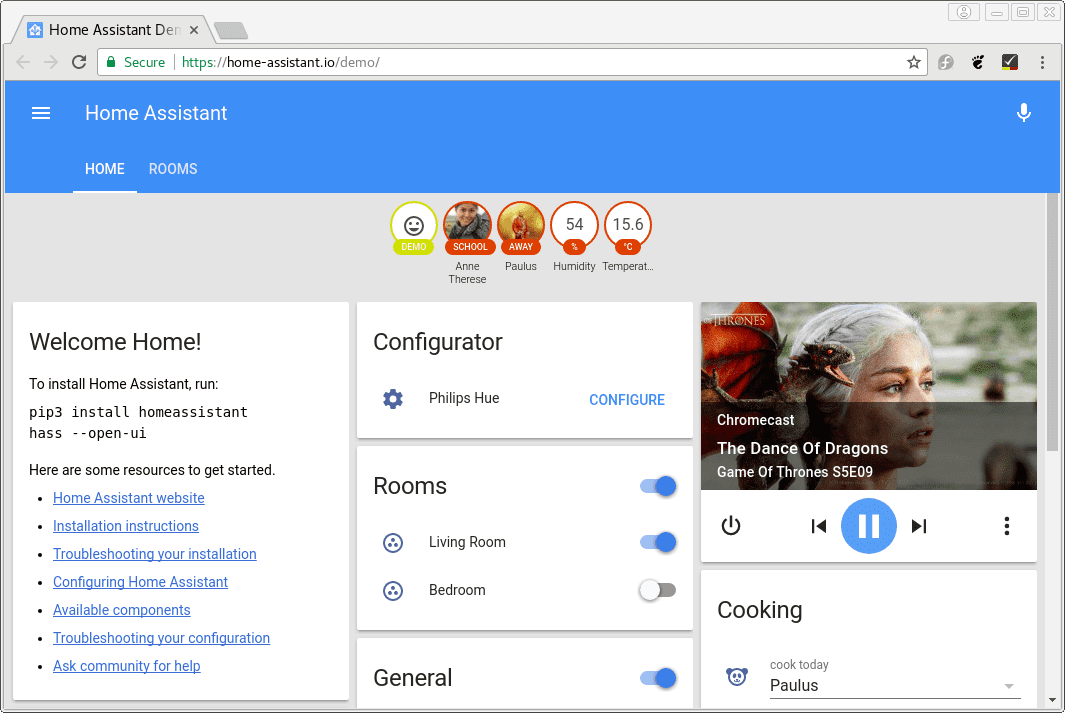 Home Assistant's online demo
--demo-mode and Demo platform
To be safe for your talk, you don't want to depend on an internet connection. The demo mode --demo-mode allows you to run a demo locally including the latest features. Make sure that you have a 备份 of your 配置.
If you already have a configuration.yaml file in place then you will get a combination of your 设置 with all available demo platforms. This can be overwhelming for the audience. The suggestion is that you tailor the demo to your needs by only showing a few selected platforms. For example:
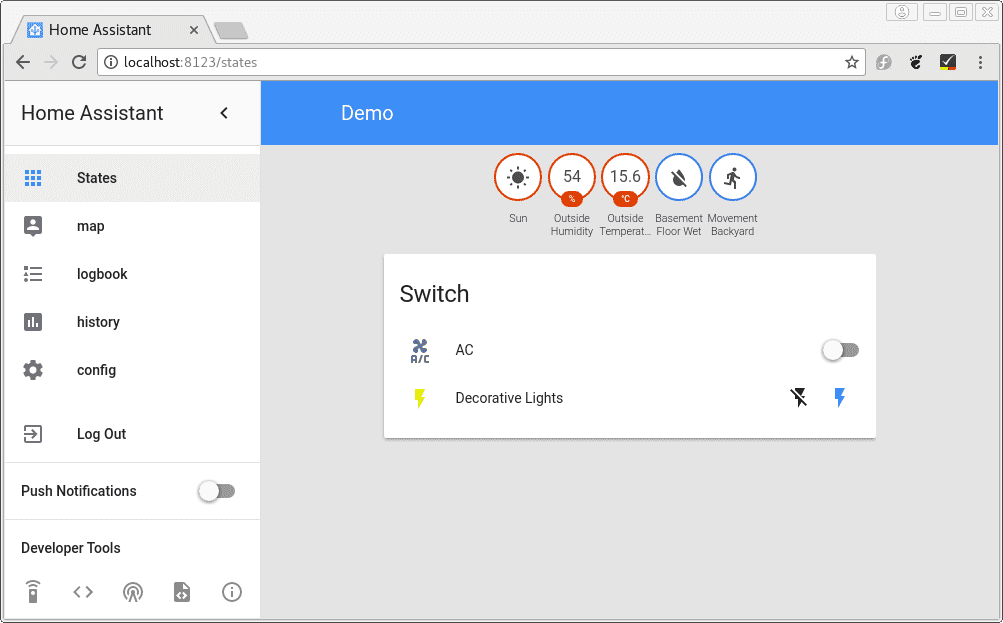 Home Assistant's demo platforms
random platforms
Till now the 前端 is static. Nothing is changing over time. Starting with 0.57 we ship a random 二元sensor platform in addition to the already available random sensor.
By adding those platform to your configuration.yaml file, your demo will become more interactive.
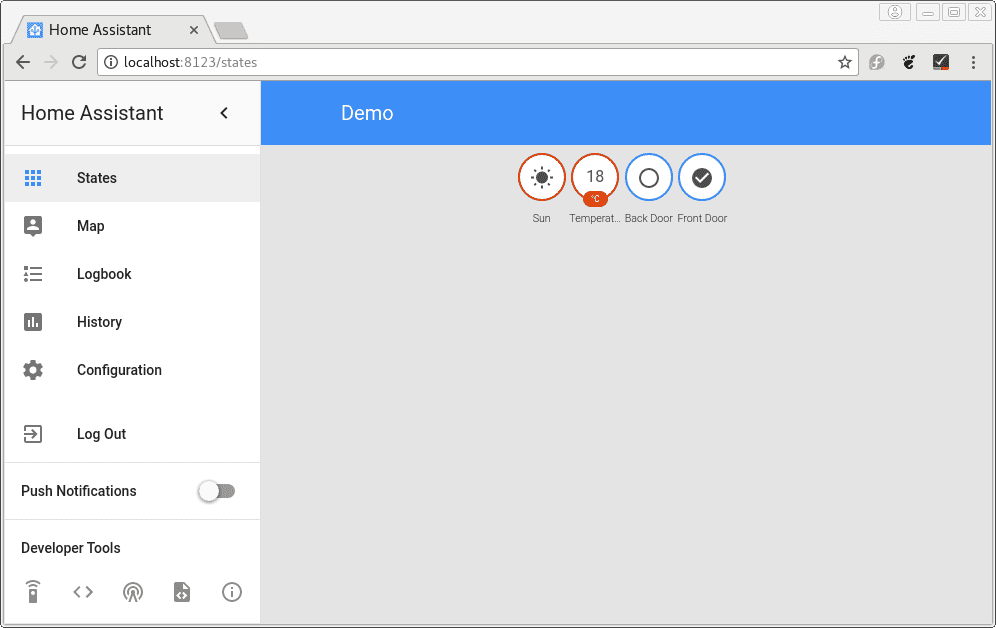 Demo with `random` platforms
The random and the demo platforms can, of course, be used together. With a little work and some of the template platforms or the input_* components it would even be possible to simulate a complete apartment or a house. For a hint check the sample below:
MQTT Discovery
This is a section for advanced 用户 as it will require to run a separate 脚本. Instead of adding demo platforms to the 配置 this 设置 make use of MQTT discovery. Simply add MQTT to your configuration.yaml file with discovery:
Download the sample 脚本. It depends on paho-MQTT. If you run the 脚本 inside your Home Assistant's virtual environment then you are good to go as the dependency should be present if you have used MQTT before. Otherwise, 安装 it with $ pip3 install paho-mqtt.
It will create 传感器, a 灯光, and a 开关 and 更新 the 状态 as long the 脚本 is running. It possible to stop and 重启 脚本 without losing the 实体.
Some 用户 share their slides and other documents in our assets repository. Also, take a look at that repository if you need a logo for your slides.