

Swiss public transport
The Swiss public transport integration will give you the next three departure times from a given location to another one in Switzerland.
The Swiss public transport API only allows 1000 requests per 24 hours. The default polling rate is set to 90s, which is just enough for one connection polling continuously. If more entries are needed, consider defining a custom polling interval to reduce the amount of requests.
Use the Stationboard to find exact station names.
此集成可通过 UI 配置。前往 设置 > 设备与服务 添加。
The public timetables are coming from Swiss public transport.
Set up a connection
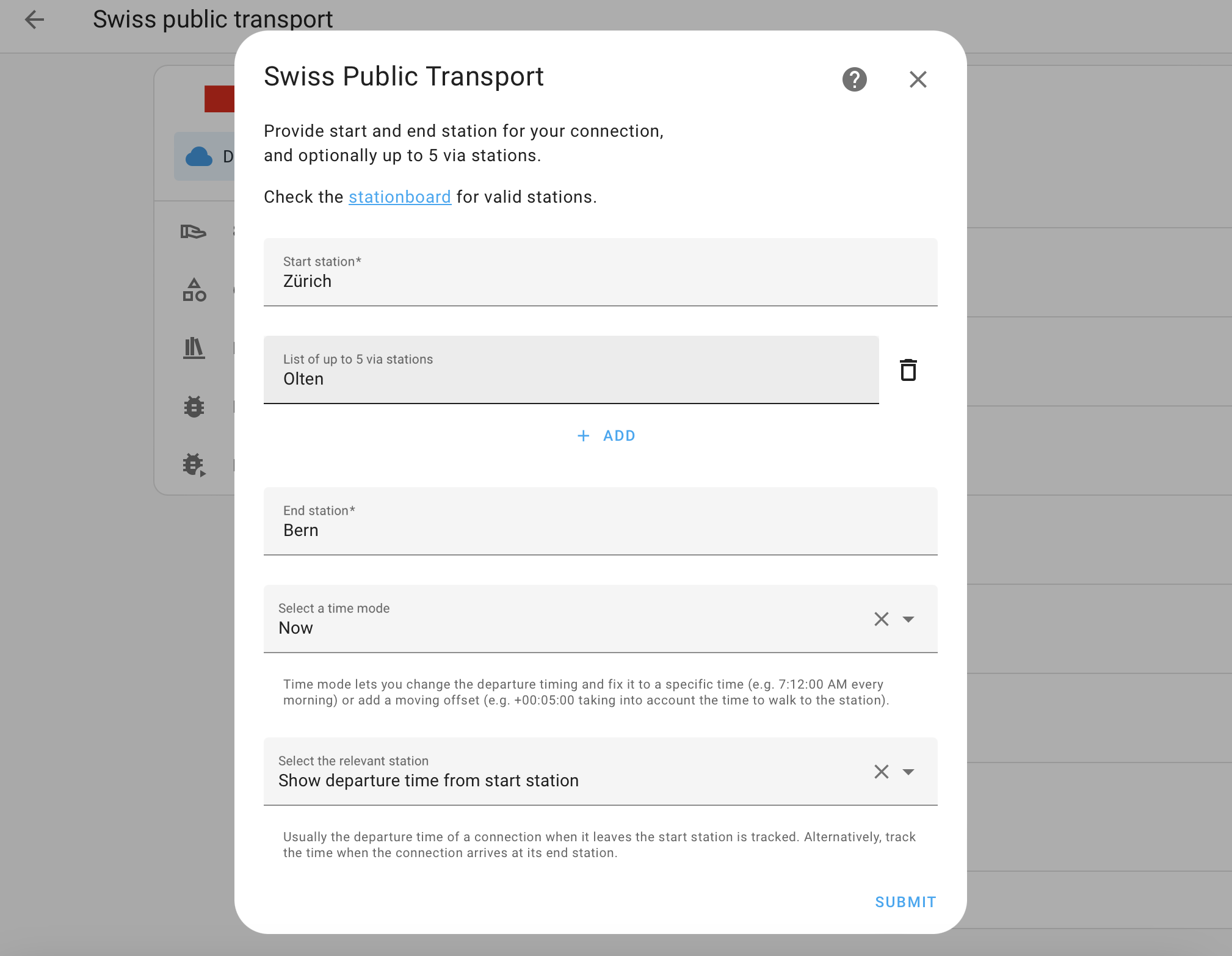
The minimum configuration for a connection requires a start and end station (for example, "Zürich HB").
Optionally, you can provide up to 5 additional via stations where the connection must go through.
Time mode
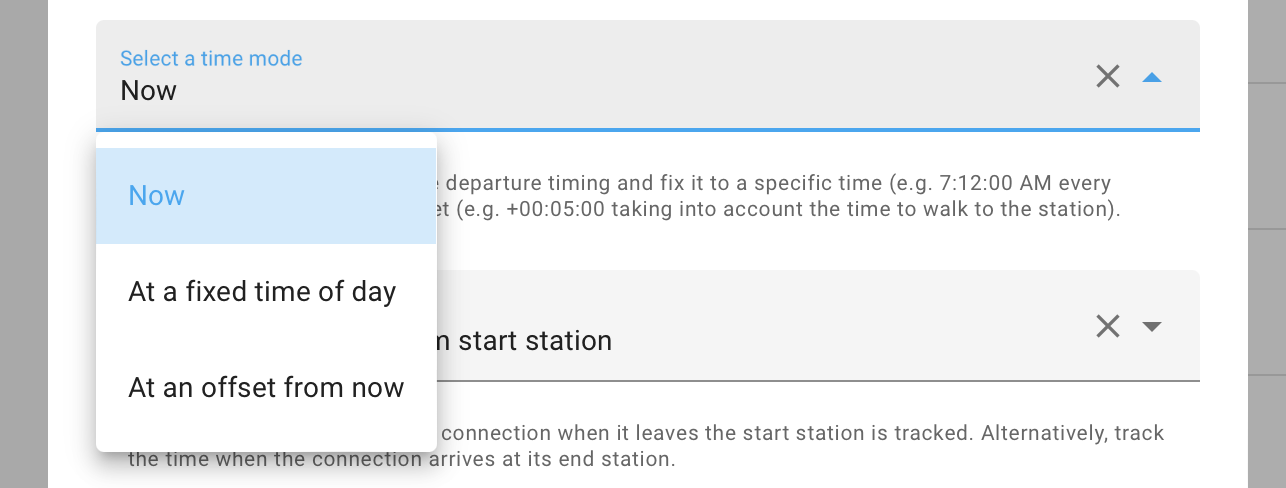
The Time mode allows you to specify the time of the connections.
- Now (default): Provide the next connections.
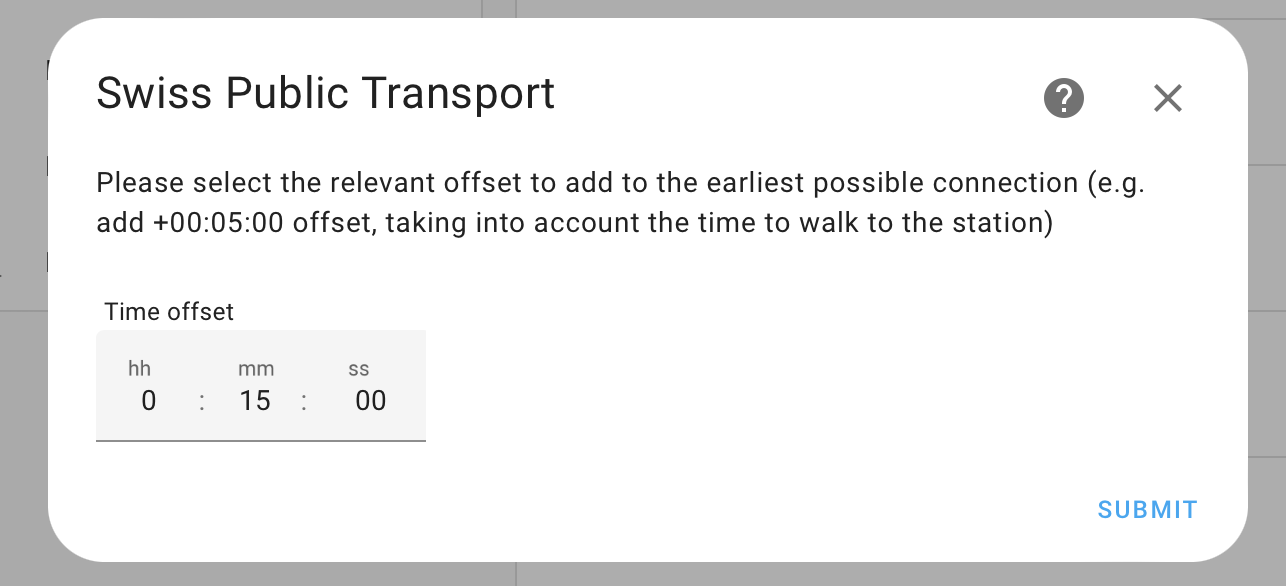
- At a fixed time of day: Provide the connections that depart at a fixed time of day (for example, 18:15 in the evening)
- At an offset from now: Provide the next possible connections which depart after a specified offset (for example, 15 minutes from now, which helps account for a 15-minute walk to the station)
Use case: Next connection at my local bus stop
Usually, it takes some time to walk to the closest bus station from home, which can be modeled using the offset option in the Time mode dropdown, filtering out connections which are not reachable anymore. This information can then be displayed at the door or on your mobile device.
Use case: Daily train home
For people working business hours, a set-up using the fixed option in the Time mode allows you to identify the same train each day for commuting home. Set up an automation to send a push notification to get informed early.
Departure versus Arrival
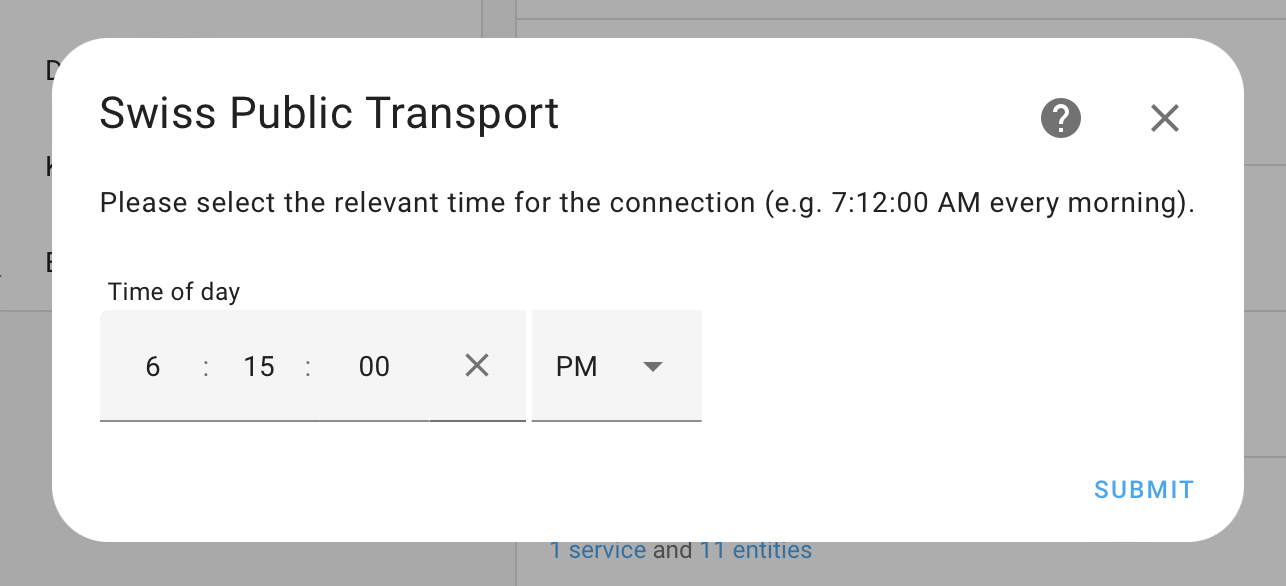
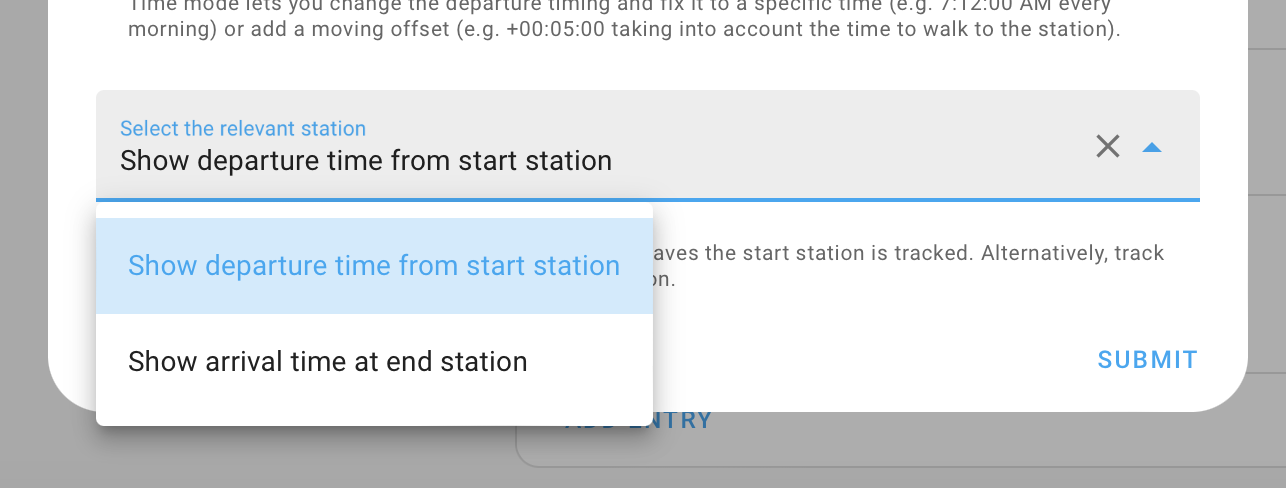
Usually, one wants to know when a connection departs (default), but in case where the opposite is needed and one wants to know when a connection arrives, select "Show arrival time at end station" in the time reference dropdown.
When configured for arrival time, the sensor will display the arrival time at the destination instead of the departure time from the start station. This is particularly useful for automations that need to trigger based on arrival times.
Use case: Inform family of train arriving late
A popular use case would be to know if your family member is running late and sending out a push notification or displaying their arrival time at home.
Actions
The Swiss public transport integration has the following action:
swiss_public_transport.fetch_connections
Action: Fetch connections
The swiss_public_transport.fetch_connections action fetches the connections for a specific instance.
Defining a custom polling interval
If you want to define a specific interval at which your device is polled for data, you can disable the default polling interval and create your own polling automation.
- Go to Settings > Devices & services, and select your integration.
- On the integration entry, select
. - Then, select System options and toggle the button to disable polling.
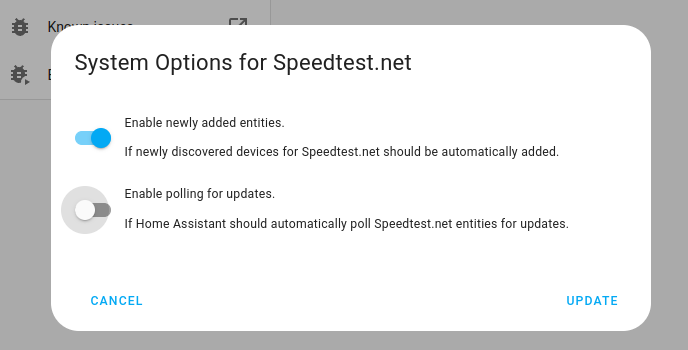
- Then, select System options and toggle the button to disable polling.
- To define your custom polling interval, create an automation.
- Go to Settings > Automations & scenes and create a new automation.
- Define any trigger and condition you like.
- Select Add action, then select Other actions.
- Select Perform action, and from the list, select the
homeassistant.update_entityaction. - Choose your targets by selecting the Choose area, Choose device, Choose entity, or Choose label buttons.
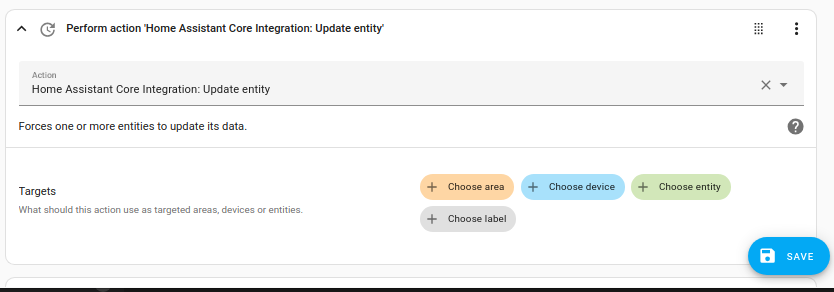
- Save your new automation to poll for data.
Removing the integration
This integration follows standard integration removal. No extra steps are required.
To remove an integration instance from Home Assistant
- Go to Settings > Devices & services and select the integration card.
- From the list of devices, select the integration instance you want to remove.
- Next to the entry, select the three-dot
menu. Then, select Delete.