

Slack
The Slack integration allows you to deliver notifications from Home Assistant to Slack.
Setup
Slack App
- Create a new app under your Slack.com account.
- Click the
OAuth & Permissionslink in the sidebar, under the Features heading.
Find Features/OAuth and Permissions/Scopes/Bot Token Scopes
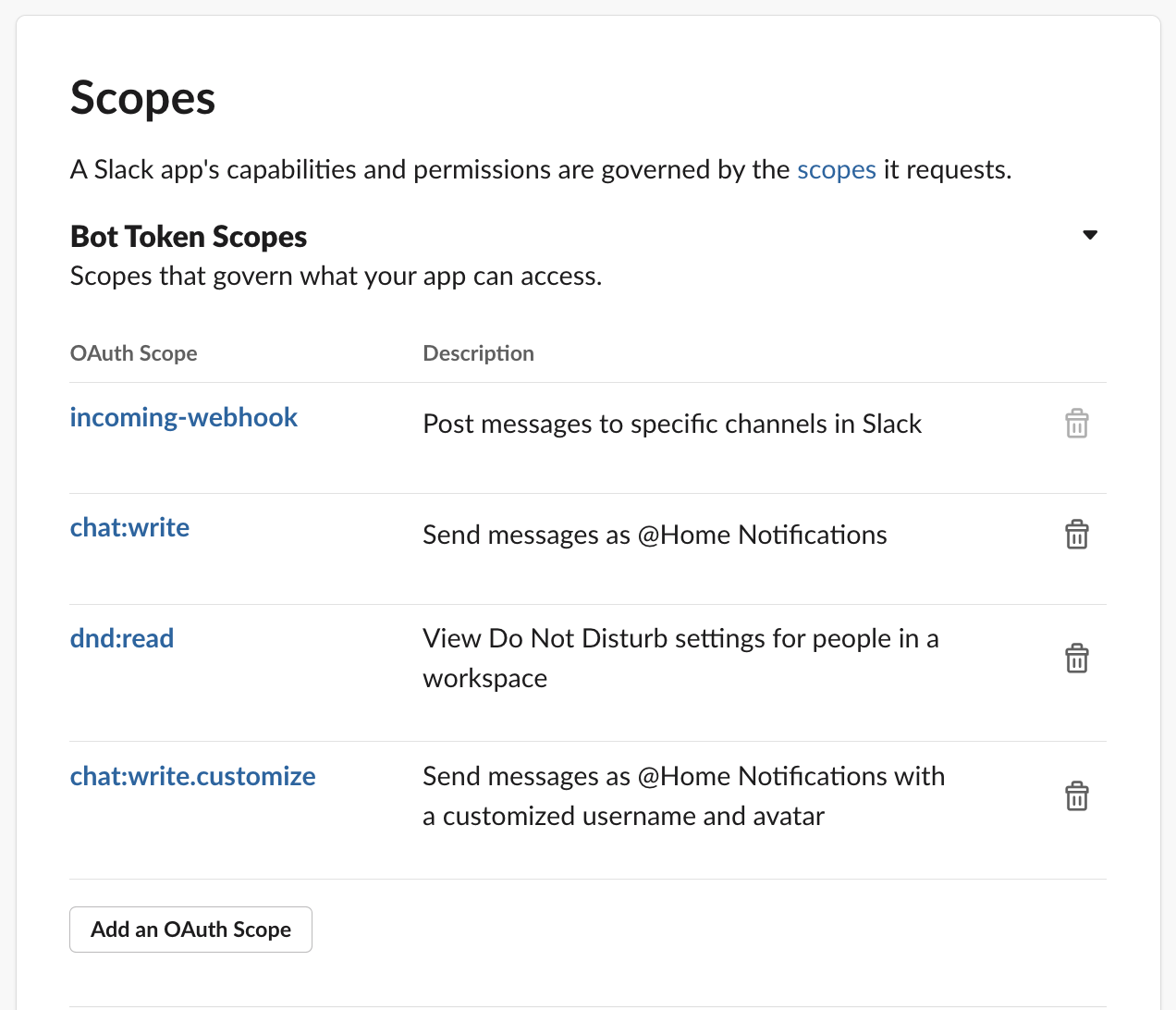
- Add the following OAuth scopes:
chat:writednd:readchannels:managechannels:readgroups:readgroups:writeim:readim:writempim:readmpim:write- Optionally add
chat:write.customizeto modify your Slack bot's username and icon.
- Scroll up to
OAuth Tokens & Redirect URLsand clickInstall to Workspace.
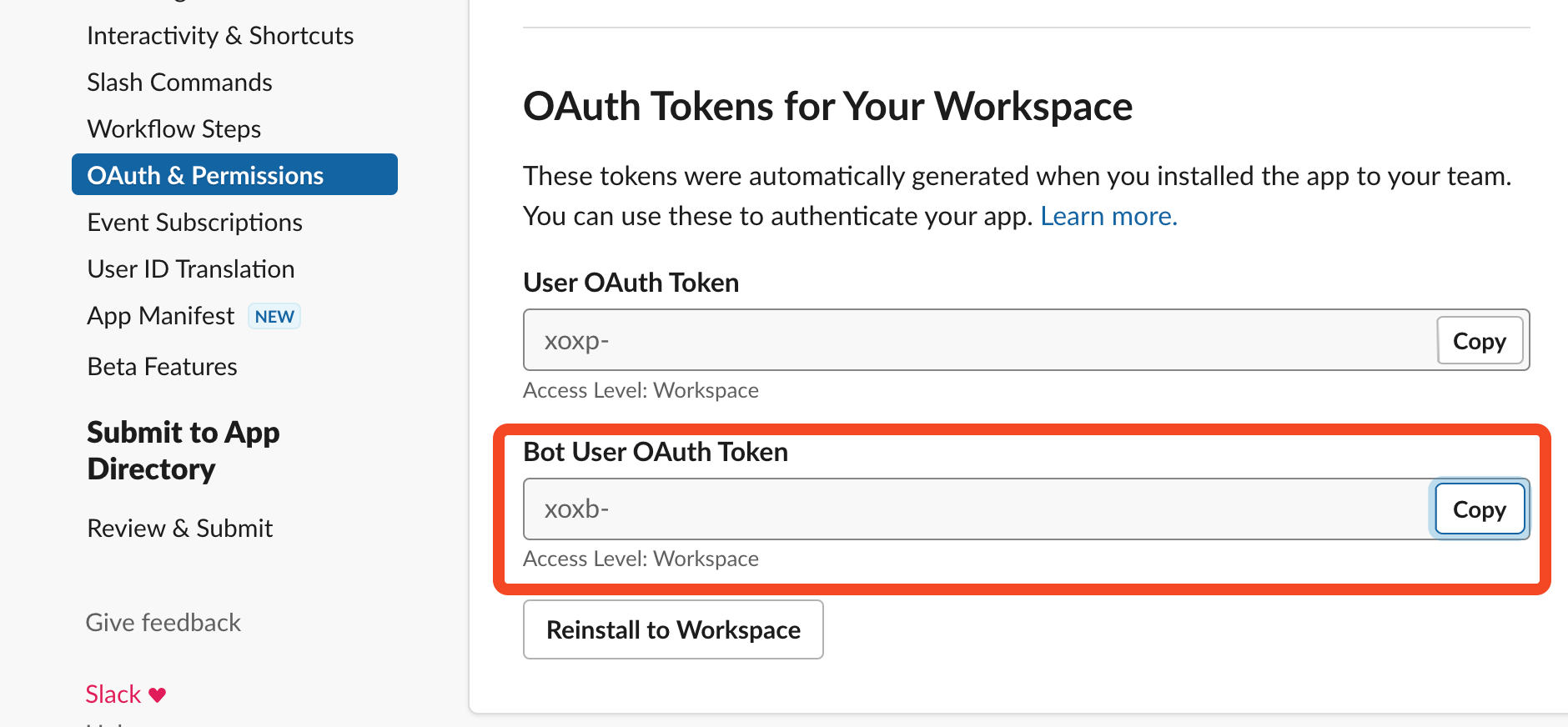
In Features/OAuth and Permissions/OAuth Tokens for Your Workspace:
- Copy the Bot User OAuth Token. Use this as 'API Key' when setting up in Home Assistant
- Ensure that the bot user is added to the channel in which you want it to post. This can be completed in several ways:
- Using
/invite @botfrom the channel - Tagging the bot user in a message, then adding it to the channel via the Slackbot prompt.
- Channel settings ->
Integrations->Add apps
Sample App Manifest
You can easily create a bot with all the permissions needed from an App Manifest.
Integration Setup
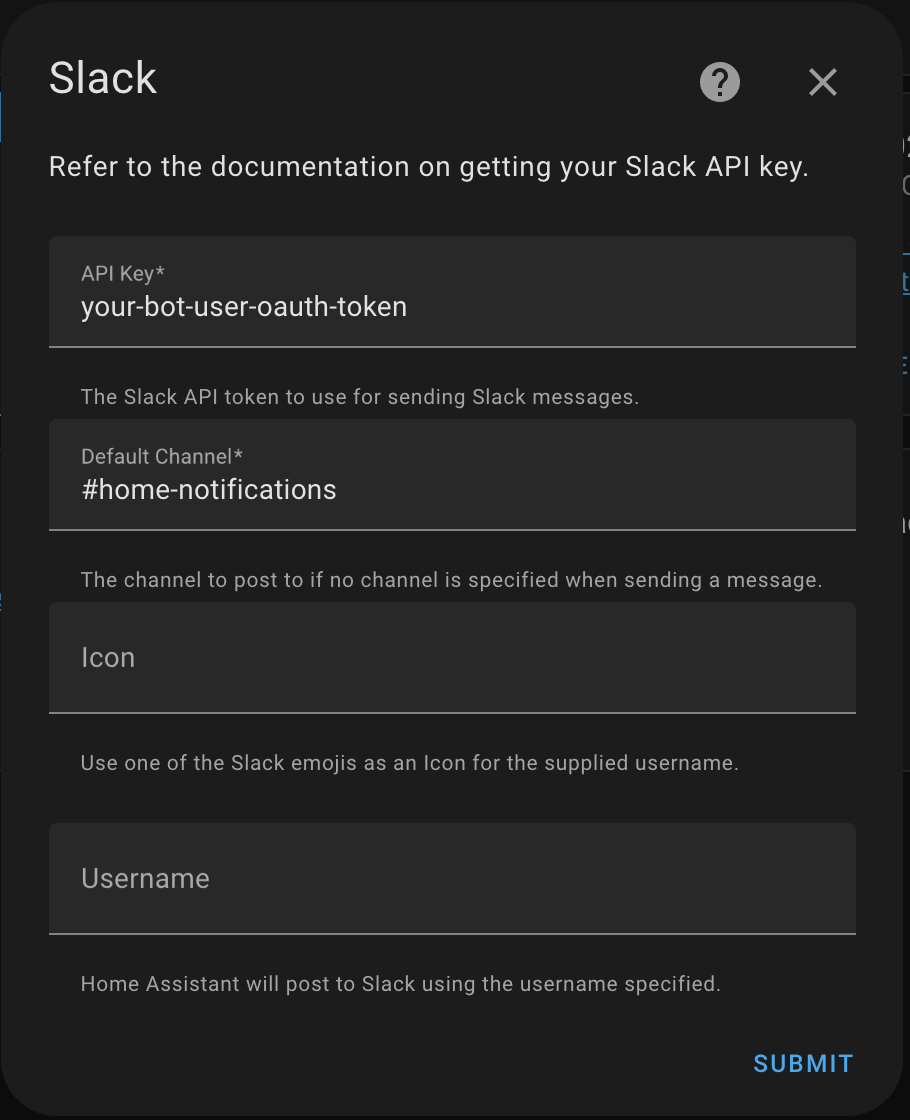
When installing the integration, use these settings:
API Key: xoxb-abc-def
- Bot User OAuth Token (from step 5 above)
Default Channel: #channel
- Channel name that bot will post to if a channel is not supplied when called
Icon/Username:
- optional - if you want to have a custom name/icon for the bot user not already set in Slack
Usage
Sending Messages
One of the easiest ways to send a message, is to create a script. You can paste in YAML and make changes in the GUI.
You can call this script as an action.
- Go to Home Assistant Settings > Automations and Scenes > Scripts > Add Script
- Click the three dots in the top right, and pick 'Edit in YAML'. Paste in the contents below.
- Change
YOUR_SLACK_TEAMto the team name(*.slack.com)
Update the blocks array with valid Slack blocks. The easiest way to create this is using Slack Block Kit Builder. Up to 50 blocks may be included per message.
Create a duplicate of this script to use for different messages, and different channels (the door was opened in #security, the light was left on on #lights, etc).
You can also send messages to multiple targets (channels and/or users) at once:
Target Types
The target field accepts either a single value or a list of values. Each target can be:
- A channel name with a
#prefix (e.g.,#general) - A channel name without the
#prefix (e.g.,general) - A channel ID (e.g.,
C01234ABCD) - A user ID for direct messages (e.g.,
U5678EFGH)
When sending files, make sure you have the proper permissions set up as described in the Setup section.
Icons
Slack uses the standard emoji sets used here. Alternatively a publicly accessible URL may be used.
此集成可通过 UI 配置。前往 设置 > 设备与服务 添加。
One sensor entity will be created:
- Do Not Disturb Timer: The amount of time left for Do Not Disturb status.
Slack action data
The following attributes can be placed inside the data key of the action for extended functionality:
Note that using file will ignore all usage of blocks and blocks_template (as Slack does not support those frameworks in messages that accompany uploaded files).
To include a local file with the Slack message, use these attributes underneath the file key:
To include a remote file with the Slack message, use these attributes underneath the file key:
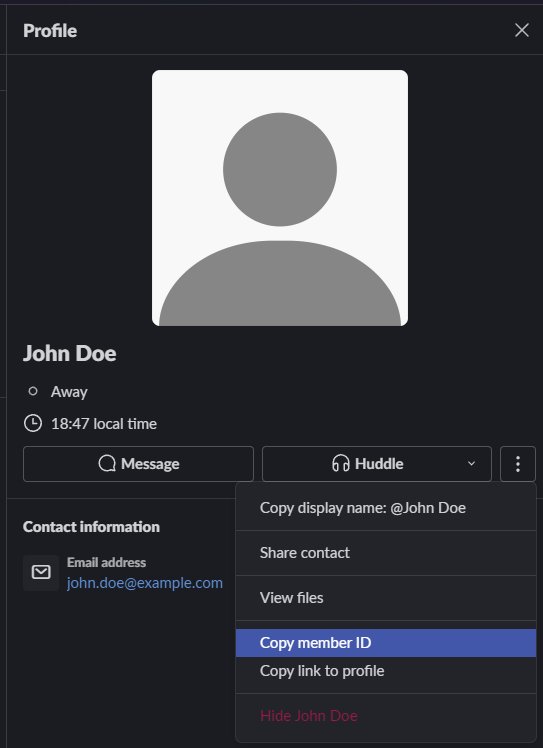
Obtaining a member ID
Some of the examples below use a member ID. This is a unique string assigned by Slack to all users (members and guests) and not a username set by the user. To get a member ID:
- Select a Slack user (both name and profile image work) to bring up their profile side panel.
- Open the context menu by selecting the three dots.
- Select Copy member ID.
Examples
To send a file from local path:
To send a file from remote path:
To send a file from remote path that is protected by HTTP Basic Auth:
To use the block framework:
Send a message directly to a user by setting the target to their member ID.
Send a message to a channel that mentions (@username, highlights a users name in yellow) a user.
Send a message as reply to an existing message. thread_ts can be retrieved via a script utilising Bolt, any other Slack library, or the Slack API directly.