

Roku
Roku 集成允许你控制 Roku 媒体播放设备。该集成仅支持 Roku 媒体播放设备(如电视棒、流媒体盒子和电视)。其他智能家居产品(如灯泡和摄像头)属于不同的生态系统,不在此集成支持范围内。
此集成可通过 UI 配置。前往 设置 > 设备与服务 添加。
添加集成时,系统会要求你填写主机地址。除非你修改过主机名,否则这里通常指 Roku 设备的 IP 地址。你可以在 Roku 设备的网络设置中查看 IP 地址或主机名,也可以通过路由器或网络扫描工具获取。
如果连接有问题,你可能需要在 Roku 设备上调整设置以允许本地控制。常见路径为:Settings / System / Advanced / Control by mobile apps / Network access
选项
如需为 Roku 配置选项,请按以下步骤操作:
-
In Home Assistant, go to Settings > Devices & services.
-
If multiple instances of Roku are configured, choose the instance you want to configure.
-
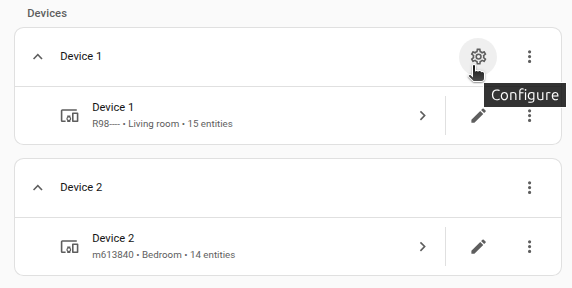
On the card, select the cogwheel
. - If the card does not have a cogwheel, the integration does not support options for this device.
-
Edit the options, then select Submit to save the changes.
数据更新
The Roku integration polls every 10 seconds to check the current state of media playback. The available applications and television channels are only fetched every 15 minutes.
支持的功能
实体
The Roku integration provides the following entities.
二进制传感器
-
Headphones connected sensor
- Description: The headphones connected sensor will tell if you if the device has headphones connected for private listening.
- Available for devices: All
-
Supports AirPlay sensor
- Description: The supports AirPlay sensor will tell if the device is capable of accepting AirPlay connections.
- Available for devices: All
-
Supports Ethernet sensor
- Description: The supports Ethernet sensor will tell if the device is capable of being connected via an Ethernet cable.
- Available for devices: All
-
Supports find remote sensor
- Description: The supports find remote sensor will tell if the device is capable of the find remote feature.
- Available for devices: All
媒体播放器
The integration allows for media playback control including power and source control. It also supports the ability to select sources such as text-to-speech and Camera via "Browse Media".
遥控器
The integration allows you to send remote control commands. It is automatically set up for all devices.
The following commands are currently supported depending on device type and manufacturer support:
- back
- backspace
- channel_down
- channel_up
- down
- enter
- find_remote
- forward
- home
- info
- input_av1
- input_hdmi1
- input_hdmi2
- input_hdmi3
- input_hdmi4
- input_tuner
- left
- play
- power
- replay
- reverse
- right
- search
- select
- up
- volume_down
- volume_mute
- volume_up
Strings can be be typed by using the command Lit_STRING (e.g. Lit_example will type "example"). Punctuation and spaces are allowed in the string.
Example
选择实体
-
Application control
- Description: The application select control allows changing the active application.
- Available for devices: All
-
Channel control
- Description: The channel select control allows changing the active television channel.
- Available for devices: Only available for Roku TV devices.
传感器
-
Active app sensor
- Description: The active app sensor will tell you the name of the active application.
- Available for devices: All
-
Active app ID sensor
- Description: The active app ID sensor will tell you the ID of the active application.
- Available for devices: All
来源自动化
The media_player.select_source action may be used to launch specific applications on your Roku device.
示例
Alternatively, the application id can be used for source. See Obtaining Application IDs.
电视频道调谐
The media_player.play_media action may be used to tune to specific channels on your Roku TV device with OTA antenna.
示例
在 Roku 上播放
The media_player.play_media action may be used to send media URLs (primarily videos) for direct playback on your device.
This feature makes use of the PlayOnRoku API. If you are using an older Roku OS (pre-11.5), the defaults of this integration should just work with the configuration defaults. Alternatively, you can configure a third-party application that supports the PlayOnRoku API via the Play Media Roku Application ID option.
The following third-party applications have been tested with this integration:
- Media Assistant (ID: 782875)
示例
内容深度链接
The media_player.play_media action may be used to deep-link to content within a channel application using content IDs. See Obtaining Content IDs to learn more about content IDs.
示例
摄像头流集成
The camera.play_stream action may be used to send camera streams (HLS) directly to your device. This feature requires the stream integration and makes use of the PlayOnRoku API.
示例
其他操作
The integration exposes additional actions to control a Roku device.
操作 roku.search
This action allows you to emulate opening the search screen and entering the search keyword.
提示与技巧
获取应用 ID
The currently active application ID can be found in the Active App ID diagnostic sensor.
Alternatively, you can make a manual HTTP request (GET) to http://ROKU_IP:8060/query/apps, in either your browser or terminal, to retrieve a complete list of installed applications in XML format.
获取内容 ID
Content IDs are unique to each streaming service and vary in format but are often part of the video webpage URL. Here are some examples:
已知限制
Roku has been known to remove or restrict local control functionality as part of major Roku OS upgrades. As such devices may become less functional after an upgrade.
Roku channels, such as YouTube, are maintained by third-parties and as such the availability of features like Content Deeplinking are subject to change without notice.
删除集成
This integration can be removed by following these steps:
从 Home Assistant 中删除集成实例
- Go to Settings > Devices & services and select the integration card.
- From the list of devices, select the integration instance you want to remove.
- Next to the entry, select the three-dot
menu. Then, select Delete.