

Ridwell
Ridwell 集成允许用户跟踪通过 Ridwell 安排的回收取件。
此集成可通过 UI 配置。前往 设置 > 设备与服务 添加。
Options
To define options for Ridwell, follow these steps:
-
In Home Assistant, go to Settings > Devices & services.
-
If multiple instances of Ridwell are configured, choose the instance you want to configure.
-
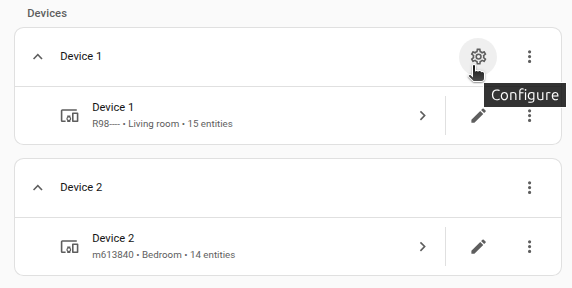
On the card, select the cogwheel
. - If the card does not have a cogwheel, the integration does not support options for this device.
-
Edit the options, then select Submit to save the changes.
事件摘要详情
日历事件摘要可以自定义,以显示某次取件的不同详情。
以下选项可用于自定义显示文本。每个选项也会在下方单独说明。
Pickup status
单次取件的常见状态包括:
initialized: 可供客户选择加入取件scheduled: 已选择加入;Ridwell 会在当天的路线中包含您notified: Ridwell 已尝试联系尚未加入即将发生取件的客户skipped: 之前已安排,但后来取消了该次取件
Rotating category
取件成功安排后,将显示轮换类别。
如果取件未处于 scheduled 状态,则在其变为 scheduled 之前,日历事件会显示 Pickup status 中描述的 Pickup status 值。
No details
日历标题将仅显示 “Ridwell Pickup”,但各种取件类型的完整详情仍会包含在事件描述中。
更改此选项后,Ridwell 集成会重新加载。
您可能会注意到 Ridwell 日历短暂消失,随后以新的事件格式重新出现。
日历
日历传感器包含一个 calendar 状态属性,其中包括:
- Ridwell 日历的名称。
- 事件是否为全天事件(布尔值)。
- 日历事件的开始时间,从午夜开始。
- 事件的结束时间,到午夜结束。
- 事件的位置。
- 取件物品的描述。
- 日历事件的友好名称。
例如:
取件类型
取件传感器包含一个 pickup_types 状态属性,其中包括:
- 本次事件中要取走的物品
- 每件物品所属的类别
- 每件物品的数量
例如:
故障排除
:::tip Ridwell 集成大约每小时从您的 Ridwell 账户检查一次更新信息。
取件变更最多可能需要 60 分钟才会显示在 Home Assistant 中。
::: 如果 Home Assistant 中的取件信息与您 Ridwell 账户中的最新变更不一致,您可以通过重新加载 Ridwell 集成来手动触发详情检查。在集成概览页面中,打开要刷新的账户实例的选项菜单并选择 Reload。
删除集成
此集成遵循标准删除流程。
:::note 从 Home Assistant 中移除此集成不会终止或影响您的付费订阅。
::: 由此集成安排或修改的任何取件在删除集成后仍会保留,您仍可通过 Ridwell 网站或应用继续管理它们。
To remove an integration instance from Home Assistant
- Go to Settings > Devices & services and select the integration card.
- From the list of devices, select the integration instance you want to remove.
- Next to the entry, select the three-dot
menu. Then, select Delete.