

RFXCOM RFXtrx
The RFXCOM RFXtrx integration supports RFXtrx devices by RFXCOM, which communicate in the frequency range of 433.92 MHz.
There is currently support for the following device types within Home Assistant:
此集成可通过 UI 配置。前往 设置 > 设备与服务 添加。
Debug logging
To receive debug logging from the RFXCOM device, add the following lines to "configuration.yaml":
Please note: RFXtrx is case-sensitive.
Supported protocols
Not all protocols as advertised are enabled on the initial setup of your transceiver. Enabling all protocols is not recommended either. The RFXcom transceiver loses significant sensitivity when more protocols are enabled. Warning: enabling the "BlindsT0" protocol blocks receiving any other protocol.
If your 433.92 MHz product is not showing in the logs, you may need to enable additional protocols. You can do this by configuring the device itself using RFXmgmr to enable the required protocol, or you can configure the device in Home Assistant by configuring the Protocols.
ser2net
You can host your device on another computer by setting up ser2net and example configuration for ser2net looks like this and then using host/port in your Home Assistant configuration.
Configuration example for ser2net older than 4.x.x (check with command ser2net -v):
Configuration example for ser2net 4.x.x:
Settings options
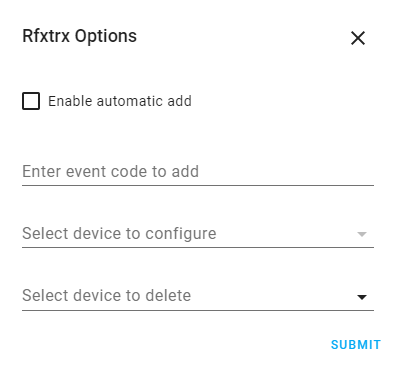
To configure options for RFXtrx integration, go to Settings > Devices & services and select Options on the RFXtrx card.
Automatic add
In the options menu, select Enable automatic add to enable automatic addition of detected devices. This is the easiest way to detect binary sensors, sensors or switches from a physical device. Once automatic add is enabled, newly detected devices are automatically added and can be found by clicking devices on the RFXtrx integration card.
Covers
The RFXtrx integration supports Siemens/LightwaveRF and Somfy RTS roller shutters that communicate in the frequency range of 433.92 MHz.
Events
The RFXtrx integration will expose event entities for remotes controlling lights as well as security devices.
Lights
The RFXtrx integration support lights that communicate in the frequency range of 433.92 MHz.
Make sure you trigger a dimming command to get switches detected as lights otherwise, they will show up as switches.
Switches
The RFXtrx integration support switches that communicate in the frequency range of 433.92 MHz.
Sensors
The RFXtrx integration support sensors that communicate in the frequency range of 433.92 MHz.
Also, several switches and other devices will also expose sensor entities with battery status as well as the signal level.
Binary sensors
The RFXtrx integration support binary sensors that communicate in the frequency range of 433.92 MHz. The RFXtrx binary sensor integration provides support for them. Many cheap sensors available on the web today are based on a particular RF chip called PT-2262. Depending on the running firmware on the RFXcom box, some of them may be recognized under the X10 protocol, but most of them are recognized under the Lighting4 protocol. The RFXtrx binary sensor integration provides some special options for them, while other RFXtrx protocols should work too.
Sirens
The RFXtrx integration supports siren entities for a few types of security systems and chimes. This entity allows triggering the chime or siren from Home Assistant as well as monitoring their status. Most of the chimes and security systems need a configured off-delay to work correctly since they only transmit when active.
Add a device by event code
To manually add a device, in the options window, an event code can be added in the field Enter event code to add.
See Generate codes how to generate event codes.
Somfy RTS
The RFXtrx433e or later versions like RFXtrx433XL is required for support, however, it does not support receive for the Somfy RTS protocol - as such devices cannot be automatically added. Instead, configure the device in the rfxmngr tool. Make a note of the assigned ID and Unit Code and then add a device to the configuration with the following id 071a0000[id][unit_code]. E.g., if the id was 0a 00 01, and the unit code was 01 then the fully qualified id would be 071a00000a000101, if you set your id/code to single digit in the rfxmngr, e.g., id: 1 02 03 and unit code: 1 you will need to add 0 before, so 102031 becomes 071a000001020301.
To add the device, enter the value unaltered in the Event Code field, and click Submit.
Convert switch event to dimming event
To convert a standard switch to a light, use the Light Switch integration.
To convert a switch to a dimmable light, make sure the event contains a dimming command. You can usually convert a command by changing one byte.
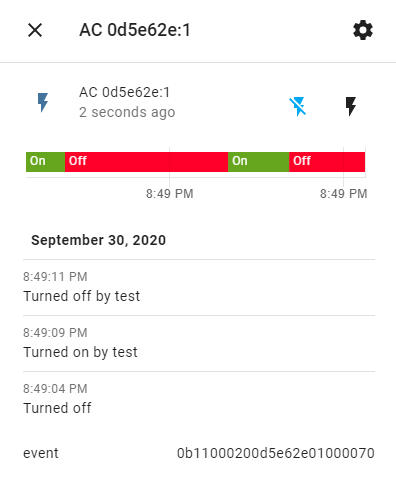
Copy the event code from the state attribute of the switch, which shows up on the bottom of the window when clicking on the switch entity. Examples of byte changes:
ARC:
0b11000248bc0cfe09 01 0f70
0b11000248bc0cfe09 02 0f70
LightwaveRF:
0a14000101f20302 01 0080
0a14000101f20302 10 0080
Waveman:
710030e4102 01 50
710030e4102 02 50
Protocols
When no protocols are selected in the device configuration, the RFXtrx device will use the protocols enabled in its non-volatile memory. You can set these using RFXmgmr.
If you select protocols in the device configuration, these will be enabled each time the device is connected. They will not be stored in the RFXtrx device non-volatile memory.
Some protocols, like undecoded, cannot be enabled in non-volatile memory and must be enabled on each connect. To enable these protocols you must use the device configuration instead of RFXmgr.
Configure device options
To configure device options, select a device from the list under Select device to configure. After pressing Submit a window with device options are presented based on the device type.
If a device is missing from the list, close the options window and either make sure the device sents a command or manually re-add the device by event code.
Off delay
Binary sensors have only two states - "on" and "off". Many door or window opening sensors will send a signal each time the door/window is open or closed. However, depending on their hardware or on their purpose, some sensors are only able to signal their "on" state:
- Most motion sensors send a signal each time they detect motion. They stay "on" for a few seconds and go back to sleep, ready to signal other motion events. Usually, they do not send a signal when they go back to sleep.
- Some doorbells may also only send "on" signals when their toggle switch is pressed, but no "off" signal when the switch is released.
For those devices, use the off_delay parameter. It defines a delay after, which a device will go back to an "Off" state. That "Off" state will be fired internally by Home Assistant, just as if the device fired it by itself. If a motion sensor can only send signals once every 5 seconds, sets the off_delay parameter to seconds: 5.
Venetian blind mode
Available only for Somfy RTS cover devices. Enables tilt control of venetian blind slats.
Venetian blind motors that control slats tilt can be configured in one of two modes - US (short press of up/down buttons opens/closes the blind, long-press controls tilt angle), or European (short press of up/down buttons controls tilt angle, long-press opens/closes the blind). You can select one of the following settings depending on your blinds:
- Unknown - default, tilt control is not enabled. Leave if the cover is not a venetian blind.
- US - tilt control enabled for blinds in US tilt mode.
- EU - tilt control enabled for blinds in European tilt mode.
Options for PT-2262 devices under the Lighting4 protocol
When a data packet is transmitted by a PT-2262 device using the Lighting4 protocol, there is no way to automatically extract the device identifier and the command from the packet. Each device has its own id/command length combination and the field lengths are not included in the data. One device that sends 2 different commands will be seen as 2 devices on Home Assistant. For such cases, the following options are available in order to circumvent the problem:
- data_bits
- command_on
- command_off
Let's try to add a new PT-2262 sensor using the "automatic_add" option and have a look at Home Assistant system log.
Have your sensor trigger the "On" state for the first time. Some messages will appear:
Here the sensor has the id 22670e.
Now have your sensor trigger the "Off" state and look for the following message in the Home Assistant log. You should see that your device has been detected as a new device when triggering its "Off" state:
Here the device id is 226707, which is almost similar to the 22670e we had on the "On" event a few seconds ago.
From those two values, you can guess that the actual id of your device is 22670, and that e and 7 are commands for "On" and "Off" states respectively. As one hexadecimal digit uses 4 bits, we can conclude that the device is using 4 data bits.
So, here is the actual configuration section for the binary sensor:
automatic_add 选项会让 RFXtrx 二进制传感器集成自动计算配置项,并将结果显示在 Home Assistant 日志中:
这种自动推测在大多数情况下都能工作,但并不能保证一定准确。建议只在配置新设备时启用它,平时保持关闭。
替换设备
某些电池供电设备发送命令或数据时会使用随机生成的 id。更换电池后,id 会发生变化。为了继续使用该设备,需要通过自动添加或手动方式重新添加,这会创建一个新设备。若要继承旧设备中用户自定义的名称和实体 ID,请在选项菜单的 Select device to configure 下选择旧设备。然后在设备选项菜单中的 Select device to replace 里选择新设备并点击 Submit。这样旧设备的名称和 ID 会转移到新设备上,旧设备则会被自动删除。
删除设备
要从配置中删除设备,请在设备信息页面点击删除按钮。
事件
RFXtrx 集成在接收到来自 RFXtrx 设备的消息时,会以如下形式触发一个事件。要使该事件可用,必须在设备配置中设置 fire_event 参数。
来自 Byron 门铃按钮的信号:
来自 Nexa 墙插开关的事件数据:
您可以设置自动化来响应这些事件。编写时请不要包含多余字段,始终应包含标识设备所需的字段:packet_type、sub_type 和 id_string。
例如,要在有人按下门铃时触发动作,可以使用如下自动化触发器:
自动化触发器:
一个包含场景激活的更完整示例:
操作
rfxtrx.send:通过 RFXtrx 设备发送自定义事件。
操作:发送
rfxtrx.send 操作用于通过 RFXtrx 设备发送自定义事件。
模拟按钮被按下:
或者:
- Go to: Settings > Developer tools > Actions
- Select:
RFXCOM RFXtrx: Sendfrom the Action drop-down menu.
生成代码
如果您需要为开关和灯光生成代码,可以使用模板(例如对 COCO 开关就很有帮助)。
- 前往:Settings > Developer tools > Template
- 使用以下代码生成事件:
Switch: ARC
Light: ARC
Light: Lightwave RF
- 使用此代码在选项菜单中添加一个新开关。
- 启动 Home Assistant 并打开网页界面。
- 在您的开关上启用学习模式(例如按下学习按钮或将其插入插座)。
- 在 Home Assistant 界面中切换这个新开关。