
ONVIF

The ONVIF integration allows you to use an ONVIF Profile S conformant device in Home Assistant. This requires the ffmpeg integration to be already configured.

Configuration

To add the ONVIF device to your Home Assistant instance, use this My button:

Open Add integration in your Home Assistant instance.

ONVIF can be auto-discovered by Home Assistant. If an instance is found, it will be shown as Discovered and can be set up right away.

Manual configuration steps
Tip

It is recommended that you create a user on your device specifically for Home Assistant. For all current functionality, it is enough to create a standard user.

Configuration notes

大多数 ONVIF 设备支持多个音频/视频配置文件。每个配置文件提供不同的图像质量,或者对于 NVR,提供不同的连接摄像机。此集成将为所有兼容配置文件添加实体,视频编码设置为 H.264。通常,第一个配置文件具有最高质量,并且是默认使用的配置文件。但是,您可能想使用较低质量的图像。您可以通过 Home Assistant UI 禁用不需要的实体。

Options

To define options for ONVIF, follow these steps:

  1. In Home Assistant, go to Settings > Devices & services.

  2. If multiple instances of ONVIF are configured, choose the instance you want to configure.

  3. On the card, select the cogwheel .

    • If the card does not have a cogwheel, the integration does not support options for this device.
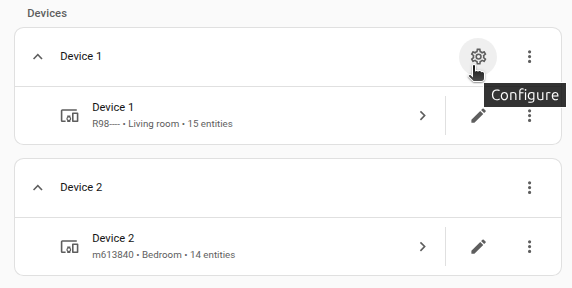
    Screenshot showing the cogwheel icon on an integration card in the Settings > Devices & services page

  4. Edit the options, then select Submit to save the changes.

OptionDescription
RTSP transport mechanismRTSP transport protocols. The possible options are: tcp, udp, udp_multicast, http.
Extra FFmpeg argumentsExtra options to pass to ffmpeg, e.g., image quality or video filter options. More details in ffmpeg integration.
Use wallclock as timestamps(Advanced Mode only) Rewrite the camera timestamps. This may help with playback or crashing issues from Wi-Fi cameras or cameras of certain brands (e.g., EZVIZ).
Enable WebhooksIf the device supports notifications via a Webhook, the integration will attempt to set up a Webhook. Disable this option to force falling back to trying PullPoint if the device supports it.

Snapshots

某些相机无法生成具有较大流大小的可用快照。

默认情况下,集成将仅启用第一个 H264 配置文件的相机实体。如果您无法获取工作快照:

  • 如果其他相机实体可用于其他配置文件,请尝试启用这些实体。
  • 将“额外 FFmpeg 参数”设置为“-pred 1 -ss 00:00:05 -frames:v 1”,以使快照在 5 秒后拍摄到流中。

Supported sensors

此集成使用 ONVIF pullpoint 订阅 API 将事件处理到传感器中,这些传感器将自动添加到 Home Assistant。 以下是当前支持的事件主题及其创建的实体的列表。

为了帮助开发此集成,请为“homeassistant.components.onvif”启用“信息”级别日志记录,并在 GitHub 上针对显示“没有注册事件处理程序”的任何消息创建问题。

Topic(s)Entity TypeDevice ClassDescription
Motion alarmBinary sensorMotionGeneric motion alarm.
Field detectionBinary sensorMotionPolygonal field detection determines if each object in the scene is inside or outside the polygon.
Cell motion detectionBinary sensorMotionCell based motion detection determined by placing a grid over the video source and determining changes.
Human shape detectionBinary sensorMotionDetection of human shapes by on-camera recognition algorithm.
Motion region detectorBinary sensorMotionDetects any motion against the specified motion region. The rule is configured for an area defined by a polygon.
Detected soundBinary sensorSoundDevice detected sound.
Digital inputBinary sensorNoneA digital input was triggered on the device. Amcrest is known to use this as a doorbell button press on the AD410.
Relay triggeredBinary sensorNoneDevice relay output was triggered.
Image too blurryBinary sensorProblemDevice reports blurry image.
Image too darkBinary sensorProblemDevice reports dark image.
Image too brightBinary sensorProblemDevice reports bright image.
Global scene changeBinary sensorProblemDevice reports a large portion of the video content changing. The cause can be tamper actions like camera movement or coverage.
Tamper detectorBinary sensorProblemDetects any kind of tampering to the image sensor.
Storage failureBinary sensorProblemStorage failure on device.
Recording job stateBinary sensorNoneWhether or not the device is actively recording.
Processor usageSensorPercentDevice processor usage.
Last rebootSensorTimestampWhen the device was last rebooted.
Last resetSensorTimestampWhen the device was last reset.
Last Clock SynchronizationSensorTimestampWhen the device clock was last synchronized.
Last BackupSensorTimestampWhen the last backup of the device configuration has been retrieved.

如果您在使用该传感器时遇到问题,请参阅故障排除部分

Action onvif.ptz

如果您的 ONVIF 摄像机支持 PTZ,您将能够平移、倾斜或缩放摄像机。

Data attributeDescription
entity_idString or list of strings that point at entity_ids of cameras. Use entity_id: all to target all.
tiltTilt direction. Allowed values: UP, DOWN, NONE
panPan direction. Allowed values: RIGHT, LEFT, NONE
zoomZoom. Allowed values: ZOOM_IN, ZOOM_OUT, NONE
distanceDistance coefficient. Sets how much PTZ should be executed in one request. Allowed values: floating point numbers, 0 to 1. Default : 0.1
speedSpeed coefficient. Sets how fast PTZ will be executed. Allowed values: floating point numbers, 0 to 1. Default : 0.5
presetPTZ preset profile token. Sets the preset profile token which is executed with GotoPreset.
move_modePTZ moving mode. Allowed values: ContinuousMove, RelativeMove, AbsoluteMove, GotoPreset, Stop. Default :RelativeMove
continuous_durationSet ContinuousMove delay in seconds before stopping the move. Allowed values: floating point numbers or integer. Default : 0.5

Supported switches

此集成使用 ONVIF 辅助命令和成像服务通过开关实体将某些设置和信息发送到摄像机。以下是当前支持的交换机的列表。

NameEntity NameDescription
IR lampir_lampTurn infrared lamp on and off via IrCutFilter ONVIF imaging setting.
AutofocusautofocusTurn autofocus on and off via AutoFocusMode ONVIF imaging setting.
WiperwiperTurn on the lens wiper on and off via the Wiper ONVIF auxiliary command.

Troubleshooting

症状:错误消息:“未找到可用的摄像头”

ONVIF 集成显示错误消息“未找到可用的摄像机”。

Resolution

更新摄像机配置以输出至少一个 H.264 格式而不是 H.265 格式的视频流。执行此操作的一种选择是将辅助流设置为 H.264,同时将主要流保留为默认 H.265。

Cause

许多较新的摄像机,特别是那些受益于 H.265 改进的视频编码的高分辨率摄像机,默认支持 H.265 (HEVC),而 ONVIF 集成则寻找 H.264 (AVC) 视频流来查找摄像机。