

OneDrive for Business
The OneDrive for Business integration allows you to use OneDrive for Business for Home Assistant Backups.
备份加密默认启用,也可以禁用,如备份文档中所示。
Configuration
To add the OneDrive for Business service to your Home Assistant instance, use this My button:

Manual configuration steps
- Browse to your Home Assistant instance.
- Go to Settings > Devices & services.
- In the lower-right corner, select Add integration.
- From the list, select OneDrive for Business.
- Follow the instructions on screen to complete the setup.
Options
To define options for OneDrive for Business, follow these steps:
-
In Home Assistant, go to Settings > Devices & services.
-
If multiple instances of OneDrive for Business are configured, choose the instance you want to configure.
-
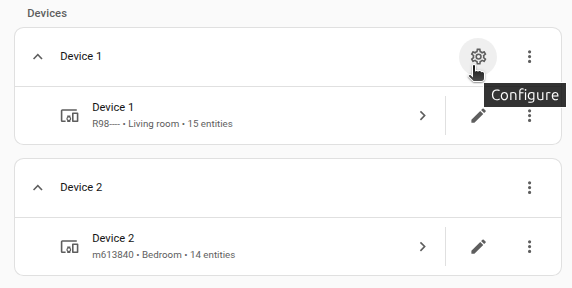
On the card, select the cogwheel
. - If the card does not have a cogwheel, the integration does not support options for this device.
-
Edit the options, then select Submit to save the changes.
集成请求的权限
集成将在您的 OneDrive 上请求以下权限才能使集成正常工作:
Files.ReadWrite.All:授予应用程序在 OneDrive 的任何文件夹中读取和写入的权限。不幸的是,与个人 OneDrive 不同,OneDrive for Business 不支持Files.ReadWrite.AppFolder权限,因此这些权限是最少的权限。offline_access:授予应用程序刷新其身份验证令牌的权限,无需您手动干预。openid:授予应用程序读取基本信息的权限,例如,如果您有 OneDrive。
获取应用程序凭据
您需要遵循 Microsoft 有关注册应用程序的指南 创建您自己的客户端 ID 和密钥。
确保在应用程序注册时配置以下设置:
- 支持的帐户类型:选择“仅限此组织目录中的帐户”(推荐)、“任何组织目录中的帐户”、“任何组织目录中的帐户(任何 Microsoft Entra ID 租户 - 多租户)和个人 Microsoft 帐户”之一
- 重定向 URI:类型:
Web,URL:https://my.home-assistant.io/redirect/oauth
Sensors
该集成提供以下传感器,每 5 分钟更新一次:
- 可用存储总量:驱动器的总大小(默认情况下禁用)。
- 已用存储空间:您已用完的存储空间量。
- 剩余存储空间:驱动器中剩余的存储空间量。
- 驱动器状态:根据剩余存储空间计算出的驱动器状态。可能的值:“正常”、“接近限制”、“严重”、“超出”。
A drive in Drive state Exceeded will be automatically frozen (meaning you can't upload any more backups & files) until you free up enough storage.
Troubleshooting
目前我们没有任何已知的故障排除步骤,如果您发现问题,请创建文档 PR。谢谢!
Removing the integration
此集成遵循标准集成删除。不需要额外的步骤。
To remove an integration instance from Home Assistant
- Go to Settings > Devices & services and select the integration card.
- From the list of devices, select the integration instance you want to remove.
- Next to the entry, select the three-dot
menu. Then, select Delete.