
Nord Pool

The Nord Pool integration integrates Nord Pool Group energy prices into Home Assistant.

The integration provides the public market prices displayed on the Nord Pool Auction page.

Most European energy is traded via the Nord Pool Group marketplace. If your energy provider doesn't have a dedicated Home Assistant integration and you have a spot-price-based contract, you can use the Nord Pool integration. This integration provides spot prices for your selected market, which you can, as an example, use in a template to calculate prices for your energy dashboard.

:::important 能源市场正在从 60 分钟 MTU 过渡到 15 分钟 MTU

When this finally occurs, the Nord Pool integration will automatically switch and use the 15-minute MTU. This means during the transition, you may have a current price which is hourly based and a future price that is a 15-minute price.

如果您使用此集成来计算您自己的能源成本,建议您看看这对您有何影响。检查是否有任何自动化、模板或其他设置可能需要进行相应修改。

您可以阅读更多内容并监控时间线 关于 Nordpool 过渡到 15 分钟 MTU 的页面

:::

Configuration

To add the Nord Pool service to your Home Assistant instance, use this My button:

Open Add integration in your Home Assistant instance.

Manual configuration steps
Areas:
  description: Select one or multiple market areas to create sensors for.
Currency:
  description: Currency to display prices in. EUR is the base currency in Nord Pool prices.
Tip

Only a single integration entry is supported. To modify the settings, you can use the reconfigure option from the integration entry.

EUR is the base currency for market prices. If you choose another currency, you can find the conversion rate in the Exchange rate sensor. All prices are displayed as [Currency]/kWh.

数据获取和限制

数据每小时从 Nord Pool API 轮询一次,以确保价格传感器显示正确的价格。

如果由于无连接或 API 故障而无法进行轮询,它将在失败之前等待重试几次。 如果用户已解决连接问题,则用户可以使用 homeassistant.update_entity 操作稍后手动重试。

Troubleshooting

该服务依赖于互联网连接并且 Nord Pool API 可用。在提出问题之前您可以尝试以下操作:

  • 检查您的 Home Assistant 实例是否可以使用互联网。
  • 单击此处 检查 Nord Pool API 是否可用。您应该会收到一个标题为“Unauthorized”的 JSON。
  • 在 Home Assistant 实例的终端中使用“curl”,使用与之前在浏览器中打开的相同的 URL。 curl https://dataportal-api.nordpoolgroup.com/api/DayAheadPrices

Sensors

集成将创建显示所配置市场区域当前能源价格的实体。仅显示基本能源价格。不包括增值税和其他额外费用。

Main sensors

SensorTypeDescription
Current price[Currency]/kWhThe current (hourly) energy price.
Previous price[Currency]/kWhThe price of the previous hour.
Next price[Currency]/kWhThe price of the next hour.
Daily average[Currency]/kWhThe average of today's energy prices.
Lowest price[Currency]/kWhToday's lowest price (start and end time are provided in state attributes)
Highest price[Currency]/kWhToday's highest price (start and end time are provided in state attributes)

Peak & off-peak sensors

为高峰和非高峰时段提供了额外的传感器。

  • 高峰期是指上午 8 点至晚上 8 点期间的价格。
  • 非高峰1是指午夜至早上8点时段的价格。
  • 非高峰2是指晚上8点至午夜期间的平均价格。

时间块

SensorTypeDescription
[peak/off-peak] highest price[Currency]/kWhThe hightest hourly price during the given timeframe.
[peak/off-peak] lowest price[Currency]/kWhThe lowest hourly price during the given timeframe.
[peak/off-peak] average[Currency]/kWhThe average price of the given timeframe.
[peak/off-peak] time fromDatetimeThe start date/time of the given timeframe.
[peak/off-peak] time untilDatetimeThe end date/time of the given timeframe.

默认情况下不启用区块价格传感器。

Diagnostic sensors

SensorTypeDescription
Currency[Currency]The configured currency.
Exchange rateDecimalThe exchange rate between the configure currency and Euro's.
Last updatedDatetimeThe time when the market prices were last updated.

Actions

Get price for date

集成实体仅提供当前日期的价格信息。使用“获取日期价格”操作可检索过去两个月内或明天的任何日期的定价信息。

区域和货币参数是可选的。如果省略,将使用集成中配置的值。

请参阅示例如何在触发模板传感器中使用。

Nord Pool configuration entry:
  description: Select the Nord Pool configuration entry to target.
Date:
  description: Pick the date to fetch prices for (see note about possible dates below).
Areas:
  description: Select one market area to create output for. If omitted it will use the areas from the configuration entry.
Currency:
  description: Currency to display prices in. EUR is the base currency in Nord Pool prices.  If omitted it will use the currency from the configuration entry.
Note

公共 API 只允许我们查看最多 2 个月的过去定价信息。

尽管 Nord Pool 在 CET/CEST 时区运行,但所有数据均以 UTC 格式返回。根据数据的使用或操作方式,您可能需要考虑这一点。

明天的价格通常在欧洲中部夏令时间 13:00 左右发布,尝试在此时间之前获取价格将产生错误,在这种情况下需要考虑该错误。

::: :::tip You can get your config_entry by using actions within the developer tools: use one of the Nord Pool actions and view the YAML.

Example action with data

action: nordpool.get_prices_for_date
data:
  config_entry: 1234567890a
  date: "2024-11-10"
  areas:
    - SE3
    - SE4
  currency: SEK

获取日期的价格指数

该集成还可以提供任何日期的价格指数以及公布的价格。使用“获取日期价格指数”操作可检索具有自定义解析时间的定价信息。

区域、货币和分辨率参数是可选的。如果省略,将使用集成中配置的值,并且对于解析,默认为 60 分钟。

Nord Pool configuration entry:
  description: Select the Nord Pool configuration entry to target.
Date:
  description: Pick the date to fetch prices for (see note about possible dates below).
Areas:
  description: Select one market area to create output for. If omitted it will use the areas from the configuration entry.
Currency:
  description: Currency to display prices in. EUR is the base currency in Nord Pool prices. If omitted, it will use the currency from the configuration entry.
Resolution:
  description: Resolution time for price indices.
Note

公共 API 只允许我们查看最多 2 个月的过去定价信息。

尽管 Nord Pool 在 CET/CEST 时区运行,但所有数据均以 UTC 格式返回。根据数据的使用或操作方式,您可能需要考虑这一点。

明天的价格通常在欧洲中部夏令时间 13:00 左右发布,尝试在此时间之前获取价格将产生错误,在这种情况下需要考虑该错误。

::: :::tip You can get your config_entry by using actions within the developer tools: use one of the Nord Pool actions and view the YAML.

Example action with data

action: nordpool.get_prices_for_date
data:
  config_entry: 1234567890a
  date: "2024-11-10"
  areas:
    - SE3
    - SE4
  currency: SEK

Examples

添加增值税和固定成本的模板传感器对于在能源仪表板中获取实际能源成本很有用。

UI Template

Create a helper using the UI.

  1. Go to Settings > Devices & services and at the top, choose the Helpers tab.
  2. In the bottom right corner, select Create helper.
  3. Select Template and Template a sensor.
  4. Enter the fields as shown below.

下面的模板采用当前价格属性,添加 0.1293 欧元作为固定成本,并添加 21% 的增值税。
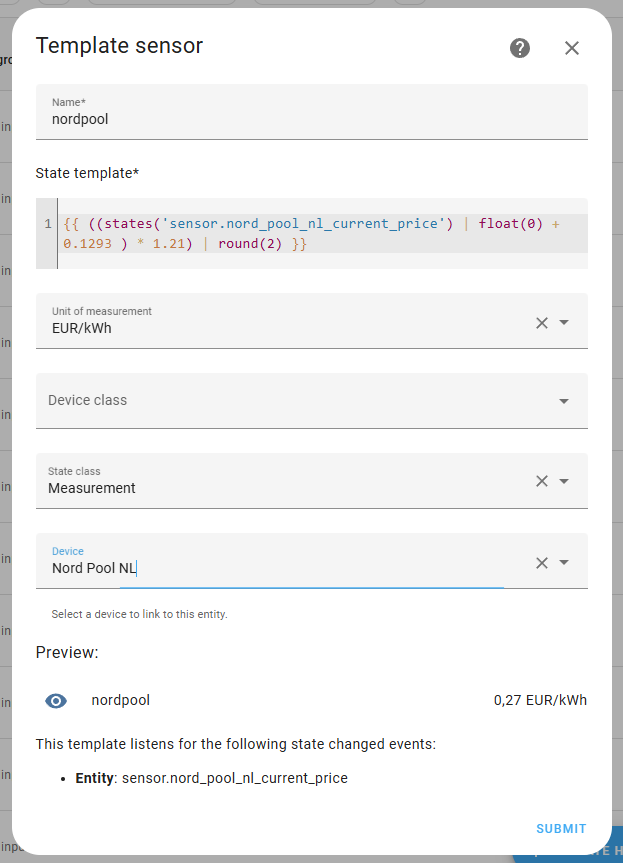
屏幕截图:创建模板传感器

YAML Template

用于添加增值税和来自辅助实体“input_number.add_fixed_cost”的固定成本的模板传感器。

template:
  - sensor:
      - name: "Nordpool"
        unit_of_measurement: "EUR/kWh"
        state_class: measurement
        state: >
          # create a variable with the current price
          {% set cost = states('sensor.nord_pool_nl_current_price') | float(0) %}
          # create a variable with the additional fixed cost
          {% set add_cost = states('input_number.add_fixed_cost') | float(0) %}
          # Add cost and additional fixed cost. Add VAT (25%) by multiplying with 1.25 and round to 2 digits: 
          {{ ((cost + add_cost) * 1.25) | round(2, default=0) }}

Tomorrow's lowest price

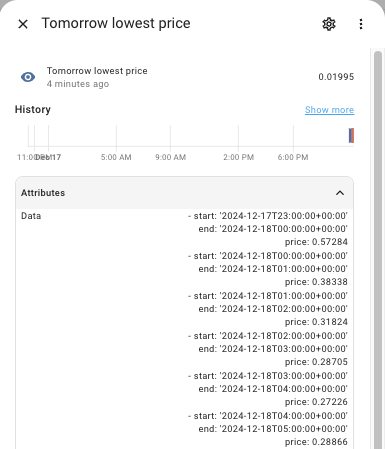
使用触发器模板,您可以创建模板传感器来计算明天的最低价格,同时将所有价格列表放入传感器的属性中。所有价格均以[货币]/MWh 返回。

Note

下面的示例将操作调用响应转换为以所选货币表示的 kWh 价格,并将明天的所有价格添加为属性中的列表。

::: :::tip You can get your config_entry by using actions within the developer tools: use one of the Nord Pool actions and view the YAML.
template:
  - trigger:
      - trigger: time_pattern
        minutes: /10
      - trigger: homeassistant
        event: start
    action:
      - action: nordpool.get_prices_for_date
        data:
          config_entry: 01JEDAR1YEHJ6DZ376MP24MRDG
          date: "{{ now().date() + timedelta(days=1) }}"
          areas: SE3
          currency: SEK
        response_variable: tomorrow_price
    sensor:
      - name: Tomorrow lowest price
        unique_id: se3_tomorrow_low_price
        state: >
          {% set data = namespace(prices=[]) %}
          {% for state in tomorrow_price['SE3'] %}
            {% set data.prices = data.prices + [(state.price / 1000)] %}
          {% endfor %}
          {{min(data.prices)}}
        attributes:
          data: >
            {% set data = namespace(prices=[]) %}
            {% for state in tomorrow_price['SE3'] %}
              {% set data.prices = data.prices + [{'start':state.start, 'end':state.end, 'price': state.price/1000}] %}
            {% endfor %}
            {{data.prices}}

屏幕截图:触发模板:明天最低价

Energy Dashboard

要在 Energy 仪表板中使用 Nordpool 集成,请在配置电网消耗和生产时,使用 使用具有当前价格的实体 选项。
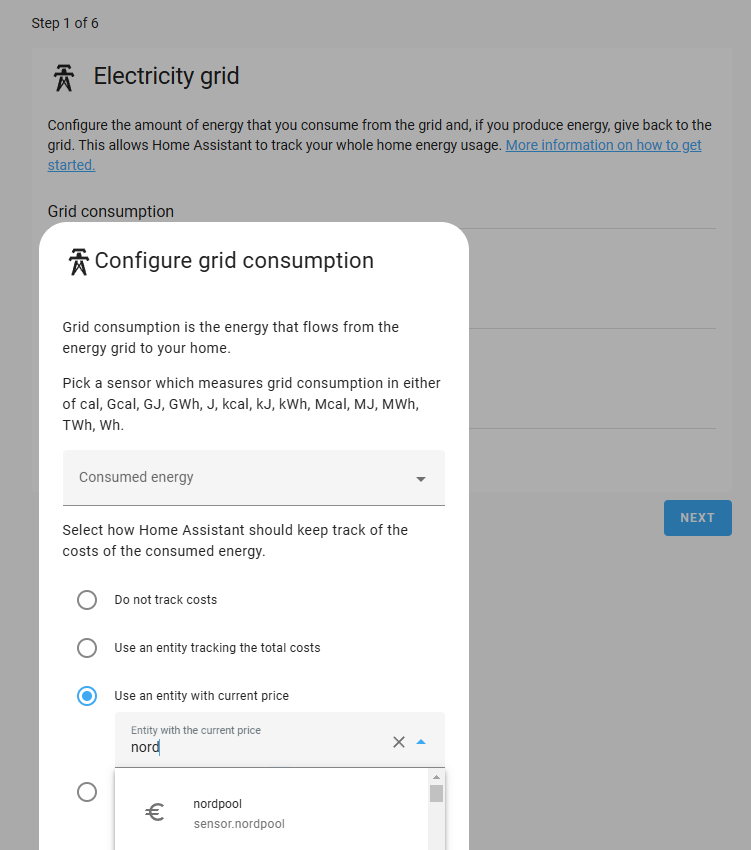
屏幕截图:创建模板传感器

Remove the integration

To remove an integration instance from Home Assistant

  1. Go to Settings > Devices & services and select the integration card.
  2. From the list of devices, select the integration instance you want to remove.
  3. Next to the entry, select the three-dot menu. Then, select Delete.
