

NETGEAR
This integration allows you to detect presence by looking at connected devices to a NETGEAR device and control the NETGEAR device. Both routers and access points can be used with this integration. Some access points will not be automatically discovered and need to be set up manually. Attached devices are only tracked on NETGEAR devices set to the router mode, otherwise, duplicate entities will occur from access points that also report the same devices.
Configuration
To add the NETGEAR hub to your Home Assistant instance, use this My button:

NETGEAR can be auto-discovered by Home Assistant. If an instance is found, it will be shown as Discovered and can be set up right away.
Manual configuration steps
- Browse to your Home Assistant instance.
- Go to Settings > Devices & services.
- In the lower-right corner, select Add integration.
- From the list, select NETGEAR.
- Follow the instructions on screen to complete the setup.
Options
To define options for NETGEAR, follow these steps:
-
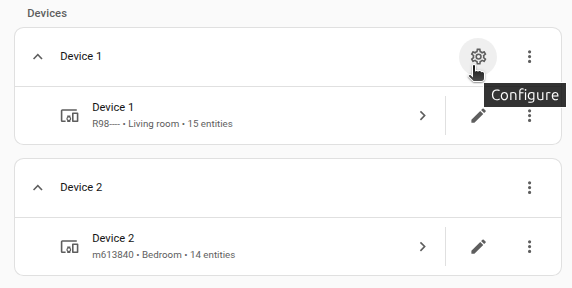
In Home Assistant, go to Settings > Devices & services.
-
If multiple instances of NETGEAR are configured, choose the instance you want to configure.
-
On the card, select the cogwheel
. - If the card does not have a cogwheel, the integration does not support options for this device.
-
Edit the options, then select Submit to save the changes.
Router entities
NETGEAR 路由器将具有以下实体。
请注意,并非所有路由器都支持所有功能,如果路由器不支持某功能,则即使该实体被禁用,相应的实体也会处于不可用状态。
您可能还会在日志中看到以下错误“404 服务'...',未找到方法'...'”,为了防止这些错误,请禁用不支持的实体。
默认情况下禁用所有可能不受支持的实体。
Reboot button
用于重新启动路由器的按钮实体。
Update entity
更新实体以查看当前和最新的固件版本,并安装路由器的最新固件。
Traffic meter data
可以每天/每周/每月跟踪通过路由器下载/上传数据的总量和平均量。 为了让这些实体显示数据(而不是 0),应在路由器设置中启用“流量计”。 启用“流量计”开关实体并将其打开。
Router feature switches
可以打开/关闭以下路由器功能,并可以读取状态:
- 访问控制
- 流量计
- 家长控制
- 服务质量
- 2.4G 宾客无线网络
- 5G 宾客无线网络
- 智能连接
Speed test data
可以通过每 2 小时执行一次速度测试来跟踪“平均 Ping”、“下行链路带宽”和“上行链路带宽”。 如果启用这些传感器实体,它们将首先显示集成负载的先前结果。第一次新的速度测试在集成加载后 2 小时进行。 速度测试间隔选择为2小时,以免给网络带来不必要的负载并减少数据使用。 当启用三个传感器中的一个或多个时,将执行速度测试。请注意,这可能会导致较高的数据使用量,具体取决于您的互联网连接速度,这在使用按流量计费/有限网络时可能相关。
Ethernet link status
以太网链路状态传感器指示路由器当前是否能够连接到互联网。
Utilization sensors
CPU 和内存利用率传感器以路由器可用资源的百分比表示。
Connected device entities
对于连接到 NETGEAR 路由器的每个设备,以下实体将可用:
Device tracker
显示设备当前是否连接到路由器(在家)或未连接到路由器(离开)。
Allowed on Network
允许您允许或阻止网络上的设备的开关。 为了使该实体真正阻止设备,需要在路由器设置中打开“访问控制”。 启用“访问控制”开关实体并将其打开。
Signal strength
显示设备的 wifi 信号强度。
Link rate
显示设备的当前链路速率,指示当前连接的最大可能数据速度。
Link type
显示当前链路类型:有线、2.4GHz 或 5GHz。
Troubleshooting
- 如果您在尝试设置 NETGEAR 集成时收到“连接或登录错误”,请尝试使用路由器的 IP 地址(通常为“192.168.1.1”)作为主机,而不是默认的“routerlogin.net”。