motionEye
motionEye 集成可让你将
motionEye 服务器接入 Home Assistant。motionEye
是 motion 守护进程的开源 Web 前端,用于集中管理和可视化多种类型的摄像头。
配置
此集成可通过 UI 配置。前往 设置 > 设备与服务 添加。
url:
  description: motionEye 服务器本身的 URL,**不是**它提供的摄像头流 URL。
admin_username:
  description: motionEye 管理员账号用户名,用于修改摄像头设置。
admin_password:
  description: motionEye 管理员账号密码。
surveillance_username:
  description: motionEye 监看账号用户名,用于视频流认证。
surveillance_password:
  description: motionEye 监看账号密码。
Options
To define options for motionEye, follow these steps:
-
In Home Assistant, go to Settings > Devices & services.
-
If multiple instances of motionEye are configured, choose the instance you want to configure.
-
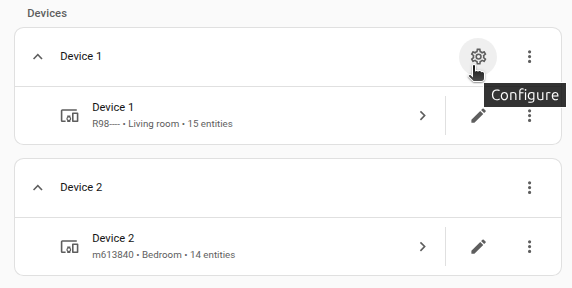
On the card, select the cogwheel .
- If the card does not have a cogwheel, the integration does not support options for this device.
-
Edit the options, then select Submit to save the changes.
Configure motionEye webhooks to report events to Home Assistant:
  description: 是否自动配置 motionEye webhook 回调到 Home Assistant。若禁用此选项,除非你手动配置 webhook,否则不会生成 motion detected 或 file stored 事件。
Overwrite unrecognized webhooks:
  description: 是否覆盖已配置但不被识别为本集成的 webhook(若查询字符串包含 `src=hass-motioneye`,则视为属于本集成)。
Stream URL template:
  description: 用于覆盖标准 MJPEG 流 URL 的 [jinja2](https://jinja.palletsprojects.com/) 模板(比如用于反向代理场景)。请参阅下方 [Camera MJPEG Streams](#streams)。此选项仅对启用[高级模式](https://www.home-assistant.io/blog/2019/07/17/release-96/#advanced-mode)的用户显示。
使用
实体
注意:
- 如果关闭视频流开关,摄像头实体以及作用于该摄像头的动作将变为不可用。集成的其余部分仍可正常工作。
- 当 motionEye 中新增或删除摄像头时,Home Assistant 会自动新增或移除对应设备和实体。
摄像头 MJPEG 流
要让 MJPEG 流正常工作,必须可通过
<motioneyehost>:<streaming port> 访问。也就是说,Home Assistant 会直接连接到你在 motionEye UI(Video Streaming 下)中配置的流端口,该端口所在主机即 motionEye 集成所配置使用的主机。
示例:
- 如果此集成配置为连接
http://motioneye:8765,并且某摄像头的流端口配置为 8081,则 Home Assistant 必须能够访问 motioneye 的 8081 端口。
流 URL 模板
对于高级用例,你可以通过 Stream URL template 选项更改此行为。设置后,该字符串会覆盖上面默认行为推导出的默认流地址。此选项支持 jinja2 模板,模板可使用来自 motionEye 的 camera 字典变量(示例)。请注意,模板中不可访问 Home Assistant 状态,只能访问 motionEye 的 camera 字典。
当 motionEye 位于自定义反向代理之后,或流端口由于其他原因(比如防火墙规则)无法被 Home Assistant 访问时,此功能非常有用。
流 URL 模板示例
下面是该选项的一些常用配置示例。
在流 URL 中使用摄像头名称:
http://motioneye/video/{{ name }}
在流 URL 中使用摄像头名称,并先转换为小写:
http://motioneye/video/{{ name|lower }}
在流 URL 中使用摄像头 ID:
http://motioneye/video/{{ id }}
事件
收到 motion 或 file stored 回调后,会触发事件,可在自动化等场景中使用。
事件中的数据
- 事件数据包含此 motionEye 摄像头设备在 Home Assistant 中的
device_id 与设备 name。
- 事件数据还会包含尽可能适用于该事件类型的 Motion Conversion Specifiers。
- 你在 motionEye webhook(motionEye UI 中)里手动添加的额外
&key=value 键值对,会自动传递到事件数据中。如果你手动修改 webhook,请移除 src=hass-motioneye 参数,否则 webhook 会被覆盖。
- 对于文件存储事件,集成会自动添加
media_content_id(可在 Home Assistant 媒体播放器中播放媒体的标识符)和 file_url(媒体的原始 URL)。下方 示例自动化 展示了其用法。
- 若存储媒体是图片,
file_type 小于 8;否则为电影/视频。详情请参阅 motion 源码。
motion detected 事件示例
{
    "event_type": "motioneye.motion_detected",
    "data": {
        "device_id": "662aa1c77657dbc4af836abcdf80000a",
        "name": "Office",
        "camera_id": "2",
        "changed_pixels": "99354",
        "despeckle_labels": "55",
        "event": "02",
        "fps": "24",
        "frame_number": "10",
        "height": "1080",
        "host": "6aa7a495490c",
        "motion_center_x": "314",
        "motion_center_y": "565",
        "motion_height": "730",
        "motion_version": "4.2.2",
        "motion_width": "252",
        "noise_level": "12",
        "threshold": "20736",
        "width": "1920"
    },
    "origin": "LOCAL",
    "time_fired": "2021-04-11T04:25:41.106964+00:00",
    "context": {
        "id": "0320bb897aa3656dbb02affddce322f2",
        "parent_id": null,
        "user_id": null
    }
}
file stored 事件示例
{
    "event_type": "motioneye.file_stored",
    "data": {
        "device_id": "662aa1c77657dbc4af836abcdf80000a",
        "name": "Office",
        "camera_id": "2",
        "event": "03",
        "file_path": "/var/lib/motioneye/Camera2/2021-04-10/21-27-53.mp4",
        "file_type": "8",
        "media_content_id": "media-source://motioneye/74565ad414754616000674c87bdc876c#662aa1c77657dbc4af836abcdf80000a#movies#/2021-04-10/21-27-53.mp4",
        "file_url": "https://cctv/movie/2/playback/2021-04-10/21-27-53.mp4?_username=admin&_signature=bc4565fe414754616000674c87bdcacbd",
        "fps": "25",
        "frame_number": "21",
        "height": "1080",
        "host": "6aa7a495490c",
        "motion_version": "4.2.2",
        "noise_level": "12",
        "threshold": "20736",
        "width": "1920"
    },
    "origin": "LOCAL",
    "time_fired": "2021-04-11T04:27:54.528671+00:00",
    "context": {
        "id": "0358cac9457e3e3a2039da8c998e4c25",
        "parent_id": null,
        "user_id": null
    }
}
操作
所有操作都接受 entity_id 或 device_id。
motioneye.snapshot
触发摄像头快照(例如保存图片到磁盘)。
参数:
注意:这是对 motioneye.action 调用的轻量封装。
motioneye.action
触发 motionEye 动作(请参阅 motionEye Action Buttons)。
参数:
注意:record_start 和 record_stop 在 motionEye 中仅为部分实现,因此目前行为可能不符合预期(相关代码)。
motioneye.set_text_overlay
设置摄像头的文本叠加。
参数:
注意:
- 调用此操作会触发 motionEye 摄像头重置,这会暂停视频流、录像、移动侦测等功能。
- 请确保
Text Overlay 开关已开启,否则不会显示已配置的文本叠加。
示例:
action: motioneye.set_text_overlay
data:
  left_text: timestamp
  right_text: custom-text
  custom_right_text: "Alarm armed"
target:
  entity_id: camera.office
媒体浏览
已保存的 motionEye 媒体(视频和图片)可在 Home Assistant 的 "Media Browser" 中原生浏览。
手动配置根目录
虽然该集成支持按摄像头分别下钻查看媒体,但在底层,motionEye 通过目录结构将媒体与各摄像头关联。因此,如果你手动将多个摄像头配置为共享同一个根目录,那么查询任意一个“重叠”摄像头时,motionEye 都会返回媒体条目的_合并结果_。请为不同摄像头使用不同根目录(在 motionEye 中:File Storage -> Root Directory),以确保 motionEye(以及此集成)能正确将媒体关联到拍摄该媒体的摄像头。
仪表板卡片示例
带图标的仪表板卡片示例,调用 action 操作向 motionEye 发送动作命令。
- type: picture-glance
  title: "Living Room"
  camera_image: camera.living_room
  camera_view: live
  entities:
      - entity: camera.living_room
      - entity: camera.living_room
        icon: "mdi:arrow-left"
        tap_action:
          action: perform-action
          perform_action: motioneye.action
          data:
            action: left
            entity_id: camera.living_room
      - entity: camera.living_room
        icon: "mdi:arrow-right"
        tap_action:
          action: perform-action
          perform_action: motioneye.action
          data:
            action: right
            entity_id: camera.living_room
      - entity: camera.living_room
        icon: "mdi:arrow-up"
        tap_action:
          action: perform-action
          perform_action: motioneye.action
          data:
            action: up
            entity_id: camera.living_room
      - entity: camera.living_room
        icon: "mdi:arrow-down"
        tap_action:
          action: perform-action
          perform_action: motioneye.action
          data:
            action: down
            entity_id: camera.living_room
自动化示例
报警布防时设置文本叠加
一个简单自动化,用于设置表示报警布防状态的文本叠加。要让此自动化生效,必须开启文本叠加(可通过 switch.<name>_text_overlay 控制)。
- alias: "Set camera text overlay to armed"
  triggers:
    - trigger: state
      entity_id: alarm_control_panel.home_alarm
      to: "armed_away"
  actions:
    - action: motioneye.set_text_overlay
      target:
        entity_id: camera.living_room
      data:
        left_text: custom-text
        custom_left_text: "Alarm is ARMED"

- alias: "Set camera text overlay to disarmed"
  triggers:
    - trigger: state
      entity_id: alarm_control_panel.home_alarm
      to: "disarmed"
  actions:
    - action: motioneye.set_text_overlay
      target:
        entity_id: camera.living_room
      data:
        left_text: custom-text
        custom_left_text: "Alarm is disarmed"
自动播放已存储视频
该自动化会在录像片段保存后立即投放到电视播放。
- alias: "Cast motionEye movie clips"
  triggers:
    - trigger: event
      event_type: motioneye.file_stored
      event_data:
        # Only cast video.
        file_type: "8"
  actions:
    - action: media_player.play_media
      target:
        entity_id: media_player.kitchen_tv
      data:
        media_content_id: "{{ trigger.event.data.media_content_id }}"
        media_content_type: video
调试
调试日志
要同时启用该集成及其底层客户端库的调试日志,请在 "configuration.yaml" 中添加以下配置并重启:
logger:
  default: warning
  logs:
    motioneye_client: debug
    homeassistant.components.motioneye: debug

