

LimitlessLED
The LimitlessLED integration can control your LimitlessLED lights from within Home Assistant. The lights are also known as EasyBulb, AppLight, AppLamp, MiLight, LEDme, dekolight, or iLight.
LimitlessLED bulbs are controlled via groups, so you can only control an individual bulb via the bridge if it is in a group by itself.
Note: you can assign an rgbw, rgbww, white and dimmer group to the same group number, effectively allowing up to 16 groups (4 rgbww, 4 rgbw, 4 white and 4 dimmer) per bridge.
An archive of the extensive API can be found here.
Setup
Before configuring Home Assistant, make sure you can control your bulbs or LEDs with the MiLight mobile application. Next, discover your bridge(s) IP address. You can do this via your router or a mobile application like Fing (Android or iTunes).
To add limitlessled to your installation, add the following to your "configuration.yaml" file.
:::tip
更改配置后需要重启 Home Assistant。
:::
Night effect
LimitlessLED has a night effect that can be used to dim the lights below brightness: 1. This night mode is meant to temporarily turn the lights into a nightlight. This mode can be especially helpful when wall switches are also being used. For example, when a light is using the night effect one way to return it to its previous brightness level (other than using Home Assistant) is to switch the lights off and then back on from the wall switch.
Note that the brightness, color and temperature attributes cannot be used when using the night effect. You can turn on night effect by using the effect attribute of the normal light.turn_on action. Here is an example:
Properties
Refer to the light documentation for general property usage, but keep in mind the following notes specific to LimitlessLED.
- RGBWW (Only supported on v6 bridges)
- Color: There are 25,856 color possibilities along the LimitlessLED color spectrum. For colors, hue and saturation can be used, but not lightness. If you select a color with lightness, Home Assistant will calculate the nearest valid LimitlessLED color. In white mode, the temperature can be set.
- Temperature: There are 101 temperature steps.
- Brightness: There are 101 brightness steps.
- RGBW
- Color: There are 256 color possibilities along the LimitlessLED color spectrum. Color properties like saturation and lightness cannot be used - only Hue can. The only exception is white (which may be warm or cold depending on the type of RGBW bulb). If you select a color with saturation or lightness, Home Assistant will calculate the nearest valid LimitlessLED color.
- Brightness: Wi-Fi bridge v6 supports 101 brightness steps; older versions only 25.
- White
- When using a legacy Wi-Fi bridge (before v6), you can observe on the MiLight mobile application, you can not select a specific brightness or temperature - you can only step each property up or down. There is no indication of which step you are on. This restriction, combined with the unreliable nature of LimitlessLED transmissions, means that setting white bulb properties is done on a best-effort basis. The only very reliable settings are the minimum and maximum of each property.
- Temperature: Wi-Fi bridge v6 supports 101 temperature steps; older versions only 10.
- Brightness: Wi-Fi bridge v6 supports 101 brightness steps; older versions only 10.
- Dimmer (Only supported on v6 bridges)
- This type is for a single color LED dimmer like the 1CH MiLight dimmer module or similar. This type is only supported by the version 6 Wi-Fi bridges.
- Brightness: Wi-Fi bridge v6 supports 101 brightness steps.
- Transitions
- If a transition time is set, the group will transition between the current settings and the target settings for the duration specified. Transitions from or to white are not possible - the color will change immediately.
Initialization & Synchronization
When starting Home Assistant, the last recorded state will be shown. This might no longer match the actual state of the bulbs.
If you control your LimitlessLED lights via the MiLight mobile application or other means while Home Assistant is running, Home Assistant cannot track those changes and you may observe obsolete information.
This lack of synchronization is due to a LimitlessLED limitation.
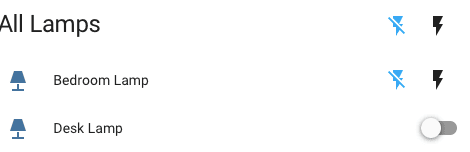
Because LimitlessLED lights may have an obsolete state, Home Assistant shows the power switch as two buttons rather than a toggle. This ensures that the power can be set with a single click even if the assumed state is wrong. You can change to use the power toggle with Customize: