HomeKit Bridge 集成可将你的 Home Assistant 实体提供给 Apple HomeKit,
这样即使这些设备原生不支持 HomeKit,也能通过 Apple 的“家庭”App 和 Siri 进行控制。
请务必先阅读下方的注意事项,以避免后续遇到不必要的问题。
如果确实遇到问题,请查看故障排查部分。
Tip
如果你想在 Home Assistant 中控制仅支持 HomeKit 的设备,
请查看 HomeKit Device 集成,
它可以将支持 HomeKit 的设备接入 Home Assistant。
:::
:::note 配置
此集成可通过 UI 配置。前往 设置 > 设备与服务 添加。
手动配置
如果你想更细致地控制实体发布到 HomeKit 的方式,覆盖 HomeKit 集成与网络通信时使用的 IP 地址,或修改 HomeKit 向网络广播自身时使用的 IP 地址,那么你需要通过 configuration.yaml 中的配置项来设置 HomeKit 集成。
示例如下:
# Example configuration.yaml entry configuring HomeKit
homekit:
  - filter:
      include_domains:
        - alarm_control_panel
        - light
        - media_player
      include_entity_globs:
        - binary_sensor.*_occupancy
      include_entities:
        - binary_sensor.living_room_motion
    entity_config:
      alarm_control_panel.home:
        code: 1234
      binary_sensor.living_room_motion:
        linked_battery_sensor: sensor.living_room_motion_battery
        low_battery_threshold: 31
      fan.air_purifier:
        type: air_purifier
        linked_filter_life_level_sensor: sensor.air_purifier_filter_life_level
      light.kitchen_table:
        name: Kitchen Table Light
      lock.front_door:
        code: 1234
      media_player.living_room:
        feature_list:
          - feature: on_off
          - feature: play_pause
          - feature: play_stop
          - feature: toggle_mute
      switch.bedroom_outlet:
        type: outlet
      camera.back_porch:
        support_audio: True
      sensor.some_co_sensor:
        co_threshold: 1000
      sensor.some_co2_sensor:
        co2_threshold: 1000
  - name: HASS Bridge 2
    port: 21065
    filter:
      include_domains:
        - light
homekit:
  description: HomeKit configuration.
  required: true
  type: map
  keys:
    port:
      description: Port for the HomeKit extension. If you are adding more than one instance they need to have different values for port.
      required: false
      type: integer
      default: 21063
    name:
      description: Needs to be unique for each instance of Home Assistant using the integration on the same local network. Between `3` and `25` characters. Alphanumeric and spaces allowed.
      required: false
      type: string
      default: '`Home Assistant Bridge`'
    ip_address:
      description: The local network IP address. Only necessary if the default from Home Assistant does not work.
      required: false
      type: string
    mode:
      description: HomeKit can expose an entity via a bridge, or a single entity as an accessory which is needed for Television Media Players. ([Accessory mode](#accessory-mode))
      required: false
      type: string
      default: '`bridge`'
    advertise_ip:
      description: If you need to override the IP address(es) used for mDNS advertisement. (For example, using network isolation in Docker and together with an mDNS forwarder like `avahi-daemon` in reflector mode)
      required: false
      type: list
    filter:
      description: Filters for entities to be included/excluded from HomeKit. ([Configure Filter](#configure-filter))
      required: false
      type: map
      keys:
        include_domains:
          description: Domains to be included.
          required: false
          type: list
        include_entity_globs:
          description: Include all entities matching a listed pattern (e.g., `binary_sensor.*_motion`).
          required: false
          type: list
        include_entities:
          description: Entities to be included.
          required: false
          type: list
        exclude_domains:
          description: Domains to be excluded.
          required: false
          type: list
        exclude_entity_globs:
          description: Exclude all entities matching a listed pattern (e.g., `sensor.*_motion`).
          required: false
          type: list
        exclude_entities:
          description: Entities to be excluded.
          required: false
          type: list
    entity_config:
      description: Configuration for specific entities. All subordinate keys are the corresponding entity ids of the domains, e.g., `alarm_control_panel.alarm`.
      required: false
      type: map
      keys:
        '`ENTITY_ID`':
          description: Additional options for specific entities.
          required: false
          type: map
          keys:
            name:
              description: Name of the entity to show in HomeKit. HomeKit will cache the name on the first run so the accessory must be [reset](#resetting-accessories) for any change to take effect.
              required: false
              type: string
            linked_battery_sensor:
              description: The `entity_id` of a `sensor` entity to use as the battery of the accessory.
              required: false
              type: string
            linked_doorbell_sensor:
              description: The `entity_id` of a `binary_sensor` or `event` entity to use as the doorbell sensor of a `lock` or `camera` accessory to enable doorbell notifications.
              required: false
              type: string
            linked_filter_change_indication_binary_sensor:
              description: The `entity_id` of a `binary_sensor` entity to use as the indicator that the filter of the air purifier accessory needs to be changed.
              required: false
              type: string
            linked_filter_life_level_sensor:
              description: The `entity_id` of a `sensor` entity to use as the filter life level of the air purifier accessory.
              required: false
              type: string
            linked_humidity_sensor:
              description: The `entity_id` of a `sensor` entity to use as the humidity sensor of the humidifier/dehumidifier accessory.
              required: false
              type: string
            linked_pm25_sensor:
              description: The `entity_id` of a `sensor` entity to use as the PM2.5 sensor of the air purifier accessory. When set, the `fan` accessory will default its `type` to `air_purifier`.
              required: false
              type: string
            linked_motion_sensor:
              description: The `entity_id` of a `binary_sensor` or `event` entity to use as the motion sensor of the camera accessory to enable motion notifications.
              required: false
              type: string
            linked_obstruction_sensor:
              description: The `entity_id` of a `binary_sensor` entity to use as the obstruction sensor of the garage door (cover) accessory to enable obstruction state tracking.
              required: false
              type: string
            linked_temperature_sensor:
              description: The `entity_id` of a `sensor` entity to use as the temperature sensor of the air purifier accessory.
              required: false
              type: string
            linked_valve_duration:
              description: The `entity_id` of an `input_number` entity to use as the default run time of a valve switch (switch type `faucet`, `shower`, `sprinkler`, or `valve`), or valve accessory. Minimum value, maximum value, and step size are set based on the linked `input_number` entity.
              required: false
              type: string
            linked_valve_end_time:
              description: The `entity_id` of a `sensor` (timestamp) entity to use for calculating the remaining time of a valve switch (switch type `faucet`, `shower`, `sprinkler`, or `valve`), or valve accessory. The end time has to be maintained in Home Assistant. HomeKit will not update the state of this sensor. The maximum value is set based on the `input_number` of `linked_valve_duration`, or uses a default of 48 hours.
              required: false
              type: string
            low_battery_threshold:
              description: Minimum battery level before the accessory starts reporting a low battery.
              required: false
              type: integer
              default: 20
            code:
              description: Code to `arm / disarm` an alarm or `lock / unlock` a lock. Only applicable for `alarm_control_panel` or `lock` entities.
              required: false
              type: string
              default: '`<No code>`'
            feature_list:
              description: Only for `media_player` entities. List of feature dictionaries to add for a given entity. Comparable to the platform schema.
              required: false
              type: list
              keys:
                feature:
                  description: Name of the feature to add to the entity representation. Valid features are `on_off`, `play_pause`, `play_stop` and `toggle_mute`. The media_player entity must support the feature to be valid.
                  required: true
                  type: string
            type:
              description: Only for `switch` and `fan` entities. Type of accessory to be created within HomeKit. Valid types for `switch` entities are `faucet`, `outlet`, `shower`, `sprinkler`, `switch` and `valve`. Valid types for `fan` entities are `fan` and `air_purifier`.
              required: false
              type: string
              default: '`switch`'
            stream_count:
              description: Only for `camera` entities. The number of simultaneous streams the camera can support.
              required: false
              type: integer
              default: 3
            stream_address:
              description: Only for `camera` entities. The source IP address to use when streaming to RTP clients. If your Home Assistant host has multiple interfaces, selecting a specific IP may be necessary.
              required: false
              type: string
              default: local IP from Home Assistant
            stream_source:
              description: Only for `camera` entities. A URL, file or other valid FFmpeg input string to use as the stream source, rather than the default camera source. Required for camera entities that do not natively support streaming (MJPEG). If `-i` is not found in the stream source, it is prepended to construct the FFmpeg input.
              required: false
              type: string
              default: stream source from camera entity
            support_audio:
              description: Only for `camera` entities. Whether the camera supports audio. Audio is disabled unless this flag is set to `True`.
              required: false
              type: boolean
              default: '`False`'
            max_width:
              description: Only for `camera` entities. Maximum width supported by camera. Used when generating advertised video resolutions.
              required: false
              type: integer
              default: 1920
            max_height:
              description: Only for `camera` entities. Maximum height supported by camera. Used when generating advertised video resolutions.
              required: false
              type: integer
              default: 1080
            max_fps:
              description: Only for `camera` entities. Maximum FPS (frames per second) supported by camera. Used when generating advertised video resolutions.
              required: false
              type: integer
              default: 30
            audio_map:
              description: Only for `camera` entities. FFmpeg [stream selection mapping](https://ffmpeg.org/ffmpeg.html#Stream-selection) for the audio-only stream. Selects the first audio stream in the input stream by default. If your input stream has multiple audio streams, this may need to be adjusted.
              required: false
              type: string
              default: '`0:a:0`'
            video_map:
              description: Only for `camera` entities. FFmpeg [stream selection mapping](https://ffmpeg.org/ffmpeg.html#Stream-selection) for the video-only stream. Selects the first video stream in the input stream by default. If your input stream has multiple video streams, this may need to be adjusted.
              required: false
              type: string
              default: '`0:v:0`'
            audio_packet_size:
              description: Only for `camera` entities. RTP packet size used for streaming audio to HomeKit clients.
              required: false
              type: integer
              default: 188
            video_packet_size:
              description: Only for `camera` entities. RTP packet size used for streaming video to HomeKit clients.
              required: false
              type: integer
              default: 1316
            video_codec:
              description: Only for `camera` entities. FFmpeg video codec for transcoding. `copy` option reduces CPU load when video source is already encoded with `H264` (MPEG4). `h264_v4l2m2m` can be used with supported hardware, e.g., the Raspberry Pi, to offload encoding to hardware. The `h264_omx` option is only available with custom FFmpeg builds and enables GPU Hardware acceleration on Raspberry Pi.
              required: false
              type: string
              default: libx264
              available options: copy, libx264, h264_v4l2m2m, h264_omx, h264_qsv
            video_profile_names:
              description: Only for `camera` entities. FFmpeg video profile names for transcoding, only relevant if `video_codec` isn't `copy`. Some encoders, e.g., the Raspberry Pi's `h264_v4l2m2m`, don't use the standard `["baseline", "main", "high"]` profile names but expects `["0", "2", "4"]` instead. Use this option to override the default names, if needed.
              required: false
              type: list
              default: ["baseline", "main", "high"]
            audio_codec:
              description: Only for `camera` entities. FFmpeg audio codec for transcoding. `copy` option reduces CPU load when audio source is already encoded with `libopus`.
              required: false
              type: string
              default: libopus
              available options: copy, libopus
            co_threshold:
              description: Only for `sensor` entities with `device_class` `carbon_monoxide`. Used as the threshold value once HomeKit will warn/notify the user.
              required: false
              type: integer
              default: 25
            co2_threshold:
              description: Only for `sensor` entities with `device_class` `carbon_dioxide` or `co2` in `entity_id`. Used as the threshold value once HomeKit will warn/notify the user.
              required: false
              type: integer
              default: 1000
    devices:
      description: Include device triggers for all matching device ids. Configuration in the UI via Options is recommended instead.
      required: false
      type: list
设置
若要在 Home Assistant 中启用 HomeKit Bridge 集成,请在配置文件中添加以下内容:
# Example for HomeKit setup
homekit:
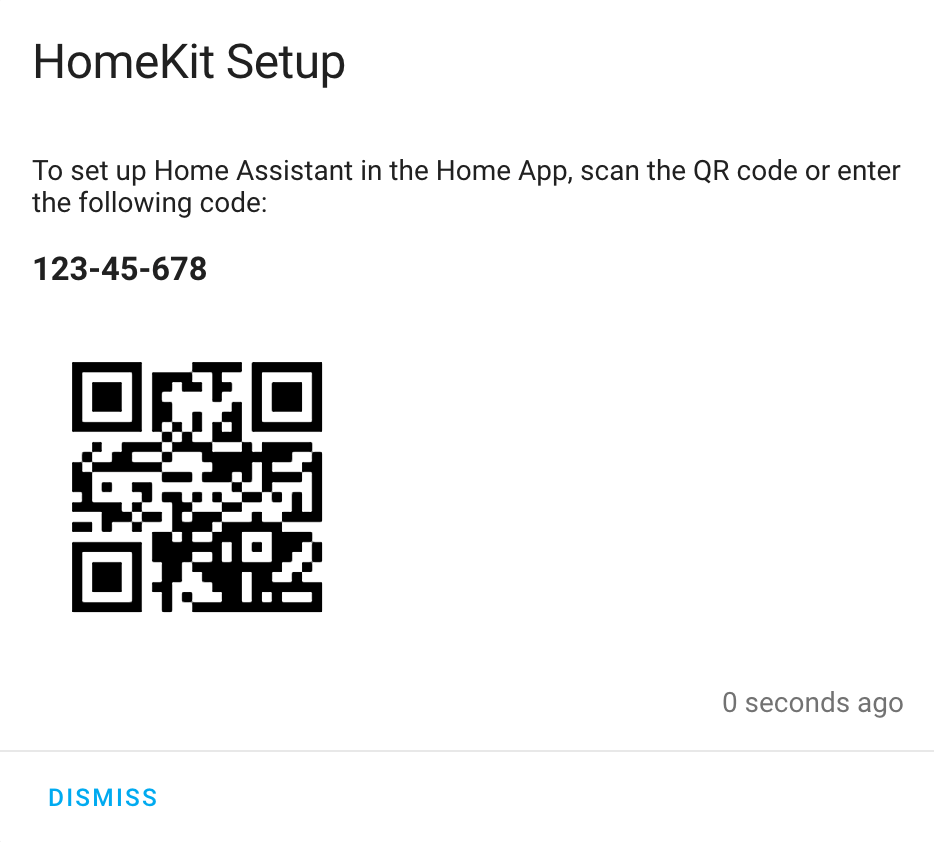
Home Assistant 启动后,只要实体受支持且符合过滤条件,就会暴露给 HomeKit。添加步骤如下:
- 打开 Home Assistant 前端界面。会出现一个新卡片,显示配对二维码和
pin code,如下方示例所示。注意:如果没有显示 pin code,请检查 Home Assistant UI 左下角的“通知”(铃铛图标)。
- 打开 Apple
Home 应用。
- 点击
Add Accessory,然后扫描二维码,或选择 Don't Have a Code or Can't Scan? 并选中 Home Assistant Bridge。
- 点击
Add Anyway,确认添加 Uncertified Accessory。
- 输入
PIN 码(如果扫描了二维码,则可跳过此步骤)。
- 按流程点击
Next,最后点击右上角的 Done。
- 现在你应当能在
Home 应用中看到 Home Assistant Bridge 及其配件。
设置完成后,你应该就能通过 Apple 的“家庭”App 和 Siri 控制 Home Assistant 中的设备了。
迁移 Home Assistant 安装
如果你在迁移到新的 Home Assistant 设备或安装环境时希望保留 HomeKit 配对关系,除了复制配置文件外,还需要复制配置目录中的 .storage/homekit.* 文件。请注意,该文件夹通常默认是隐藏的,具体取决于你的操作系统。
复制前,请务必先完全停止旧的和新的 Home Assistant 实例,否则不会生效。
注意事项
配件 ID
当前,此集成使用 entity_id 为 HomeKit 生成唯一的 accessory id (aid)。aid 用于识别设备并保存对其所做的全部配置。因此,如果你修改了一个没有 unique_id 的 entity_id,那么此前在 Home 应用中对该配件所做的所有配置都会丢失。
设备数量限制
HomeKit Accessory Protocol 规范规定,每个 bridge 最多只能包含 150 个唯一配件(aid)。配置过滤器时请注意这一点。如果你计划超过 150 台设备,可以创建多个 bridge。如果你需要通过 entity_config 为某些实体设置特定配置,请确保将它们添加到通过 YAML 配置的 bridge 中。
多个 HomeKit 实例
如果你是通过 UI(即 设置 > 设备与服务)创建 HomeKit 集成,那么它只能通过 UI 进行配置。虽然目前 UI 提供的配置项有限,但如果尝试通过 configuration.yaml 去配置一个由 UI 创建的 HomeKit 实例,就会额外启动另一个运行在不同端口上的 HomeKit 实例。
建议遵循同一来源配置原则:通过 UI 创建的 HomeKit 实例只在 UI 中编辑;通过 YAML 创建的 HomeKit 实例只在 YAML 中编辑。
配件模式
将 Camera、基于活动的遥控器(支持 activities 的 remote)、Lock,或电视类媒体播放器(device_class 为 tv 或 receiver 的 media_player)暴露给 HomeKit 时,必须将 mode 设置为 accessory,并且相关的 include 过滤器只能包含单个实体。
要在 UI 中快速添加所有配件模式实体:
- 通过 UI 创建新的网桥(即前往 Settings > Devices & services)。
- 选择
media_player、remote、lock 和 camera 域。
- 按正常流程完成配置。
- 对于每个必须以配件模式运行且尚未创建条目的实体,系统都会额外创建一个 HomeKit 条目。
- 如果你已经为非配件模式实体创建了另一个 HomeKit 网桥,可以安全移除这个新网桥。
- 配对每个网桥或配件。
要以配件模式添加单个实体:
- 通过 UI 创建新的网桥(即前往 Settings > Devices & services)
- 在配对该网桥之前,先打开它的选项。
- 将模式改为
accessory。
- 选择对应实体。
- 完成选项配置流程。
- 配对该配件。
配置过滤器
默认情况下,除隐藏实体和已分类实体(config、diagnostic、system 实体)外,所有实体都会被包含。若要限制哪些实体暴露给 HomeKit,可使用 filter 参数。请注意,只有受支持的集成才能被添加。
# Example filter to include specified domains and exclude specified entities
homekit:
  filter:
    include_domains:
      - alarm_control_panel
      - light
    include_entity_globs:
      - binary_sensor.*_occupancy
    exclude_entities:
      - light.kitchen_light
过滤器的应用规则如下:
- 无过滤器
- 仅有 include
- 实体在 entities include 列表中:包含
- 否则,实体匹配 domain include:包含
- 否则,实体匹配 glob include:包含
- 否则:排除
- 仅有 exclude
- 实体在 exclude 列表中:排除
- 否则,实体匹配 domain exclude:排除
- 否则,实体匹配 glob exclude:排除
- 否则:包含
- 有 domain 和/或 glob 的 include(也可能同时有 exclude)
- 实体在 entities include 列表中:包含
- 否则,实体在 entities exclude 列表中:排除
- 否则,实体匹配 glob include:包含
- 否则,实体匹配 glob exclude:排除
- 否则,实体匹配 domain include:包含
- 否则:排除
- 有 domain 和/或 glob 的 exclude(没有 domain 和/或 glob 的 include)
- 实体在 entities include 列表中:包含
- 否则,实体在 exclude 列表中:排除
- 否则,实体匹配 glob exclude:排除
- 否则,实体匹配 domain exclude:排除
- 否则:包含
- 没有 domain 和/或 glob 的 include 或 exclude
- 实体在 entities include 列表中:包含
- 否则:排除
实体 glob 可使用以下字符:
* - 星号表示零个、一个或多个字符
? - 问号表示零个或一个字符
隐藏实体和已分类实体(config、diagnostic、system 实体)默认不会被包含,除非它们被 include_entity_globs 或 include_entities 明确匹配,或在 UI 的 include 模式中被手动选中。
Docker 网络隔离
advertise_ip 选项可让此集成在启用了网络隔离的临时 Docker 容器中运行,例如未使用 host 网络时。
你可能还需要在 network 配置 中设置 Home Assistant 使用的默认网络接口。
若要使用 advertise_ip,请在 homekit 配置中添加该选项:
homekit:
  advertise_ip: "STATIC_IP_OF_YOUR_DOCKER_HOST"
重启 Home Assistant 实例。此功能要求你的 Docker 主机上运行 mDNS 转发器,例如以 reflector 模式运行的 avahi-daemon。
防火墙
如果你的 Home Assistant 系统启用了防火墙,请确保开放以下端口:
- UDP: 5353
- TCP: 21063 (or the configured/used
port in the integration settings).
支持的集成
目前支持以下集成:
设备触发器
支持触发器的设备可通过在 Settings > Devices & services 中打开 bridge 选项后添加到 bridge 中。要使用此功能,必须在用户资料中启用高级模式。
桥接后的设备触发器会以无状态可编程开关上的单击按钮形式呈现。这样一来,当设备触发器触发时,就可以运行 HomeKit 自动化。由于 Apple “家庭”App 目前只显示按钮编号而不显示名称,因此用户可能会发现,在 Eve for HomeKit 应用中识别按钮名称会更方便。
iOS 遥控器小组件
暴露为 TelevisionMediaPlayer 和 ReceiverMediaPlayer 的实体,可在控制中心的 Apple Remote 小组件中进行控制。根据实体的 supported_features,播放、暂停、音量增减通常可直接使用。不过,如果你的电视还可以通过 media_player 实体之外的方式控制(例如向红外发射器发送动作),你也可以基于这些事件创建自动化。
当你在控制中心的遥控器小组件中按下按键时,会触发 homekit_tv_remote_key_pressed 事件。
按键名称会出现在事件数据的 key_name 字段中。示例如下:
automation:
  triggers:
    - trigger: event
      event_type: homekit_tv_remote_key_pressed
      event_data:
        key_name: arrow_right

  # Send the arrow right key via a broadlink IR blaster
  actions:
    - action: broadlink.send
      host: 192.168.1.55
      packet: XXXXXXXX
事件
HomeKit 集成会发出 homekit_state_change 事件。你可以在自动化中使用这些事件,以判断某个实体的状态是否由 HomeKit 触发变更。
# Example for handling a HomeKit event
automation:
  triggers:
    - trigger: event
      event_type: homekit_state_change
      event_data:
        entity_id: cover.garage_door
        action: open_cover
  actions:
    - action: persistent_notification.create
      data:
        message: "The garage door got opened via HomeKit"
故障排查
全部或部分设备间歇性无响应
HomeKit 非常依赖家庭中枢来跟踪蓝牙设备。此外,每个家庭中枢还需要维护你桥接的每一个 HomeKit 配件。如果你的配件很多,尤其是摄像头或蓝牙设备较多时,建议在较旧的家庭中枢上禁用 HomeKit。
以下测试基于 Home Assistant 2021.6(HAP-python 3.5.0)和 iOS/tvOS 14.6 进行
以下家庭中枢在测试 400 个配件时表现良好:
- HomePod
- HomePod Mini
- Apple TV 4k Gen 2 (best results when using Ethernet instead of Wi-Fi)
以下家庭中枢在测试 300 个配件时表现良好:
- Apple TV 4k Gen 1 (best results when using ethernet instead of Wi-Fi)
以下家庭中枢据反馈在配件数量较多时可能会遇到问题:
- Apple TV HD
- Various iPad models
通过 YAML 创建时的重置方法
- 在 Settings > Devices & services 面板中删除
HomeKit 集成。
- 重启 Home Assistant。
- 配置会自动从 YAML 重新导入。
- 为 bridge 或配件重新配对。
通过 Integrations 面板创建时的重置方法
- 在 Integrations 面板中删除
HomeKit 集成。
- 在 Integrations 面板中重新创建
HomeKit 集成。
- 为 bridge 或配件重新配对。
配对期间出现错误
如果你在配对过程中遇到问题,请将以下内容添加到 configuration.yaml 中,以便尝试定位问题。
logger:
  default: warning
  logs:
    homeassistant.components.homekit: debug
    pyhap: debug
然后按照上方的重置说明操作。
最小配置
如果按照配对期间出现错误中的步骤操作后仍然配对失败,问题可能出在某个特定实体上。可尝试使用如下最小配置进行重置:
homekit:
  filter:
    include_entities:
      - demo.demo
PIN 未显示为持久状态
你可能已经为 Home Assistant Bridge 配过对了。如果不是,请按照上方的重置说明操作。
Home Assistant Bridge 未出现在 Home App 中(用于配对)
这通常与配置或网络有关。请同时检查下面的其他问题,但以下做法可能会有帮助:
- 检查你的路由器配置
- 同时尝试 Wi-Fi 和 有线网络
- 修改默认端口
请记住,配对时 iOS 设备必须与 Home Assistant 设备位于同一局域网中。
Home Assistant Bridge 未出现在 Home App 中(用于配对)- Docker
请在 docker-compose.yaml 中设置 network_mode: host。如果仍有问题,可参考这个 issue。
你也可以尝试将 advertise_ip 选项与 reflector 模式的 avahi-daemon 搭配使用,见上文。
Home Assistant Bridge 未出现在 Home App 中(用于配对)- VirtualBox
请将网络模式配置为 networkbridge,否则 Home Assistant Bridge 不会暴露到网络中。
配件未出现在 Home App 中(用于配对)- 使用 macvtap 适配器的 Libvirt QEMU/KVM 虚拟机
更多详情请参阅 Zero-configuration networking 集成文档。
配对卡住 - zeroconf 错误
配对最终失败时,你可能会看到 NonUniqueNameException 错误。这通常意味着你需要在 zeroconf 集成配置中启用 default_interface: true,并设置一个唯一名称,例如 name: MyHASS42。
如果你之前已经尝试过配对(即使失败了),可能需要删除 .homekit.state 文件,才能再次成功配对。请参阅配对期间出现错误。
配对卡住 - 仅在调试配置下可用
当过滤器仅包含 demo.demo 时配对正常,但在常规配置下失败。请参阅特定实体无法工作。
配对卡住 - 无错误信息
- 请确认你没有尝试添加超过 150 个配件,参见设备数量限制。在少数情况下,某个实体可能无法与 HomeKit 集成正常配合。你可以使用过滤器找出具体是哪个实体。如有需要,也欢迎在
home-assistant 仓库中提交 issue,便于后续修复。
- 检查日志,并搜索
Starting accessory Home Assistant Bridge on address。确认 Home Assistant Bridge 连接到了正确的网络接口;如果没有,请显式设置 homekit.ip_address 配置项。
正常使用中的问题
Bridge 会自行取消配对
有多位用户反馈,iOS 12 及更早版本的设备会自行移除配对。请确保所有对家庭拥有管理员权限的 iOS 设备都运行 iOS 13 或更高版本。如果无法升级到 iOS 13,请在该设备的 iCloud 设置中禁用 Home。
我的实体没有显示出来
请检查你的实体所属域是否受支持。如果受支持,再检查你的过滤器设置是否正确,尤其是在使用 include_entities 时要确认拼写无误。
HomeKit 在第二个 Home Assistant 实例上无法工作
如果要在同一局域网中将 HomeKit 集成用于多个不同的 Home Assistant 实例,你至少需要为其中一个实例设置自定义名称。参见 config/name。
特定实体无法工作
尽管我们已经尽力处理,但仍有部分实体暂时无法与 HomeKit 集成正常配合。这可能导致配对彻底失败,或所有 Home Assistant 配件都停止工作。请使用过滤器定位出问题的实体。最佳做法是从少量实体开始逐步配对;如果成功,就先取消配对,再逐步增加实体,直到找到引发问题的那个。为帮助其他用户和开发者,请在这里提交新 issue:core/issues/new
如果你的 iCloud 账户中仍登录了 iOS 12.x 设备,那么 device_class: tv 或 device_class: receiver 的 media player 实体可能会触发此问题。过滤掉该实体,或将 iOS 12.x 设备退出 iCloud,通常在其他设备重启后即可解决。
所有配件都显示“无响应”
有反馈表明,某些路由器中的 IGMP 设置会导致 HomeKit 出现问题,从而使所有 Home Assistant 的 HomeKit 配件在 Home Assistant(重)启几分钟后全部无响应。如果你遇到此问题,请仔细检查路由器的 IGMP 设置。通常默认的 IGMP 设置效果最好。
另请参阅特定实体无法工作。
配件无响应 - 在重启或更新后
请参阅重置配件和取消配对并重新配对。
关联的电池传感器未被识别
请尝试先将该实体从 HomeKit 中移除,再重新添加。如果你是为 HomeKit 中已存在的实体新增此配置项,那么对该实体配置选项所做的更改,在将该配件从 HomeKit 中移除并重新添加之前都不会生效。请参阅重置配件。
device_class: tv 或 device_class: receiver 的 Media Player 实体会在运行 iOS 12.2/macOS 10.14.4 及更高版本的设备上显示为 Television 或 Receiver 配件。如有需要,请尝试先将该实体从 HomeKit 中移除,再重新添加,尤其是在该 media_player 之前曾以一组开关形式暴露时。对现有配件所做的任何更改(包括支持功能的变化),在将其从 HomeKit 中移除并重新添加之前都不会生效。请参阅重置配件。
Universal Media Player 中提供了一个示例,展示如何封装现有实体,使其能够在 HomeKit 中作为 Television 配件使用。
音量和播放/暂停控制会显示在 Remote 应用或控制中心中。如果你的电视支持通过 Home Assistant 调节音量,那么在屏幕上选中遥控器后,你就可以使用设备侧边的音量按键来控制音量。
摄像头视频无法串流
请确认 ffmpeg 集成已正确配置。验证你的流是否可以通过 ffplay <stream_source> 或 VLC Media Player 直接播放。如果你修改过摄像头的实体配置,可能需要重置该配件。
摄像头串流不稳定或速度较慢
如果你的摄像头支持原生 H.264 流,Home Assistant 就可以避免进行视频转码,而这通常是一个代价较高的操作。若通过 YAML 配置,请将 video_codec 改为 copy 以启用原生 H.264 串流。若通过 UI 设置 HomeKit,请前往 Settings > Devices & services,在 HomeKit Bridge 上点击 Options,然后在 Cameras that support native H.264 streams 页面中勾选对应摄像头。
多路摄像头串流
可通过 stream_count 配置项设置多路串流。
摄像头音频未串流
请确认摄像头实体配置中的 support_audio 已设为 True。
摄像头移动通知
可通过 linked_motion_sensor 配置项关联运动传感器,以启用移动通知。
门铃按钮通知
可通过 linked_doorbell_sensor 配置项关联门铃传感器,以启用门铃通知。
摄像头较多时 HomeKit 卡顿或设备响应缓慢
HomeKit 在抓取摄像头快照时会占用 HomeKit 连接。为避免这个问题,请为每个摄像头在配件模式下创建单独的 HomeKit 实例。
重置配件
你可以通过 homekit.reset_accessory 动作,结合一个或多个实体 ID,重置那些配置可能已经变更的配件。当你将 media player 的设备类改为 tv、关联电池实体,或 Home Assistant 为现有实体新增 HomeKit 功能支持时,这会非常有用。
在较早版本的 Home Assistant 中,你可以先通过过滤器将实体从 HomeKit 中移除,再重新添加该配件,以达到重置效果。
无论使用哪种方式,配件都会表现得像首次设置一样,因此你需要重新恢复名称、分组、房间、场景和/或自动化设置。
取消配对并重新配对
HomeKit 集成会为每个已配对设备记录一个公钥。有时由于配对失败,某个设备对应的公钥可能缺失。如果一个或多个设备显示该配件不可用,就可能需要先取消配对再重新配对,以确保集成拥有每个已配对客户端的公钥。homekit.unpair 动作会强制移除所有配对,并允许重新与该配件配对。通过 UI 设置 HomeKit 时,这可以避免删除并重新创建实例这一有时较为耗时的过程。
配件会表现得像首次设置一样,因此你需要重新恢复名称、分组、房间、场景和/或自动化设置。
空气质量传感器实体
HomeKit 使用五个等级来表示空气质量:Excellent、Good、Fair、Inferior 和 Poor。对于 Home Assistant 中的 PM2.5 传感器实体,会根据原始浓度值(µg/m3),按照 2024 US AQI 标准换算为对应等级。映射关系如下:

