

HERE Travel Time
HERE Travel Time 集成通过 HERE Routing API 提供行程时间。
Setup
您需要按照 API 开发者指南中的说明注册并获取 API 密钥。
HERE 提供 Base Plan,每月包含 5000 次免费调用。如果您不使用按需更新传感器,通常可以跟踪 1 条路线而不超出限制。
更多信息请参阅定价页面
此集成可通过 UI 配置。前往 设置 > 设备与服务 添加。
说明:
- Origin 和 Destination 可以是地址或 GPS 坐标。对于动态配置,您还可以填写:状态中包含此信息的实体 ID、带有经纬度属性的实体 ID,或区域友好名称(区分大小写)。
Options
To define options for HERE Travel Time, follow these steps:
-
In Home Assistant, go to Settings > Devices & services.
-
If multiple instances of HERE Travel Time are configured, choose the instance you want to configure.
-
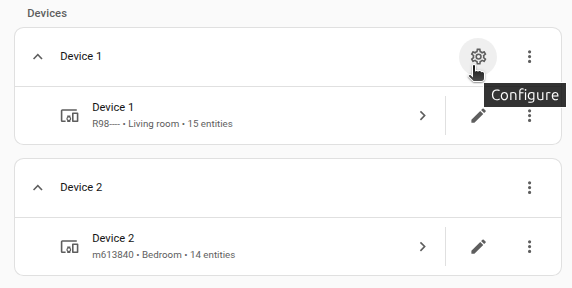
On the card, select the cogwheel
. - If the card does not have a cogwheel, the integration does not support options for this device.
-
Edit the options, then select Submit to save the changes.
Dynamic configuration
跟踪可配置为跟踪 device_tracker、zone、sensor、input_select、input_text 和 person 类型的实体。如果在 origin 或 destination 中填写实体,每次平台更新时都会使用该实体的最新位置。这意味着系统会尽可能直接使用其位置,或持续解析实体值,直到找到有效坐标。您还可以将多个目的地放入 input_select 的选项中,并将其设为 destination。
- device_tracker
- 如果状态是某个 zone,则使用该 zone 的位置
- 如果状态不是 zone,则查找 longitude 和 latitude 属性
- person
- 如果状态是某个 zone,则使用该 zone 的位置
- 如果状态不是 zone,则查找 longitude 和 latitude 属性
- zone
- 使用 longitude 和 latitude 属性
- sensor
- 如果状态是某个 zone,则使用该 zone 的位置
- 如果状态是另一个实体的名称,则会递归解析实体状态,直到找到有效坐标
- input_select
- 如果状态是某个 zone,则使用该 zone 的位置
- 如果状态是另一个实体的名称,则会递归解析实体状态,直到找到有效坐标
- input_text
- 如果状态是某个 zone,则使用该 zone 的位置
- 如果状态是另一个实体的名称,则会递归解析实体状态,直到找到有效坐标
Updating sensors on-demand using Automation
您也可以使用 homeassistant.update_entity 动作按需更新传感器。例如,如果您希望在工作日早晨每 2 分钟更新一次 sensor.morning_commute,可以使用以下自动化:
如需更详细的自定义轮询间隔设置步骤,请按以下流程操作。
Defining a custom polling interval
If you want to define a specific interval at which your device is polled for data, you can disable the default polling interval and create your own polling automation.
- Go to Settings > Devices & services, and select your integration.
- On the integration entry, select
. - Then, select System options and toggle the button to disable polling.
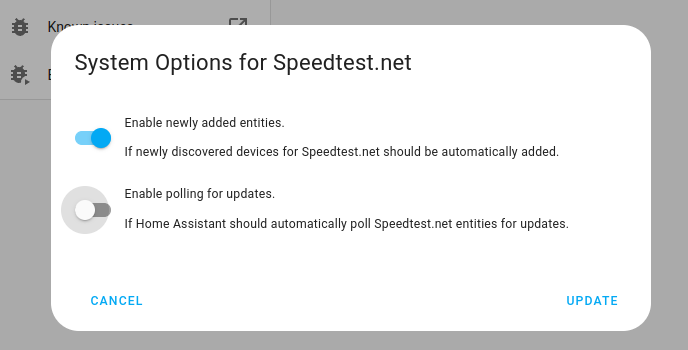
- Then, select System options and toggle the button to disable polling.
- To define your custom polling interval, create an automation.
- Go to Settings > Automations & scenes and create a new automation.
- Define any trigger and condition you like.
- Select Add action, then select Other actions.
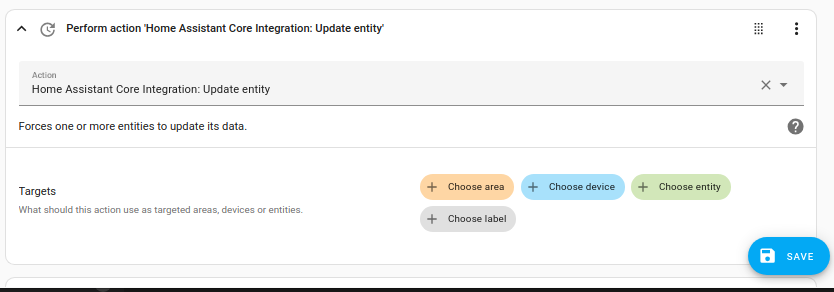
- Select Perform action, and from the list, select the
homeassistant.update_entityaction. - Choose your targets by selecting the Choose area, Choose device, Choose entity, or Choose label buttons.
- Save your new automation to poll for data.