

Event
事件是在某些事情发生时发出的信号,例如用户按下门铃这样的实体按钮,或按下遥控器上的按钮时。
Event 集成为您提供事件实体,它和其他实体集成一样,也会触发状态变化事件。
这些事件不会以传统意义上的状态来表示。例如,门铃并不存在“开”或“关”这样的状态,而是表示它在某个瞬间被按下。有些事件还会区分不同的事件类型,例如您的遥控器可能会发出单击、双击或长按等不同事件。
事件实体可以捕获现实世界中的这些事件,并将其作为实体提供给 Home Assistant 使用。
This event is a building block integration that cannot be added to Home Assistant directly, but is used and provided by other integrations. A building block integration differs from a typical integration that connects to a device or service. Instead, other integrations use this event building block to provide entities, actions, and other functionality that you can use in your automations or dashboards. If one of your integrations uses this building block, this page documents the functionality the event building block offers.
事件实体的状态
事件实体不会记录 On 或 Off 这样的状态。相反,事件实体会记录最近一次检测到该事件的时间戳。
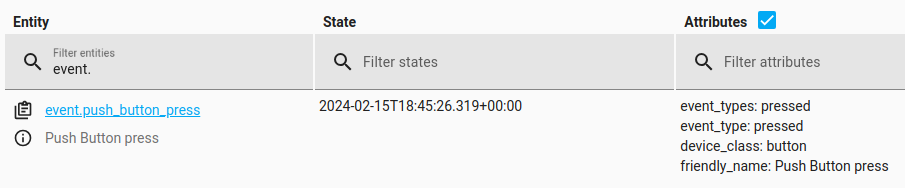 状态值为时间戳、事件类型为 "pressed" 的事件实体。
此外,该实体还可能具有以下状态:
- Unavailable:实体当前不可用。
- Unknown:状态尚未知晓。
由于 Home Assistant 中事件实体的状态是时间戳,因此我们可以在自动化中使用它。例如:
事件类型
除了最近一次事件的时间戳外,事件实体还会记录最近一次发出的事件类型。您可以在自动化中根据事件类型触发不同的操作。
例如,如果您的遥控器支持发出不同类型的事件,您就可以在按下一次或两次时触发不同的操作。
如果结合 choose 动作 脚本,您可以为单个事件实体分配多种不同操作。下面的示例中,短按或长按遥控器按钮会触发不同场景:
在界面的自动化编辑器中创建自动化时,根据您使用的事件实体不同,事件类型会以一个下拉列表的形式提供。这样一来,您不需要记住所有事件类型,也能轻松完成选择。
基于按钮按压执行自动化
本节展示一个与上方 YAML 示例类似的自动化,它同样由事件状态变化触发,但这里演示的是如何在界面中完成设置。要创建一个由按钮按压(或某种按压模式)触发的自动化,请按照以下步骤操作。
前提条件
- 您拥有一个可以接收按钮按压输入的设备,例如 Tuo Smart Button、Inovelli 的 VTM31SN 调光器,或 Innovation Matters 的 Matter Pushbutton Module
- 该设备已经添加到 Home Assistant
创建按钮按压自动化
-
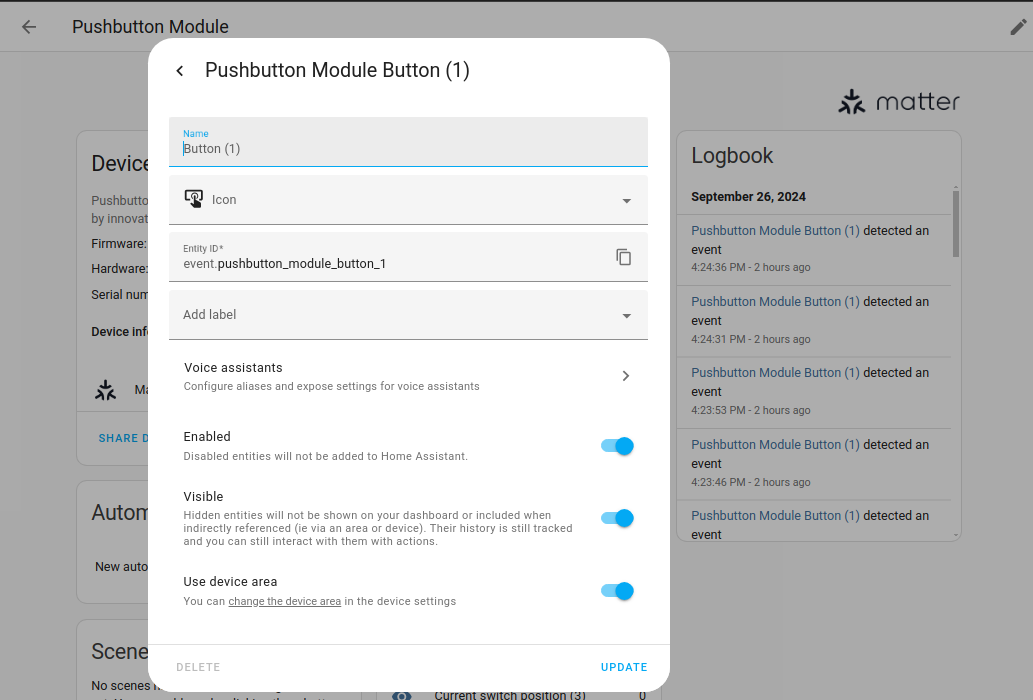
如果您愿意,可以先为按钮事件实体设置一个更易懂的名称。
- 在 Settings > Devices & services 下,选择 Matter 集成卡片,然后选择对应设备。
- 在 Events 卡片中,选择该按钮实体。
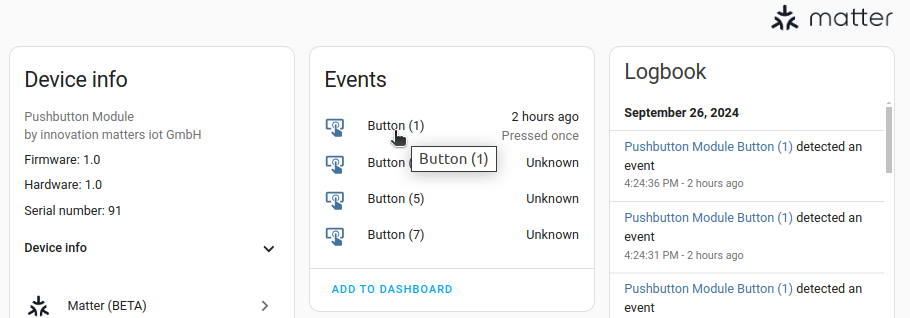
- 在 Name 下,输入新的友好名称。
-
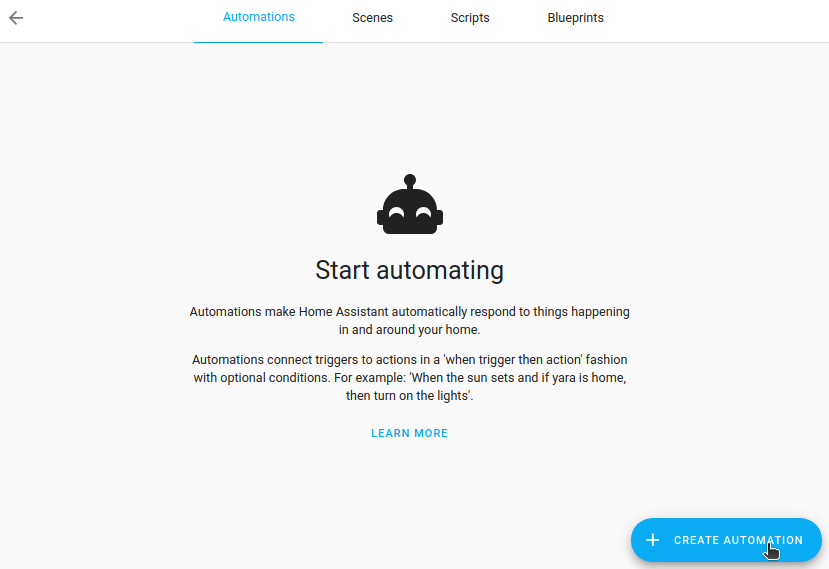
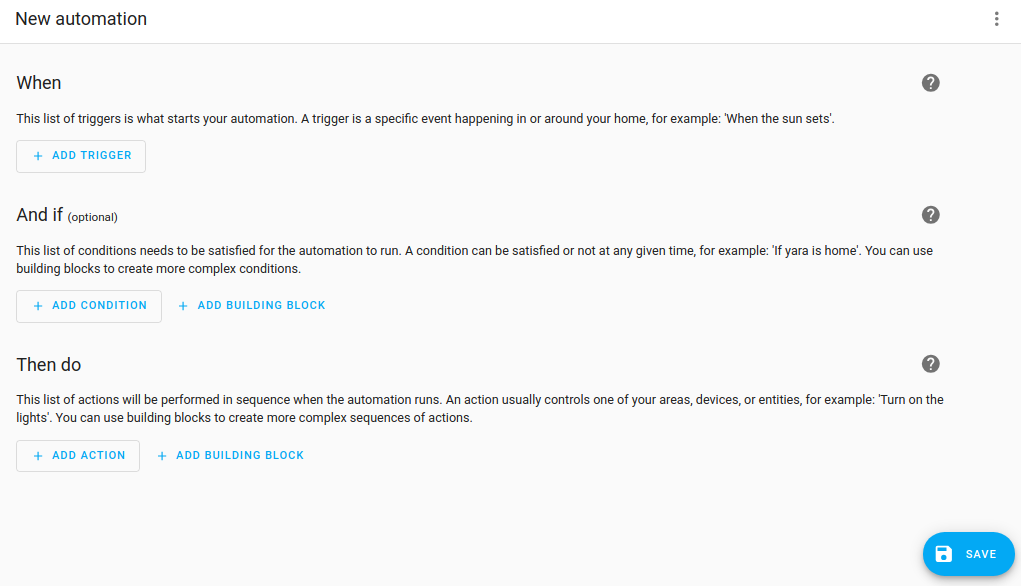
前往 Settings > Automations & scenes,然后选择 Create Automation。
-
然后,选择 Create new automation。这会打开一个空白自动化页面。
-
-
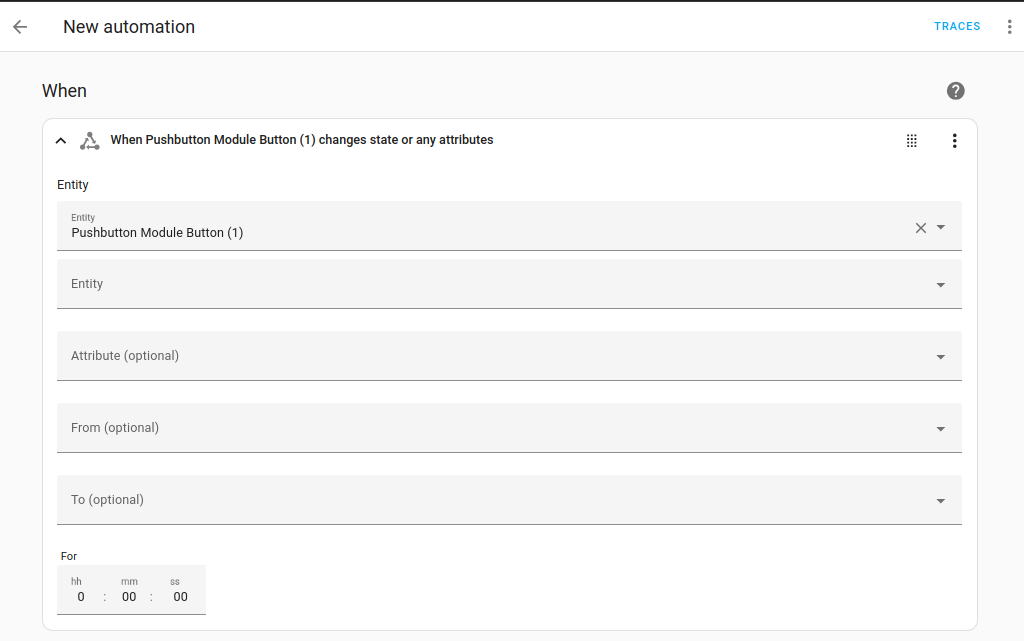
定义自动化的触发条件。
- 选择 Add trigger,然后选择 Entity > State。
- 输入
event并选择您的按钮实体。 - 重要:将其他字段保持为 空白。
-
防止自动化在不可用或未知状态下运行。
-
在刚刚创建的触发器上,选择三点菜单
,然后选择 Edit in YAML。 -
在 YAML 编辑器底部添加以下内容:
-
注意:
not_from部分可防止实体从不可用状态恢复时触发自动化,例如 ESPHome 设备重启完成时。当前这一点无法通过可视化条件编辑器实现。
-
-
定义在什么条件下需要执行操作。
- 在 Then do 下,选择 Add action。
- 输入
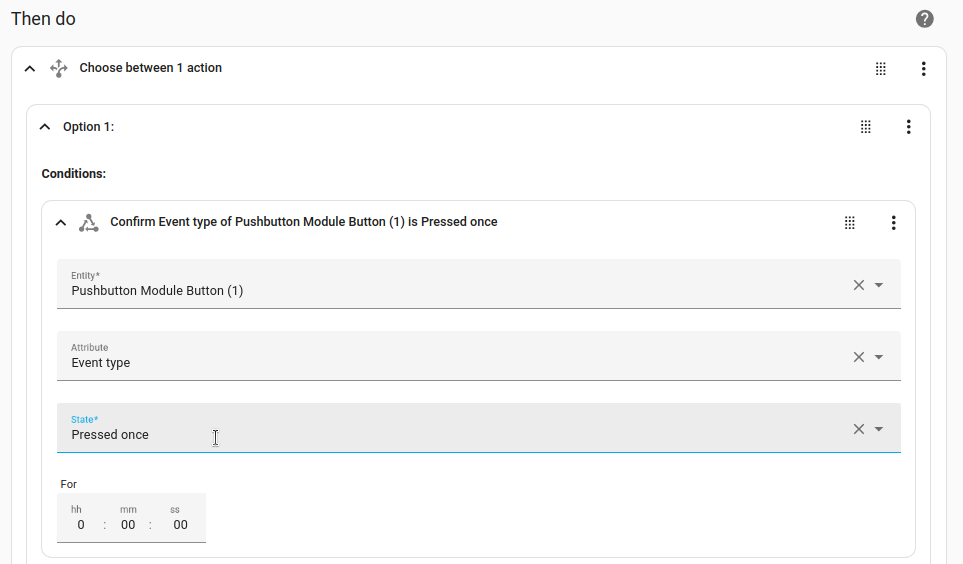
choose并选择 Add condition。 - 选择 Entity > State,并从列表中选择您的按钮事件实体。
- 在 Attribute 下,选择 Event type。
- 在 State 下,选择您希望作为触发条件的事件类型,例如 Pressed once。
- Pressed once 是事件类型,而该事件的状态本身是按钮被按下时的时间戳。这就是为什么我们要基于状态变化来做自动化,这样每次按下按钮时都会被触发。
- Pressed once 是事件类型,而该事件的状态本身是按钮被按下时的时间戳。这就是为什么我们要基于状态变化来做自动化,这样每次按下按钮时都会被触发。
-
定义自动化被触发时需要执行的操作,例如按钮被按下时。
- 选择 Add action 并设置您的操作。
-
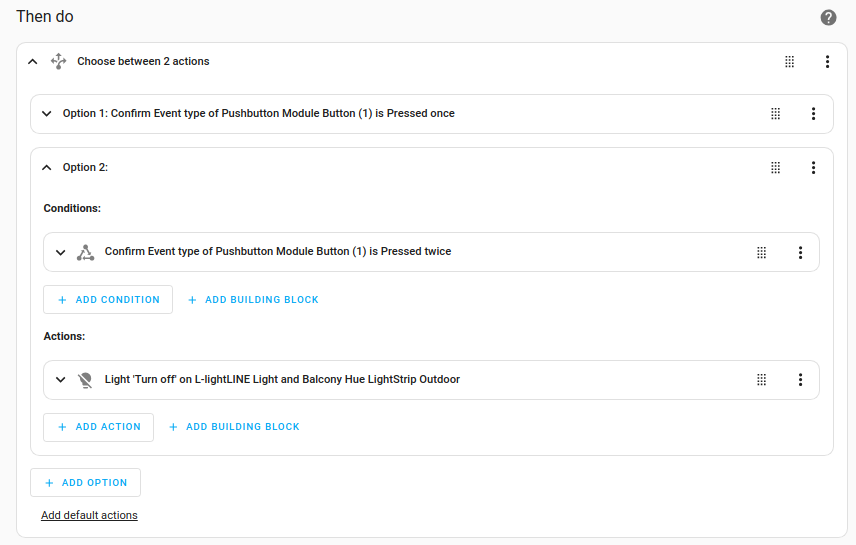
对于每种想要监控的事件类型,重复这些步骤。
- 在这个示例中,我们希望在按钮被按两次时执行其他操作。
- 在这个示例中,我们希望在按钮被按两次时执行其他操作。
-
Save 该自动化。
设备类别
A device class is a measurement categorization in Home Assistant. It influences how the entity is represented in the dashboard. This can be modified in the customize section. For example, different states may be represented by different icons, colors, or text.
下图展示了表示事件实体设备类别的不同图标:
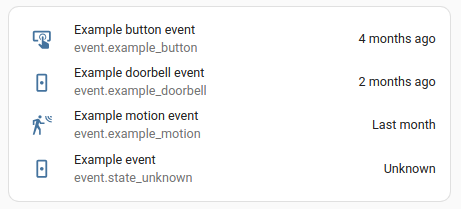 事件实体不同设备类别图标的示例。
事件实体支持以下设备类别:
- None:通用事件。这是默认值,无需设置。
- button:用于遥控器按钮。
- doorbell:专用于作为门铃使用的按钮。
- motion:用于运动传感器检测到的运动事件。
视频教程
这段详细的视频教程介绍了事件在 Home Assistant 中的工作方式,以及您如何设置 Emulated Roku,以便使用实体遥控器控制媒体播放器。