Android TV Remote
Android TV Remote 集成允许您控制 Android TV 并启动应用程序。为此,Android TV 设备需要安装 Android TV Remote Service,该服务在大多数设备上已预装(Fire TV 设备是一个明显的例外)。
有关如何开始使用 Android TV Remote 的快速介绍,请观看此视频:
配置
此集成可通过 UI 配置。前往 设置 > 设备与服务 添加。
Options
To define options for Android TV Remote, follow these steps:
-
In Home Assistant, go to Settings > Devices & services.
-
If multiple instances of Android TV Remote are configured, choose the instance you want to configure.
-
On the card, select the cogwheel .
- If the card does not have a cogwheel, the integration does not support options for this device.
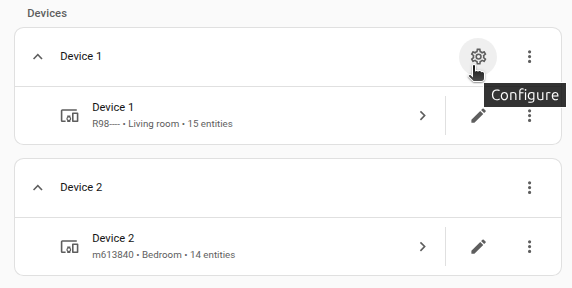
-
Edit the options, then select Submit to save the changes.
Configure Applications List:
  description: 在这里您可以定义应用程序,其中键是应用程序 ID,值是将显示在 UI 中的应用程序名称和图标。
Enable IME:
  description: 启用此选项可以获取当前应用程序名称并以键盘输入方式发送文本。对于显示"使用移动设备屏幕上的键盘"而不是屏幕键盘的设备,请禁用此选项。
媒体播放器
此集成添加了一个具有基本播放和音量控制功能的 media_player。媒体播放器提供音量信息和 Android TV 上当前活动应用程序的显示名称。由于 API 限制,集成不会显示播放状态。建议将此集成与 Google Cast 集成一起使用。可以使用 Universal Media Player 集成将两个媒体播放器合并为一个。有关更多详细信息,请参阅与 Google Cast 配合使用部分。
使用 media_player.play_media 动作,您可以通过 Deep Links 启动应用程序、切换频道和启动活动。仅支持 app、url 和 channel 媒体类型。
启动应用程序
如果 Android TV 设备安装了 Google Play Store,您可以直接通过应用程序 ID(包名)启动任何应用程序。
该应用程序不需要存在于 Google Play Store 中。
如果存在,您可以在应用程序的 Google Play Store 页面 URL 中找到应用程序 ID。
例如,如果应用程序页面的 URL 是 play.google.com/store/apps/details?id=com.example.app123,则应用程序 ID 是 com.example.app123。
当您在设备上启动应用程序时,应用程序 ID 也会显示在媒体播放器卡片中。
热门应用程序的应用程序 ID 示例:
示例:
# 启动 YouTube 应用程序
action: media_player.play_media
data:
  media:
    media_content_type: app
    media_content_id: com.google.android.youtube.tv
target:
  entity_id: media_player.living_room_tv
启动活动
或者,如果设备没有 Google Play Store,或者您想在应用程序中打开特定活动,您可以传递某些应用程序支持的深层链接。
热门应用程序的深层链接示例:
示例:
# 打开特定的 YouTube 视频:
action: media_player.play_media
data:
  media:
    media_content_type: url
    media_content_id: https://www.youtube.com/watch?v=dQw4w9WgXcQ
target:
  entity_id: media_player.living_room_tv
切换频道
您可以传递频道号来切换频道。频道号必须是整数。
示例:
# 切换到第 15 频道:
action: media_player.play_media
data:
  media:
    media_content_type: channel
    media_content_id: 15
target:
  entity_id: media_player.living_room_tv
与 Google Cast 配合使用
Android TV Remote 集成提供有关设备电源状态的信息,并使您能够控制播放。但是,它不提供有关当前播放内容的信息(媒体标题、持续时间、播放/暂停状态等)。相反,Google Cast 集成不提供有关设备电源状态的可靠信息(例如在 Android TV 主屏幕上),也不允许在没有 MediaSession 支持的 Android 应用程序中控制播放。但是,它可以显示支持的应用程序中正在播放内容的完整信息。为方便起见,您可以使用 Universal Media Player 集成将两个媒体播放器合并为一个。Universal Media Player 将自动选择适当的活动媒体播放器实体。
YAML 配置示例
将 media_player.living_room_tv_remote 替换为您的 Android TV Remote 媒体播放器实体 ID。
将 media_player.living_room_tv_cast 替换为您的 Google Cast 媒体播放器实体 ID。
media_player:
  - platform: universal
    name: living_room_tv
    unique_id: living_room_tv
    device_class: tv
    children:
      - media_player.living_room_tv_remote
      - media_player.living_room_tv_cast
    browse_media_entity: media_player.living_room_tv_cast
    commands:
      turn_off:
        action: media_player.turn_off
        data:
          entity_id: media_player.living_room_tv_remote
      turn_on:
        action: media_player.turn_on
        data:
          entity_id: media_player.living_room_tv_remote
      volume_up:
        action: media_player.volume_up
        data:
          entity_id: media_player.living_room_tv_remote
      volume_down:
        action: media_player.volume_down
        data:
          entity_id: media_player.living_room_tv_remote
远程控制
远程控制允许您使用 remote.send_command 动作向 Android TV 设备发送按键命令和文本作为输入。
该实体具有 current_activity 属性,显示 Android TV 上当前的前景应用程序。
您可以将此 current_activity 中显示的应用程序 ID 作为 activity 传递给 remote.turn_on 动作以启动该应用程序。
最常用命令列表
导航:
- DPAD_UP
- DPAD_DOWN
- DPAD_LEFT
- DPAD_RIGHT
- DPAD_CENTER
- BUTTON_A
- BUTTON_B
- BUTTON_X
- BUTTON_Y
- BACK
音量控制:
- VOLUME_DOWN
- VOLUME_UP
- VOLUME_MUTE
- MUTE
媒体控制:
- MEDIA_PLAY_PAUSE
- MEDIA_PLAY
- MEDIA_PAUSE
- MEDIA_NEXT
- MEDIA_PREVIOUS
- MEDIA_STOP
- MEDIA_RECORD
- MEDIA_REWIND
- MEDIA_FAST_FORWARD
电视控制:
- 0
- 1
- 2
- 3
- 4
- 5
- 6
- 7
- 8
- 9
- DEL
- ENTER
- CHANNEL_UP
- CHANNEL_DOWN
- F1
- F2
- F3
- F4
- F5
- F6
- F7
- F8
- F9
- F10
- F11
- F12
- TV
- PROG_RED
- PROG_GREEN
- PROG_YELLOW
- PROG_BLUE
其他:
- BUTTON_MODE
- EXPLORER
- MENU
- HOME
- INFO
- GUIDE
- TV_TELETEXT
- CAPTIONS
- DVR
- MEDIA_AUDIO_TRACK
- SETTINGS
- SEARCH
- ASSIST
- POWER
要以键盘输入方式发送文本,请使用 remote.send_command 并在要发送的文本前加上 text: 前缀,例如 command: text:hello world 将在选定的输入字段中输入"hello world"。
如果在 remote.turn_on 中指定了 activity,它将打开指定的 URL 或具有给定包名的应用程序。请参阅启动应用程序部分。
示例动作:
# 在 Android TV 上打开当前选定的项目
action: remote.send_command
data:
  command: DPAD_CENTER
target:
  entity_id: remote.living_room_tv
# 在 Android TV 上长按当前选定的项目
action: remote.send_command
data:
  command: DPAD_CENTER
  hold_secs: 0.5
target:
  entity_id: remote.living_room_tv
# 将"Never Gonna Give You Up"作为键盘输入文本发送到选定的输入字段
action: remote.send_command
data:
  command: text:Never Gonna Give You Up
target:
  entity_id: remote.living_room_tv
# 启动 YouTube
action: remote.turn_on
data:
  activity: https://www.youtube.com
target:
  entity_id: remote.living_room_tv
# 打开特定的 YouTube 视频:
action: remote.turn_on
data:
  activity: https://www.youtube.com/watch?v=dQw4w9WgXcQ
target:
  entity_id: remote.living_room_tv
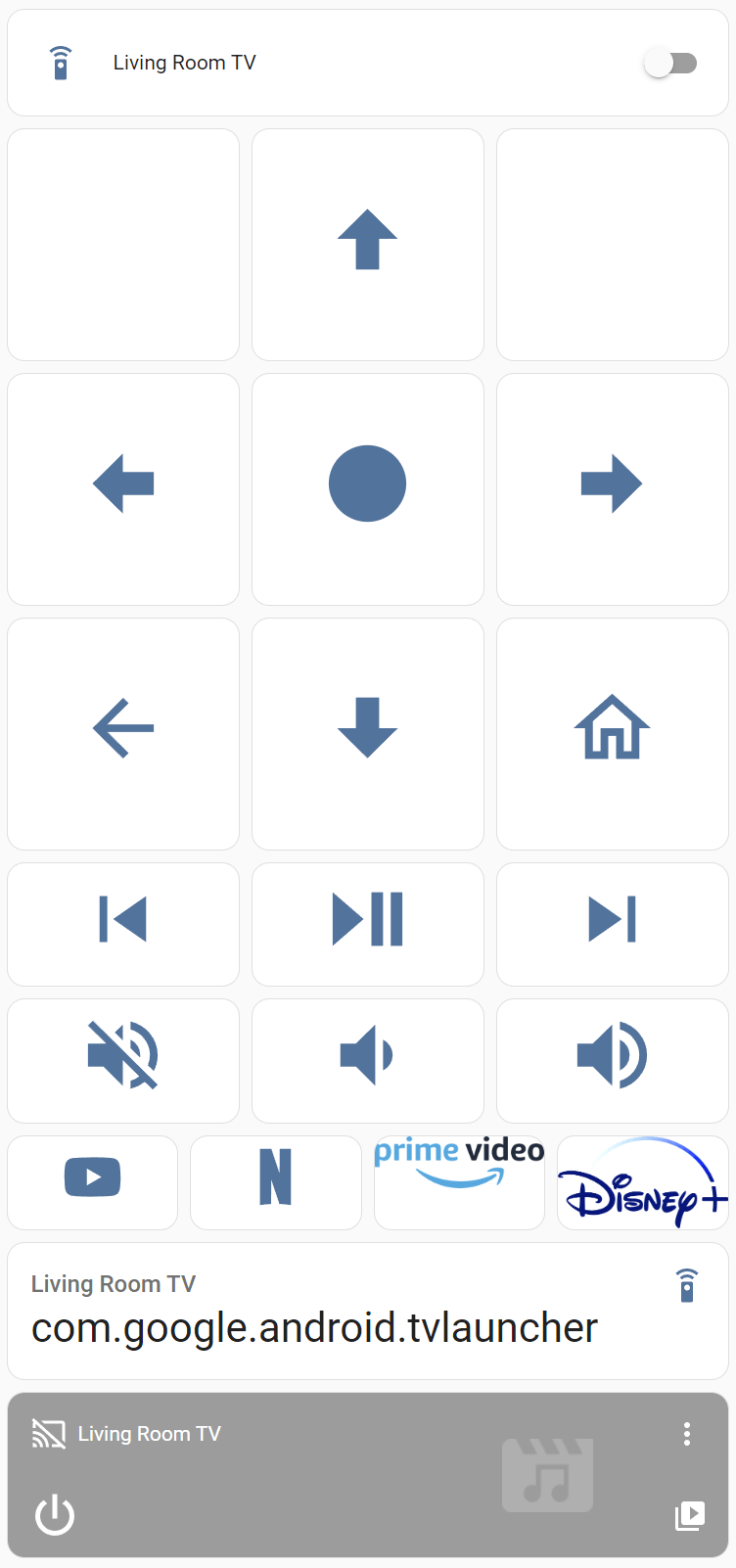
仪表板示例
您必须在 Lovelace 中手动创建按钮以向 Android TV 设备发送命令或在其上启动应用程序。
以下是一个示例供您开始使用。许多按钮支持长按。
YAML Lovelace 示例
添加一个手动卡片,代码如下。
将所有 living_room_tv 实例替换为您的实体 ID。
- 要使用"全部替换"功能,请在代码编辑器中按
ctrl+F(或在 Mac 上按 command+F)。
type: vertical-stack
cards:
  - type: entities
    entities:
      - entity: remote.living_room_tv
  - square: true
    columns: 3
    type: grid
    cards:
      - type: button
        show_icon: false
        tap_action:
          action: none
        hold_action:
          action: none
      - type: button
        icon: mdi:arrow-up-bold
        tap_action:
          action: perform-action
          perform_action: remote.send_command
          data:
            command: DPAD_UP
          target:
            entity_id: remote.living_room_tv
        hold_action:
          action: none
      - type: button
        show_icon: false
        tap_action:
          action: none
        hold_action:
          action: none
      - type: button
        icon: mdi:arrow-left-bold
        tap_action:
          action: perform-action
          perform_action: remote.send_command
          data:
            command: DPAD_LEFT
          target:
            entity_id: remote.living_room_tv
        hold_action:
          action: none
      - type: button
        icon: mdi:circle
        tap_action:
          action: perform-action
          perform_action: remote.send_command
          data:
            command: DPAD_CENTER
          target:
            entity_id: remote.living_room_tv
        hold_action:
          action: perform-action
          perform_action: remote.send_command
          data:
            command: DPAD_CENTER
            hold_secs: 0.5
          target:
            entity_id: remote.living_room_tv
      - type: button
        icon: mdi:arrow-right-bold
        tap_action:
          action: perform-action
          perform_action: remote.send_command
          data:
            command: DPAD_RIGHT
          target:
            entity_id: remote.living_room_tv
        hold_action:
          action: none
      - type: button
        icon: mdi:arrow-left
        tap_action:
          action: perform-action
          perform_action: remote.send_command
          data:
            command: BACK
          target:
            entity_id: remote.living_room_tv
        hold_action:
          action: perform-action
          perform_action: remote.send_command
          data:
            command: BACK
            hold_secs: 0.5
          target:
            entity_id: remote.living_room_tv
      - type: button
        icon: mdi:arrow-down-bold
        tap_action:
          action: perform-action
          perform_action: remote.send_command
          data:
            command: DPAD_DOWN
          target:
            entity_id: remote.living_room_tv
        hold_action:
          action: none
      - type: button
        icon: mdi:home-outline
        tap_action:
          action: perform-action
          perform_action: remote.send_command
          data:
            command: HOME
          target:
            entity_id: remote.living_room_tv
        hold_action:
          action: perform-action
          perform_action: remote.send_command
          data:
            command: HOME
            hold_secs: 0.5
          target:
            entity_id: remote.living_room_tv
  - square: false
    columns: 3
    type: grid
    cards:
      - type: button
        icon: mdi:skip-previous
        tap_action:
          action: perform-action
          perform_action: remote.send_command
          data:
            command: MEDIA_PREVIOUS
          target:
            entity_id: remote.living_room_tv
        hold_action:
          action: perform-action
          perform_action: remote.send_command
          data:
            command: MEDIA_REWIND
          target:
            entity_id: remote.living_room_tv
      - type: button
        icon: mdi:play-pause
        tap_action:
          action: perform-action
          perform_action: remote.send_command
          data:
            command: MEDIA_PLAY_PAUSE
          target:
            entity_id: remote.living_room_tv
        hold_action:
          action: perform-action
          perform_action: remote.send_command
          data:
            command: MEDIA_STOP
          target:
            entity_id: remote.living_room_tv
      - type: button
        icon: mdi:skip-next
        tap_action:
          action: perform-action
          perform_action: remote.send_command
          data:
            command: MEDIA_NEXT
          target:
            entity_id: remote.living_room_tv
        hold_action:
          action: perform-action
          perform_action: remote.send_command
          data:
            command: MEDIA_FAST_FORWARD
          target:
            entity_id: remote.living_room_tv
      - type: button
        icon: mdi:volume-off
        tap_action:
          action: perform-action
          perform_action: remote.send_command
          data:
            command: MUTE
          target:
            entity_id: remote.living_room_tv
        hold_action:
          action: none
      - type: button
        icon: mdi:volume-medium
        tap_action:
          action: perform-action
          perform_action: remote.send_command
          data:
            command: VOLUME_DOWN
          target:
            entity_id: remote.living_room_tv
        hold_action:
          action: none
      - type: button
        icon: mdi:volume-high
        tap_action:
          action: perform-action
          perform_action: remote.send_command
          data:
            command: VOLUME_UP
          target:
            entity_id: remote.living_room_tv
        hold_action:
          action: none
  - square: false
    columns: 4
    type: grid
    cards:
      - type: button
        icon: mdi:youtube
        tap_action:
          action: perform-action
          perform_action: remote.turn_on
          data:
            activity: https://www.youtube.com
          target:
            entity_id: remote.living_room_tv
        hold_action:
          action: none
      - type: button
        icon: mdi:netflix
        tap_action:
          action: perform-action
          perform_action: remote.turn_on
          data:
            activity: com.netflix.ninja
          target:
            entity_id: remote.living_room_tv
        hold_action:
          action: none
      - type: picture
        image: >-
          https://upload.wikimedia.org/wikipedia/commons/thumb/1/11/Amazon_Prime_Video_logo.svg/450px-Amazon_Prime_Video_logo.svg.png
        tap_action:
          action: perform-action
          perform_action: remote.turn_on
          data:
            activity: com.amazon.amazonvideo.livingroom
          target:
            entity_id: remote.living_room_tv
        hold_action:
          action: none
      - type: picture
        image: >-
          https://upload.wikimedia.org/wikipedia/commons/thumb/3/3e/Disney%2B_logo.svg/440px-Disney%2B_logo.svg.png
        tap_action:
          action: perform-action
          perform_action: remote.turn_on
          data:
            activity: com.disney.disneyplus
          target:
            entity_id: remote.living_room_tv
        hold_action:
          action: none
  - type: entity
    entity: remote.living_room_tv
    attribute: current_activity
  - type: media-control
    entity: media_player.living_room_tv
限制和已知问题
- 该集成不适用于 Fire TV 设备,因为它们缺少 Android TV Remote Service。尝试侧载它并未成功。
- 如果您无法使用 Google TV 移动应用或 Google Home 移动应用向设备发送命令,您也无法使用此集成发送命令。
- 命令在 Netflix 上不起作用。它们在 Google TV 移动应用或 Google Home 移动应用上也不起作用。
- 某些设备(如 Xiaomi)在关机后会变得不可用,无法使用此集成开机。
- 某些设备(如 TCL)在关机后会变得不可用,除非您激活无屏服务。要激活它,请转到 设置 > 系统 > 电源和能耗 > 无屏服务,并将其激活。
- 某些设备每 15 秒会断开连接一次。这通常可以通过在集成初始设置后重新启动 Android TV 设备来解决。
- 如果您无法连接到 Android TV 设备,或者被要求一次又一次地配对,请尝试强制停止 Android TV Remote Service 并清除其存储。在 Android TV 设备上,转到 设置 > 应用 > 显示系统应用。然后,选择 Android TV Remote Service > 存储 > 清除存储。您需要重新配对。
- 电视制造商启用的某些屏幕键盘不支持同时使用虚拟键盘和屏幕键盘。每当选择文本字段时(例如"搜索"),会一直显示使用移动设备上的键盘,阻止您打开屏幕键盘进行输入。这可以通过禁用第三方键盘并使用默认的 Gboard 键盘,或在集成的配置页面中取消选择启用 IME来解决。
- 如果您无法打开 Nvidia Shield 设备,请转到 设置 > 遥控器和配件 > 简化唤醒按钮,并禁用以下选项:SHIELD 2019 遥控器:仅电源和 Netflix 按钮唤醒和控制器:仅 NVIDIA 或徽标按钮唤醒。
数据更新
Android TV 设备直接向 Home Assistant 推送数据,实现设备状态变化(如电源状态、音量和当前活动应用程序)的即时更新。但媒体播放器实体具有假设的播放状态,因为 Android TV Remote API 不提供播放状态。
移除集成
To remove an integration instance from Home Assistant
- Go to Settings > Devices & services and select the integration card.
- From the list of devices, select the integration instance you want to remove.
- Next to the entry, select the three-dot menu. Then, select Delete.

