Amcrest
Amcrest 集成允许您将 Amcrest 或 Dahua IP 摄像头或门铃集成到 Home Assistant 中。
目前 Home Assistant 支持以下设备类型:
配置
要在您的系统中启用摄像头,请将以下内容添加到您的 "configuration.yaml" 文件中。
:::tip
更改配置后需要重启 Home Assistant。
:::
# 示例 configuration.yaml 条目
amcrest:
  - host: IP_ADDRESS_CAMERA
    username: YOUR_USERNAME
    password: YOUR_PASSWORD
host:
  description: >
    摄像头的 IP 地址或主机名。
    如果使用主机名,请确保 DNS 正常工作。
  required: true
  type: string
username:
  description: 访问摄像头的用户名。大多数 Amcrest 设备使用 "admin" 作为用户名,即使在应用程序中配置了其他用户名。
  required: true
  type: string
password:
  description: 访问摄像头的密码。
  required: true
  type: string
name:
  description: >
    此参数允许您覆盖摄像头的名称。在多摄像头设置中,
    强烈建议使用此参数,因为如果没有分配名称,摄像头 ID 号将在每次重启时随机更改。
  required: false
  type: string
  default: Amcrest Camera
port:
  description: 摄像头运行的端口。
  required: false
  type: integer
  default: 80
resolution:
  description: >
    此参数允许您指定摄像头分辨率。
    对于高分辨率(1080/720p),指定选项 `high`。
    对于 VGA 分辨率(640x480p),指定选项 `low`。
  required: false
  type: string
  default: high
stream_source:
  description: >
    实时流的数据源。`mjpeg` 将使用摄像头的原生 MJPEG 流,
    而 `snapshot` 将使用摄像头的快照 API 从静态图像创建流。
    您也可以设置 `rtsp` 选项以通过 RTSP 协议生成流。
  required: false
  type: string
  default: snapshot
ffmpeg_arguments:
  description: >
    传递给 FFmpeg 的额外选项,例如
    图像质量或视频过滤选项。
  required: false
  type: string
  default: -pred 1
authentication:
  description: >
    定义仅当 `stream_source` 为 `mjpeg` 时使用的身份验证方法。
    目前,`aiohttp` 仅支持 `basic`。
  required: false
  type: string
  default: basic
scan_interval:
  description: 定义传感器的更新间隔(秒)。
  required: false
  type: integer
  default: 10
binary_sensors:
  description: >
    要在前端显示的条件。
    可以监控以下条件:
  required: false
  type: list
  default: None
  keys:
    audio_detected:
      description: "检测到音频时返回 `on`,未检测到时返回 `off`。要使用此功能,您必须在摄像头界面中的设置 > 事件 > 音频检测下启用它。使用流式传输方法(见[下文](#streaming-vs-polled-binary-sensors))。"
    audio_detected_polled:
      description: "检测到音频时返回 `on`,未检测到时返回 `off`。要使用此功能,您必须在摄像头界面中的设置 > 事件 > 音频检测下启用它。使用轮询方法(见[下文](#streaming-vs-polled-binary-sensors))。"
    motion_detected:
      description: "检测到移动时返回 `on`,未检测到时返回 `off`。大多数摄像头默认启用移动检测,如果此功能不工作,请检查设置 > 事件 > 视频检测中是否已启用。使用流式传输方法(见[下文](#streaming-vs-polled-binary-sensors))。"
    motion_detected_polled:
      description: "检测到移动时返回 `on`,未检测到时返回 `off`。大多数摄像头默认启用移动检测,如果此功能不工作,请检查设置 > 事件 > 视频检测中是否已启用。使用轮询方法(见[下文](#streaming-vs-polled-binary-sensors))。"
    crossline_detected:
      description: "检测到越线时返回 `on`,未检测到时返回 `off`。使用流式传输方法(见[下文](#streaming-vs-polled-binary-sensors))。"
    crossline_detected_polled:
      description: "检测到越线时返回 `on`,未检测到时返回 `off`。使用轮询方法(见[下文](#streaming-vs-polled-binary-sensors))。"
    online:
      description: "摄像头可用(即响应命令)时返回 `on`,不可用时返回 `off`。"
sensors:
  description: >
    要在前端显示的条件。
    可以监控以下条件:
  required: false
  type: list
  default: None
  keys:
    sdcard:
      description: 通过报告总空间和已用空间来返回 SD 卡使用情况。
    ptz_preset:
      description: >
        返回为给定摄像头配置的 PTZ 预设位置数量。
switches:
  description: 控制摄像头某些方面的开关。
  required: false
  type: list
  default: None
  keys:
    privacy_mode:
      description: 控制摄像头的隐私模式功能(如果支持)。
control_light:
  description: >
    自动控制摄像头的指示灯,如果音频或视频流启用则打开,如果两个流都禁用则关闭。
  required: false
  type: boolean
  default: true
注意: 使用较新固件的 Amcrest 摄像头已不再支持通过 MJPEG 编码传输 high 高清视频。您可能需要改用 low 分辨率视频流,或使用 snapshot 作为流来源。如果画质看起来太差,请在摄像头配置管理器中降低 Frame Rate (FPS),并尽量调高 Bit Rate 设置。如果您将 stream_source 设为 mjpeg,请确认您的摄像头支持 Basic HTTP 身份验证。较新的 Amcrest 固件可能无法正常工作,此时建议改用 rtsp。
注意: 如果您将 stream_source 选项设为 rtsp,请确保按照 FFmpeg 文档中的步骤安装 ffmpeg。
流式与轮询式二值传感器
某些二值传感器提供两种工作方式可选:流式或轮询式。流式方式响应更快,且网络流量更少,因为摄像头会在传感器状态变化时主动通知 Home Assistant。轮询模式则会定期查询摄像头(每五秒一次)以检查传感器状态。因此,流式通常是更好的选择。不过,某些摄像头型号和固件版本似乎没有正确实现流式方式,因此也提供了轮询模式。建议您先尝试流式模式(如 motion_detected);如果无法正常工作,比如持续报错,再改用轮询模式(如 motion_detected_polled)。
事件
加载后,当 Amcrest 集成从摄像头发送的视频流中接收到事件通知时,它会生成对应的 Home Assistant 事件。只有当摄像头型号和固件实现了流式方式时,这才可用(参见上文)。事件类型为 amcrest,数据如下:
{
  "camera": "<触发事件的摄像头名称>",
  "event": "<Amcrest 特定的事件代码>",
  "payload": {
    <设备通过流式协议发送的 JSON 编码内容>
  }
 }
事件代码由 Amcrest 或 Dahua 设备通过负载中的 Code 成员发送。为了便于在自动化中匹配事件,这个代码也会复制到 data 中更上层的 event 成员。
动作
加载后,amcrest 集成会公开可调用的动作,以执行多种操作。动作属性 entity_id 可指定一个或多个摄像头实体,也可以使用 all 指定所有已配置的 Amcrest 摄像头。
可用动作:
enable_audio, disable_audio,
enable_motion_recording, disable_motion_recording,
enable_recording, disable_recording,
goto_preset, set_color_bw,
start_tour, stop_tour,以及
ptz_control
动作:启用音频 / 禁用音频
amcrest.enable_audio 和 amcrest.disable_audio 动作允许您启用或禁用摄像头的音频流。
动作:启用移动录像 / 禁用移动录像
amcrest.enable_motion_recording 和 amcrest.disable_motion_recording 动作允许您启用或禁用摄像头在检测到移动时录制片段到已配置的存储位置。
动作:启用录像 / 禁用录像
amcrest.enable_recording 和 amcrest.disable_recording 动作允许您启用或禁用摄像头持续录制到已配置存储位置的功能。
动作:转到预设位
amcrest.goto_preset 动作允许您将摄像头移动到设备中配置的某个 PTZ 预设位置。
动作:设置彩色 / 黑白模式
amcrest.set_color_bw 动作允许您设置摄像头的颜色模式。
动作:开始巡航 / 停止巡航
amcrest.start_tour 和 amcrest.stop_tour 动作允许您启动或停止摄像头的 PTZ 巡航功能。
动作:PTZ 控制
如果您的 Amcrest 或 Dahua 摄像头支持 PTZ,amcrest.ptz_control 动作允许您控制摄像头进行水平转动、俯仰或缩放。
注意事项
- PTZ 缩放功能不能控制可变焦镜头的调节
- 视频画面(快照或实时画面)反映摄像头移动可能会有几秒延迟
带控制按钮的示例卡片
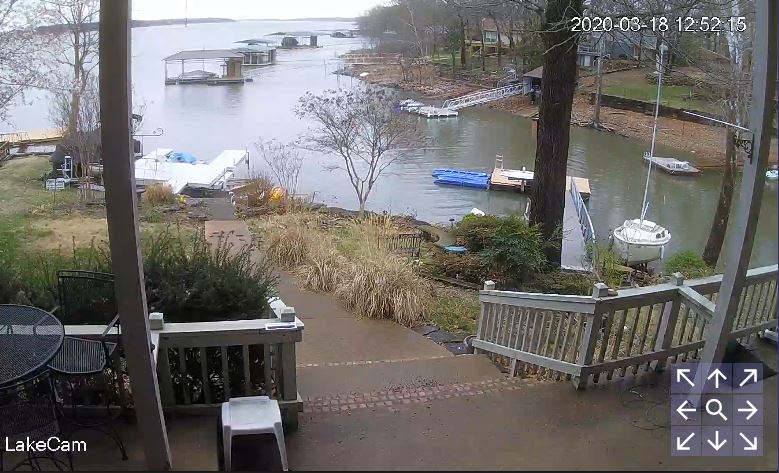 示例展示了一台 Amcrest IP2M-841 PT 摄像头,以及用于水平和俯仰控制的按钮。
使用以下 picture-elements 卡片代码,您可以显示 Amcrest 摄像头的实时视频流,并提供移动或缩放摄像头的控制按钮。
type: picture-elements
entity: camera.lakehouse
camera_image: camera.lakehouse
camera_view: live   # 或使用 auto 显示快照视图
elements:
  - type: icon
    icon: "mdi:arrow-up"
    style:
      background: "rgba(255, 255, 255, 0.25)"
      right: 25px
      bottom: 50px
    tap_action:
      action: perform-action
      perform_action: amcrest.ptz_control
      service_data:
        entity_id: camera.lakehouse
        movement: up
  - type: icon
    icon: "mdi:arrow-down"
    style:
      background: "rgba(255, 255, 255, 0.25)"
      right: 25px
      bottom: 0px
    tap_action:
      action: perform-action
      perform_action: amcrest.ptz_control
      service_data:
        entity_id: camera.lakehouse
        movement: down
  - type: icon
    icon: "mdi:arrow-left"
    style:
      background: "rgba(255, 255, 255, 0.25)"
      right: 50px
      bottom: 25px
    tap_action:
      action: perform-action
      perform_action: amcrest.ptz_control
      service_data:
        entity_id: camera.lakehouse
        movement: left
  - type: icon
    icon: "mdi:arrow-right"
    style:
      background: "rgba(255, 255, 255, 0.25)"
      right: 0px
      bottom: 25px
    tap_action:
      action: perform-action
      perform_action: amcrest.ptz_control
      service_data:
        entity_id: camera.lakehouse
        movement: right
  - type: icon
    icon: "mdi:arrow-top-left"
    style:
      background: "rgba(255, 255, 255, 0.25)"
      right: 50px
      bottom: 50px
    tap_action:
      action: perform-action
      perform_action: amcrest.ptz_control
      service_data:
        entity_id: camera.lakehouse
        movement: left_up
  - type: icon
    icon: "mdi:arrow-top-right"
    style:
      background: "rgba(255, 255, 255, 0.25)"
      right: 0px
      bottom: 50px
    tap_action:
      action: perform-action
      perform_action: amcrest.ptz_control
      service_data:
        entity_id: camera.lakehouse
        movement: right_up
  - type: icon
    icon: "mdi:arrow-bottom-left"
    style:
      background: "rgba(255, 255, 255, 0.25)"
      right: 50px
      bottom: 0px
    tap_action:
      action: perform-action
      perform_action: amcrest.ptz_control
      service_data:
        entity_id: camera.lakehouse
        movement: left_down
  - type: icon
    icon: "mdi:arrow-bottom-right"
    style:
      background: "rgba(255, 255, 255, 0.25)"
      right: 0px
      bottom: 0px
    tap_action:
      action: perform-action
      perform_action: amcrest.ptz_control
      service_data:
        entity_id: camera.lakehouse
        movement: right_down
  - type: icon
    icon: "mdi:magnify"
    style:
      background: "rgba(255, 255, 255, 0.25)"
      bottom: 25px
      right: 25px
    tap_action:
      action: perform-action
      perform_action: amcrest.ptz_control
      service_data:
        entity_id: camera.lakehouse
        movement: zoom_in
    hold_action:
      action: perform-action
      perform_action: amcrest.ptz_control
      data:
        entity_id: camera.lakehouse
        movement: zoom_out
高级配置
您也可以使用以下更高级的配置示例:
# 示例 configuration.yaml 条目
amcrest:
  - host: IP_ADDRESS_CAMERA_1
    username: YOUR_USERNAME
    password: YOUR_PASSWORD
    binary_sensors:
      - motion_detected
      - crossline_detected
      - online
    sensors:
      - sdcard

  # 添加第二个摄像头
  - host: IP_ADDRESS_CAMERA_2
    username: YOUR_USERNAME
    password: YOUR_PASSWORD
    name: Amcrest Camera 2
    resolution: low
    stream_source: snapshot
    sensors:
      - ptz_preset
检测 AD110 和 AD410 门铃按钮按下的自动化示例
在自动化中使用此触发器,可以检测门铃呼叫按钮被按下,并基于此创建自动化。
# 示例 automations.yaml 条目
alias: "Doorbell Pressed"
description: "当 Amcrest 按钮按下事件触发时执行"
triggers:
  - trigger: event
    event_type: amcrest
    event_data:
      event: "CallNoAnswered"
      payload:
        action: "Start"
actions:
  - type: flash
    entity_id: light.living_room
    domain: light
要检查您的 Amcrest 摄像头是否受支持或已测试,请访问 python-amcrest 项目的支持矩阵。

