

图片实体卡片
图片实体卡片会以图片形式显示一个实体。除了使用 URL 图片外,它还可以显示 camera 实体的画面。
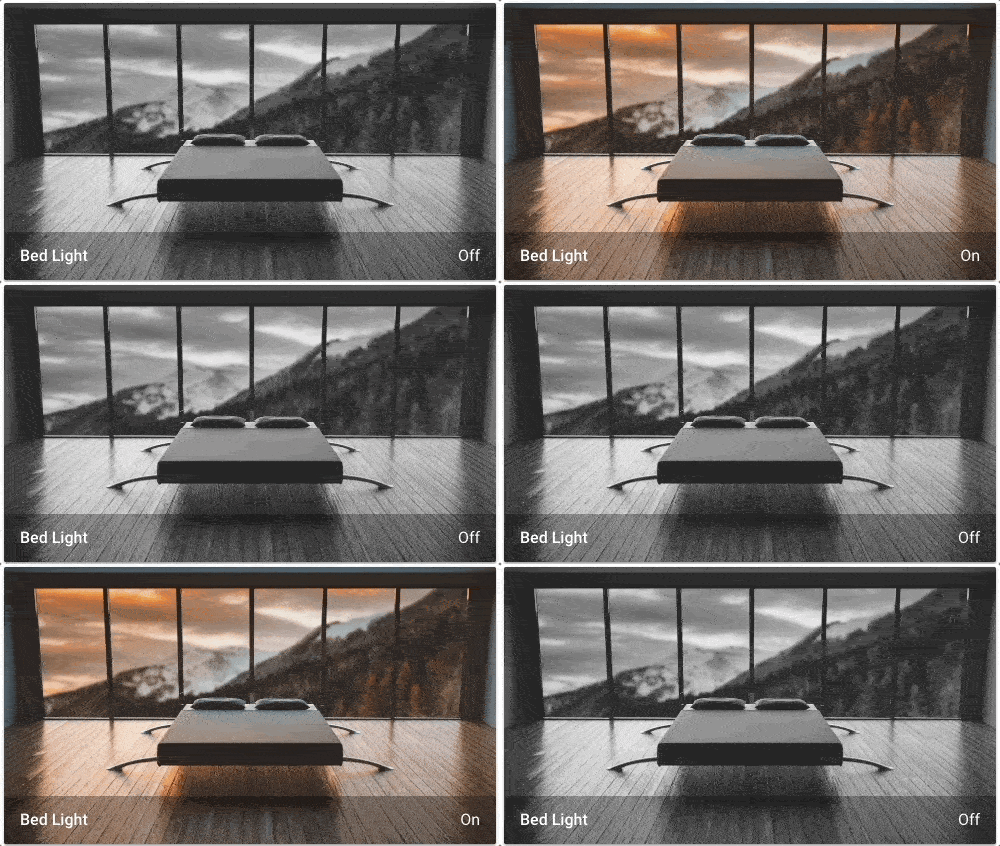 背景会根据实体状态变化。
添加图片实体卡片到仪表盘
-
要添加卡片,请按照从视图添加卡片中的步骤 1-4 操作。
- 在步骤 2 中,于 按卡片 选项卡中选择图片实体。
-
添加图片:
- 上传图片 让您可以从用于显示 Home Assistant UI 的系统中选择一张图片。
- 本地路径 让您可以选择存储在 Home Assistant 上的图片。例如:
/homeassistant/images/lights_view_background_image.jpg。- 要在 Home Assistant 上存储图片,您需要配置文件访问权限,例如通过 Samba 或 Studio Code Server 应用(以前称为插件)。
- 网页 URL 让您可以使用网络上的图片。例如
https://www.home-assistant.io/images/frontpage/assist_wake_word.png。
-
定义图片实体卡片特有的参数。
- 有关特定设置的说明,请参阅 YAML 配置部分中的描述。
- 这些设置同样适用于 UI。
-
保存您的更改。
YAML 配置
当您使用 YAML 模式,或只是更喜欢在 UI 的代码编辑器中使用 YAML 时,可以使用以下 YAML 选项。
type:
required: true
description: "picture-entity"
type: string
实体:
required: true
description: "用于图片的摄像头、图片或人员 entity_id。"
type: string
camera_image:
required: false
description: "要使用的摄像头 entity_id。(如果 entity 已经是摄像头实体,则不需要。)"
type: string
camera_view:
required: false
description: '如果启用了 stream,live 将显示实时视图。'
default: auto
type: string
image:
required: false
description: 图片 URL。要使用本地托管的图片,请参阅 托管,或者为媒体内容使用 media-source:// URL。
type: string
state_image:
required: false
description: "将实体状态映射到图片(state: image URL,请参阅下方示例)。"
type: map
state_filter:
required: false
description: '基于状态的 CSS 滤镜'
type: map
aspect_ratio:
required: false
description: '强制图片高度按照宽度比例显示。有效格式:高度百分比值(23%)或用冒号或 "x" 分隔的比例(16:9 或 16x9)。对于比例,第二个元素可以省略,默认值为 "1"(1.78 等于 1.78:1)。'
type: string
fit_mode:
required: false
description: '定义图片如何拉伸或裁剪以适应卡片区域。cover:图片保持纵横比并填满给定尺寸,图片会被裁剪以适应。contain:图片保持纵横比,但会缩放以适应给定尺寸。fill:图片会缩放以填满给定尺寸。如有需要,图片会被拉伸或压缩以适应。'
type: string
default: 遮盖
name:
required: false
description: 覆盖友好名称。可以是字符串,或名称配置对象。请参阅命名文档。
type: [string, map, list]
show_name:
required: false
description: 在页脚中显示名称。
type: boolean
default: true
show_state:
required: false
description: 在页脚中显示状态。
type: boolean
default: true
theme:
required: false
description: 使用任何已加载的主题覆盖此卡片所用的主题。有关主题的更多信息,请参阅前端文档。
type: string
tap_action:
required: false
description: 点击卡片时执行的动作。请参阅动作文档。
type: map
hold_action:
required: false
description: 长按卡片时执行的动作。请参阅动作文档。
type: map
double_tap_action:
required: false
description: 双击卡片时执行的动作。请参阅动作文档。
type: map
如何使用 state_filter
指定不同的 CSS 滤镜
示例
基本示例:
为每种状态显示不同的图片(支持本地、网页或 media-source:// URL):
显示来自 FFmpeg 摄像头的实时画面:
文件名需要是您系统中 Home Assistant 具有写入权限的路径。您可能还需要配置 allowlist_external_dirs(文档)。