

Markdown 卡片
Markdown 卡片用于渲染 Markdown。
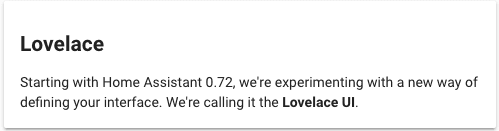 Markdown 卡片截图。
渲染器使用 Marked.js,支持多种 Markdown 规范,包括 CommonMark、GitHub 风格 Markdown(GFM)和 markdown.pl。不支持 HTML 块中的 JavaScript。
要将卡片添加到您的用户界面:
- 在屏幕右上角,选择编辑
按钮。 - 如果这是您第一次编辑仪表盘,会出现 编辑仪表盘 对话框。
- 通过编辑仪表盘,您将接管此仪表盘的控制权。
- 这意味着当新的仪表盘元素可用时,它将不再自动更新。
- 一旦您接管了控制权,您将无法让这个特定仪表盘恢复自动更新。不过,您可以创建一个新的默认仪表盘。
- 要继续,在对话框中选择三个点
菜单,然后选择 接管控制。
- 如果这是您第一次编辑仪表盘,会出现 编辑仪表盘 对话框。
- 添加卡片并自定义动作和功能到您的仪表盘。
YAML 配置
当您使用 YAML 模式,或只是更喜欢在 UI 的代码编辑器中使用 YAML 时,可以使用以下 YAML 选项。
type:
required: true
description: "markdown"
type: string
content:
required: true
description: "要渲染为 Markdown 的内容。可以包含模板。"
type: string
title:
required: false
description: 卡片标题。
type: string
default: none
card_size:
required: false
type: integer
default: none
description: 如果 Markdown 卡片包含模板,卡片排版算法可能难以正确估算高度。您可以使用此值帮助估算卡片高度,单位为 50 像素(约等于默认字号下的 3 行文本),例如 4。
entity_id:
required: false
type: [string, list]
default: none
description: "实体 ID 列表。这样 content: 中的模板仅会在这些实体的状态变化时重新渲染。如果自动分析未能找到所有相关实体,可以使用此项。"
theme:
required: false
description: 使用任何已加载的主题覆盖此卡片所使用的主题。有关主题的更多信息,请参阅前端文档。
type: string
show_empty:
required: false
description: 默认情况下,空卡片仍会显示为一个小空框。将此项设为 false 可隐藏空卡片。
default: true
type: boolean
text_only:
required: false
description: 显示卡片时不带边框、背景、内边距和标题。
default: false
type: boolean
示例
模板变量
卡片的 content 提供了一个特殊模板变量 config,其中包含卡片配置。
例如:
卡片的 content 还提供了一个特殊模板变量 user,其中包含当前登录的用户。
例如:
图标
您可以在卡片的 content 中使用 Material Design Icons 图标。
例如:
ha-alert
您还可以在 Markdown 卡片中使用我们的 ha-alert 组件。
示例:
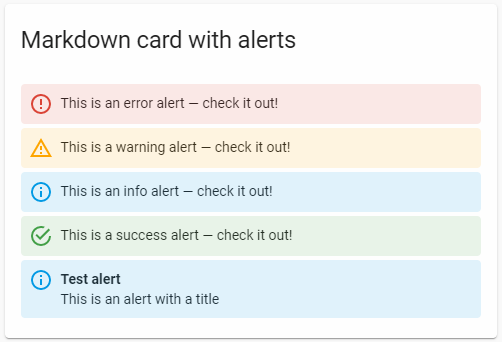 Markdown 卡片中的 ha-alert 元素截图。
ha-qr-code
您还可以在 Markdown 卡片中创建二维码。
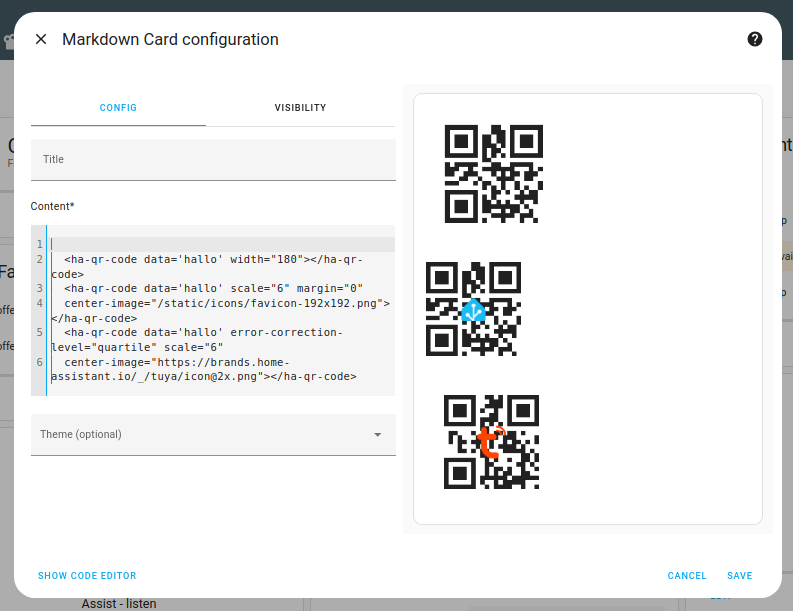 带有二维码的 Markdown 卡片截图。
可用参数:
data:要编码到二维码中的实际数据scale:二维码的缩放因子,默认为4width:二维码宽度(像素)margin:二维码周围的边距error-correction-level:low、medium、quartile或highcenter-image:放置在二维码中央的图像(可能需要更高的error-correction-level)
展示用表格
带有 role="presentation" 的 HTML 表格会获得针对布局用途优化的特殊样式,而不是用于数据展示。这类表格适合创建带有图标、状态信息和格式化内容的结构化布局。
默认样式
标记为 role="presentation" 的表格具有以下特性:
- 默认无边框
- 默认无内边距
- 单元格内容垂直居中对齐
示例:状态卡片
以下示例演示如何创建一个带有图标和多行文本的状态通知: